

Creating a Scaleway Kapsule Cluster
Connect Your Scaleway Account
Qovery needs API credentials to manage resources in your Scaleway account. We use a secure API key approach with granular permissions.Generate API Key
1
Access IAM Console
- Log into Scaleway Console
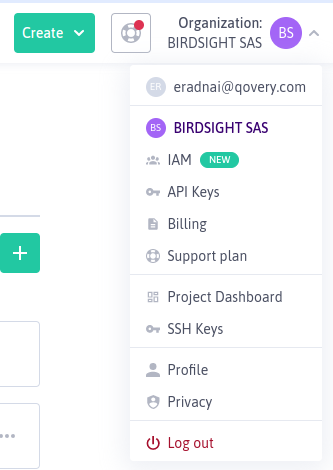
- Click your profile/organization name in the top-right
- Select Identity and Access Management (IAM)
2
Create Application
- Navigate to Applications tab
- Click + Create application
- Name it:
qovery-manageror similar - Description: “Qovery cluster management”
- Click Create application
3
Generate API Key
- Click on your newly created application
- Go to API keys tab
- Click + Generate API key
- Description: “Qovery cluster access”
- Select Object Storage preferred Project (your main project)
- Click Generate API key
- Access key ID:
SCWxxxxxxxxxxxxxxxxx - Secret access key:
xxxxxxxx-xxxx-xxxx-xxxx-xxxxxxxxxxxx
4
Configure Permissions
- Go to Policies tab in IAM
- Click + Create policy
- Name it:
qovery-permissions - Click Add rule for each of these permission sets:
- Containers - Full access (for Kapsule management)
- Network Services - Full access (for VPC, Load Balancers)
- Compute - Full access (for instances)
- Storage - Full access (for persistent volumes)
- VPC - Full access (for networking)
- VPC Gateway - Full access (required if you want to use the Static IP for egress traffic feature)
- Under Principal, attach this policy to your application
- Click Create policy
These permissions allow Qovery to fully manage your Kubernetes infrastructure, including creating instances, configuring networking, and managing storage.
5
Gather Required IDs
You’ll need these identifiers:Organization ID:
- Go to Organization Settings
- Copy the Organization ID (format:
xxxxxxxx-xxxx-xxxx-xxxx-xxxxxxxxxxxx)
- Go to your Project Dashboard
- Click Project settings
- Copy the Project ID (format:
xxxxxxxx-xxxx-xxxx-xxxx-xxxxxxxxxxxx)
Add Credentials to Qovery
1
Start Cluster Creation
- Go to Qovery Console
- Go to your organization overview and click on the Clusters tab
- Click Create Cluster
- Select Scaleway as the cloud provider
2
Enter Credentials
Provide the information you gathered:
- Access Key ID: Your Scaleway access key
- Secret Access Key: Your Scaleway secret key
- Organization ID: Your Scaleway organization ID
- Project ID: Your Scaleway project ID
3
Verify Connection
Qovery will test the credentials and verify it can access your Scaleway account.
If validation fails, double-check your API key has all required permissions attached via the policy.
What permissions does Qovery need?
What permissions does Qovery need?
Qovery requires these Scaleway permissions to manage your infrastructure:
- Containers: Create and manage Kapsule Kubernetes clusters
- Network Services: Configure Load Balancers, DNS, and Public Gateways
- Compute: Provision and manage instances for node pools
- Storage: Create and manage Block Storage volumes for persistent data
- VPC: Configure Private Networks, Security Groups, and network routing
- VPC Gateway: Required only if you enable the Static IP for egress traffic feature
Can I use a custom IAM policy?
Can I use a custom IAM policy?
Yes! You can create a custom IAM policy with more restrictive permissions. However, ensure it includes all the resource types needed for managing Kapsule, networking, compute, and storage. Missing permissions may cause deployment failures.
How do I rotate credentials?
How do I rotate credentials?
To rotate Scaleway credentials:
- In Scaleway Console, go to IAM → Applications
- Find your application (e.g.,
qovery-manager) - Go to API keys tab
- Click + Generate API key to create a new key
- Update credentials in Qovery Console
- Wait 24 hours to ensure all systems use new keys
- Delete the old API key in Scaleway Console
- Set a reminder to rotate again in 90 days
What are the credential formats?
What are the credential formats?
- Access Key ID: Starts with
SCWfollowed by alphanumeric characters - Secret Access Key: UUID format (xxxxxxxx-xxxx-xxxx-xxxx-xxxxxxxxxxxx)
- Organization ID: UUID format
- Project ID: UUID format
Create the Cluster
1
Select Scaleway as Hosting Mode
Click on
Scaleway as hosting mode and then Qovery Managed option.In the Create Cluster window enter:- Cluster name: enter the name of your choice for your cluster.
- Description: enter a description to identify better your cluster.
- Production cluster: select this option if your cluster will be used for production.
- Region: select the geographical area in which you want your cluster to be hosted.
- Credentials: select one of the existing cloud provider credentials or create new credentials.
Next.2
Set Resources
In the
Set Resources window, select:- Instance type: select the type of worker nodes you want to deploy to your cluster.
- Node auto-scaling: define the minimum and the maximum number of worker nodes that your cluster can run. The lowest number is the number of worker nodes running on your infrastructure at any time, while the highest number is the maximum number of worker nodes that can automatically be deployed as traffic grows. Please note that a minimum of 3 worker nodes is required to deploy your Kapsule cluster.
- Control plane type: select the type of control plane managing your cluster. Click here to know more
Next.3
Configure Network
In the To confirm, click
Configure Network window, configure your cluster networking options:- Static IP for egress traffic: Enable this option if your applications need to connect to external services that require IP allowlisting. When enabled, your cluster will use a fixed public IP address for all outbound traffic.
- NAT Gateway type: Select the appropriate gateway size based on your expected outbound traffic requirements:
- VPC-GW-S (Up to 100 Mbps): Small development environments, low traffic
- VPC-GW-M (Up to 1 Gbps): Standard production workloads
- VPC-GW-L (Up to 3 Gbps): High-traffic applications
- VPC-GW-XL (Up to 10 Gbps): Very high-traffic, enterprise workloads
The Static IP feature is useful when connecting to external databases, third-party APIs, or enterprise services that require IP allowlisting. See Scaleway Public Gateway documentation for more details.
Next.4
Create and Install
In the
Ready to install your cluster window, check that the services needed to install your cluster are correct.You can now press the Create and Install button.Your cluster is now displayed in your organization settings, featuring the Installing... status (orange status). Once your cluster is properly installed, its status turns to green and you will be able to deploy your applications on it.You can follow the execution of the action via the cluster status and/or by accessing the Cluster LogsManaging your Cluster Settings
To manage the settings of an existing cluster:1
Open Qovery Console
Open your Qovery Console.
2
Navigate to Cluster Page
On your organization overview, go to the Clusters tab.
3
Access Cluster Settings
Click on your cluster card and go to the Settings tab.
General
TheGeneral tab allows you to define high-level information on your cluster:
Credentials
Here you can manage here the cloud provider credentials associated with your cluster. If you need to change the credentials:- generate a new set of credentials on your cloud provider (Procedure for Scaleway account)
- create the new credential on the Qovery by opening the drop-down and selecting “New Credentials”
Mirroring registry
In this tab, you will see that a container registry already exist (calledregistry-{$UIID}).
This is your cloud provider container registry used by Qovery to manage the deployment of your applications by mirroring the docker images.
The credentials configured on this registry are the one used to create the cluster. But you can still update them if you prefer to manage them separately (dedicated pair of creds just to access the registry).
Check this link for more information.
Network
In the Network tab, you can configure advanced networking options for your Scaleway Kapsule cluster.Static IP for Egress Traffic
By default, Scaleway clusters use random public IPs for outbound traffic. Enable the Static IP for egress traffic option if your applications need to connect to external services that require IP allowlisting. When to use:- External databases with IP-based authentication
- Third-party APIs requiring IP allowlisting
- Enterprise services with strict security policies
- Partner integrations that need stable source IPs
- Navigate to the Network tab in your cluster settings
- Enable Static IP for egress traffic
- Select the appropriate NAT Gateway type based on your traffic requirements
- Click Update to apply the changes
Once enabled, all outbound traffic from your cluster will use the assigned static IP address instead of random IPs. Choose the gateway size that matches your expected outbound traffic volume. For detailed specifications and pricing, see Scaleway Public Gateway documentation and pricing.