

Overview
The Email integration enables you to receive real-time alerts when your services trigger monitoring conditions (CPU, memory, errors, latency, etc.). Configure SMTP settings to send alert notifications directly to your team’s email addresses.Add Email Notification Channel
- Navigate to the Alerting section in the Qovery Console navigation menu
- Click on Notification channel
- Click the New email button in the Email section
- In the New email modal, configure the following fields:
Required Fields
-
Display name: Enter a descriptive name for this notification channel (e.g., “Production Alerts”, “DevOps Team Email”)
This name will be displayed on your Qovery interface
-
To email: The recipient email address that will receive alert notifications (e.g.,
user@example.com) -
From email: The sender email address that will appear in the “From” field (e.g.,
alerts@yourcompany.com)This email address will appear as the sender of alert notifications
SMTP Configuration
Configure your SMTP server settings to send email notifications:-
SMTP Server: Your SMTP server address and port (e.g.,
smtp.gmail.com:587)Format:host:port -
SMTP Username: The username for authenticating with your SMTP server (e.g.,
username@example.com) - SMTP Password: The password for authenticating with your SMTP server
- Require TLS: Enable to force TLS encryption for the SMTP connection (recommended for security)
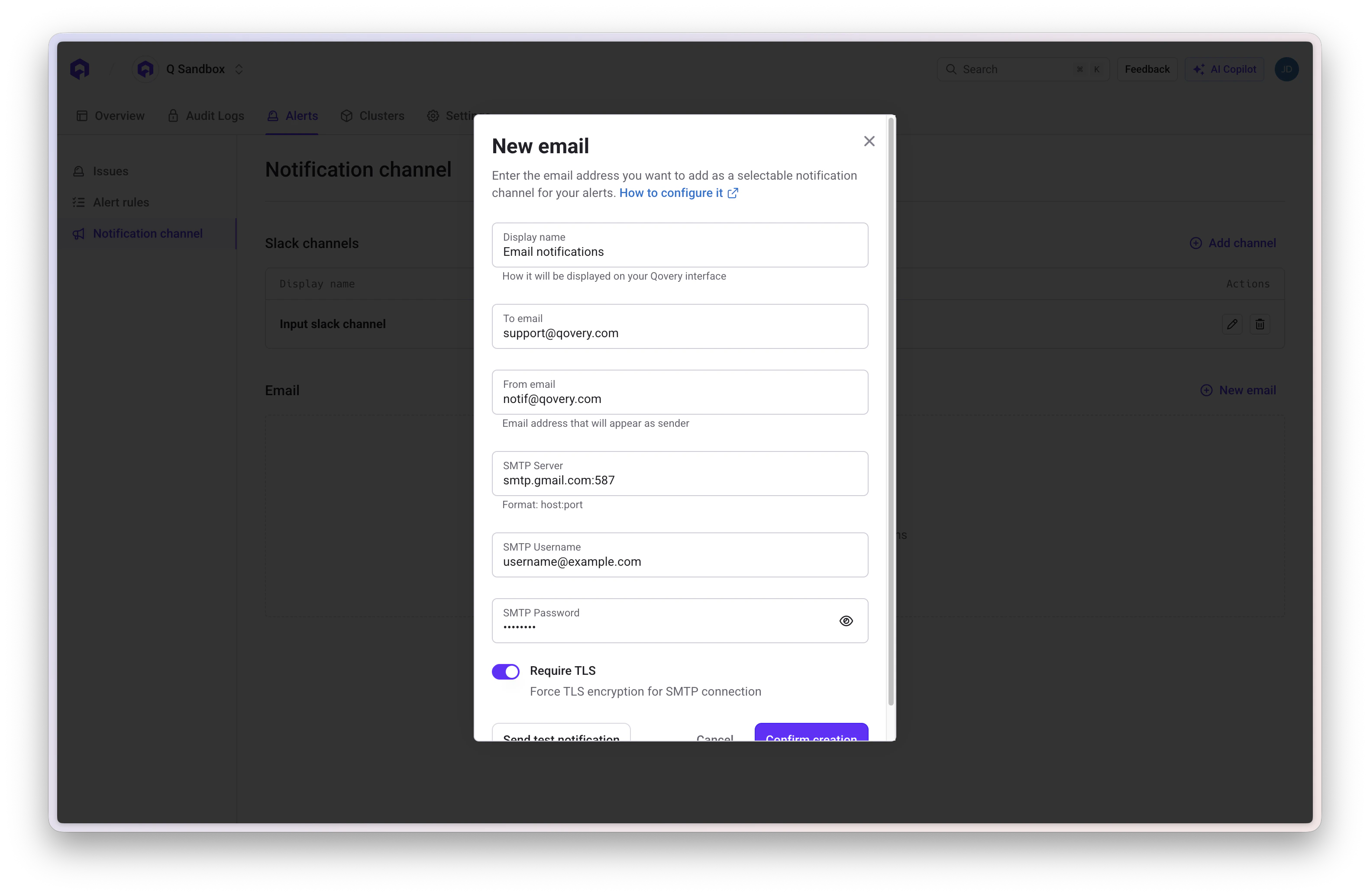
- Click Send test notification to verify your SMTP configuration is working correctly
The test email may take a few minutes to arrive depending on your email provider. Check your inbox and spam folder.
- Click Confirm creation to save the email notification channel
Test the Integration
Create a test alert with a low threshold to verify notifications are sent to your designated email address. See the Alert Conditions guide for details on creating alerts.Troubleshooting
If you’re not receiving emails, check the following:- Verify your SMTP credentials are correct
- Ensure your SMTP server allows connections from Qovery’s IP addresses
- Check if your email provider requires app-specific passwords (e.g., Gmail with 2FA enabled)
- Verify the “From email” address is authorized to send through your SMTP server
- Check your spam/junk folder for test notifications
- Enable TLS if your SMTP provider requires encrypted connections