

Creating a GCP GKE Cluster
Connect Your GCP Account
Qovery needs credentials to manage resources in your GCP project. Choose your preferred method:- Workload Identity Federation (Recommended)
- Service Account JSON Key
Most secure method - Uses short-lived access tokens generated through GCP Workload Identity Federation (WIF). No downloadable service account JSON key is created or stored.What the setup configures: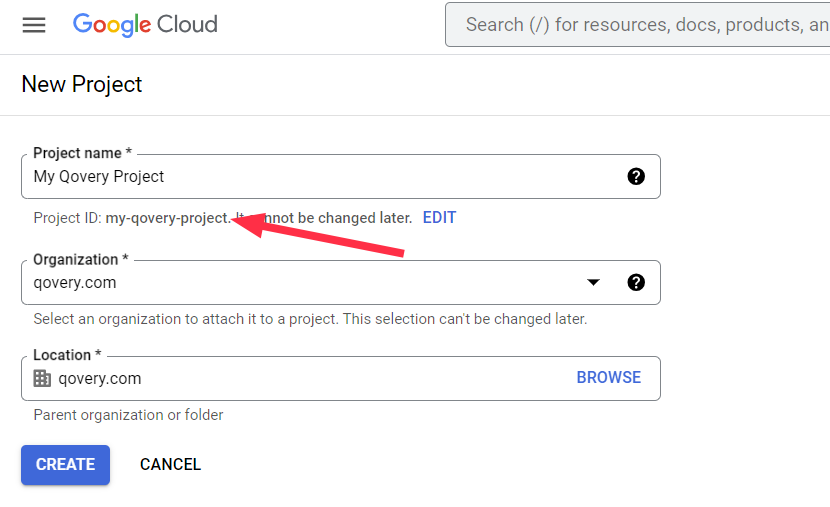
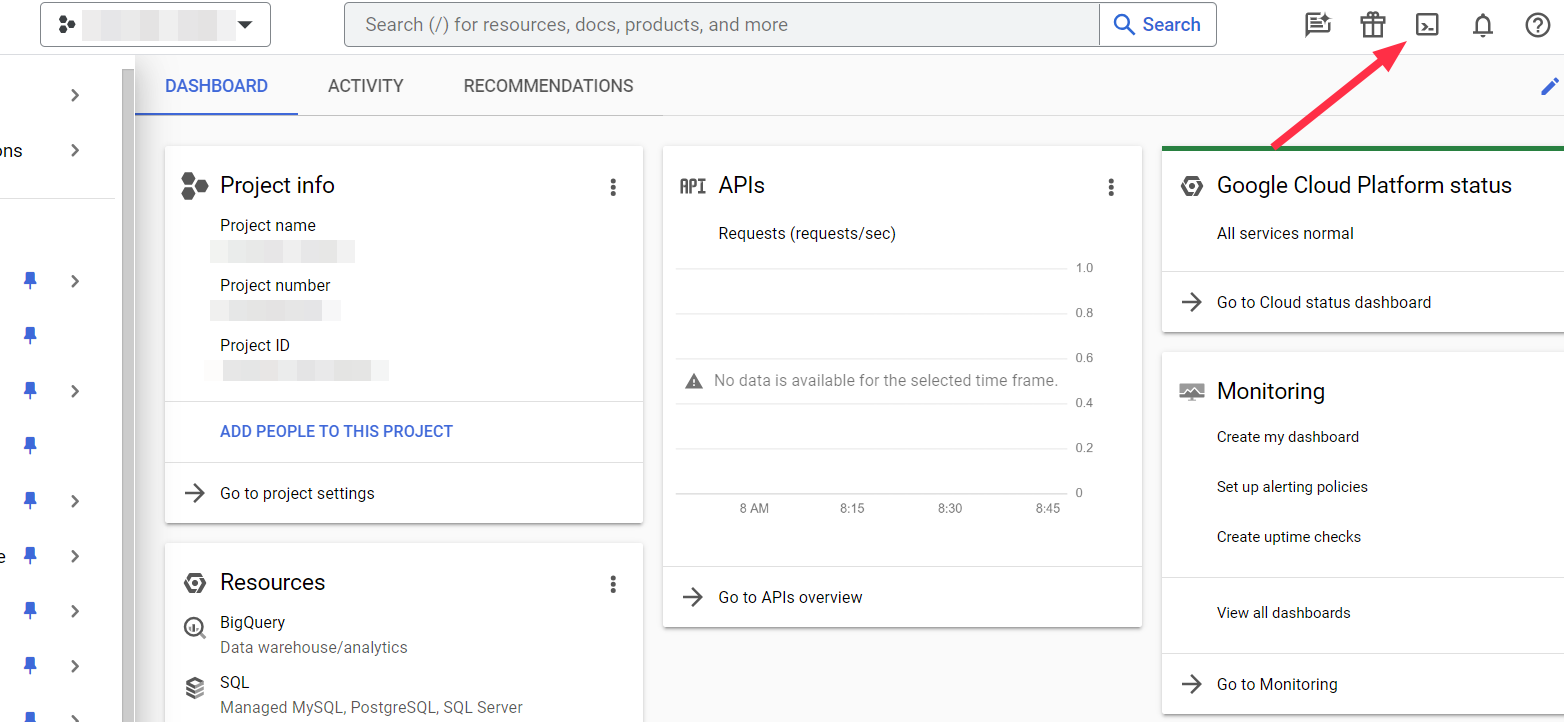
This mode is recommended if your organization disables service account key creation with
constraints/iam.disableServiceAccountKeyCreation.- A GCP service account used by Qovery to manage your GKE resources
- The Qovery custom IAM role, created or updated and bound to this service account
- A Workload Identity Pool
- An AWS Workload Identity Provider that trusts the Qovery AWS deployer identity used by q-core
- A service account impersonation binding (
roles/iam.workloadIdentityUser) - An organization policy entry allowing this service account to receive 4 hour access tokens
Required Permissions
The account running the setup script must have enough permissions to configure both the GCP project and the GCP organization.At the project level, it must be able to:- enable GCP services;
- create or reuse a service account;
- create or update the Qovery custom IAM role and bind it to this service account;
- create or update a Workload Identity Pool and Provider;
- add
roles/iam.workloadIdentityUseron the service account.
constraints/iam.allowServiceAccountCredentialLifetimeExtensionfor the Qovery service account.For this last step, the account needs the Organization Policy Administrator role (roles/orgpolicy.policyAdmin) on the GCP organization, or an organization administrator must run this step for you.Prepare Your GCP Project
1
Create or Select Project
- Go to Google Cloud Console
- Either create a new project or select an existing one
- Ensure billing is enabled for the project
2
Note Your Project ID
Copy your Project ID (not the project name) from the project selector.Example:
my-company-production-123456Generate the Workload Identity Federation Setup Command
1
Start Cluster Creation
- Go to Qovery Console
- Go to Clusters tab
- Click Create Cluster
- Select GCP as the cloud provider
2
Select Workload Identity Federation
Select Workload Identity Federation as the credential method.Qovery will generate a setup command for your GCP project. The command contains only your GCP setup values. The Qovery AWS account and principal to trust are embedded in the setup script, but no Qovery secret is embedded.
3
Copy the Command
Copy the generated command to your clipboard.The command will look like:
The setup script creates or reuses the GCP service account named
YOUR_SERVICE_ACCOUNT_NAME. Always provide this service account name explicitly.Qovery requires 4 hour temporary tokens for GKE operations. The setup script uses default Qovery resource names, resolves the GCP organization ID from YOUR_PROJECT_ID, and configures constraints/iam.allowServiceAccountCredentialLifetimeExtension for the Qovery service account.If your project is not directly attached to an organization, or if the script cannot resolve it, rerun the command with the organization ID as the last argument.Run the Workload Identity Federation Setup Script
1
Open Google Cloud Shell
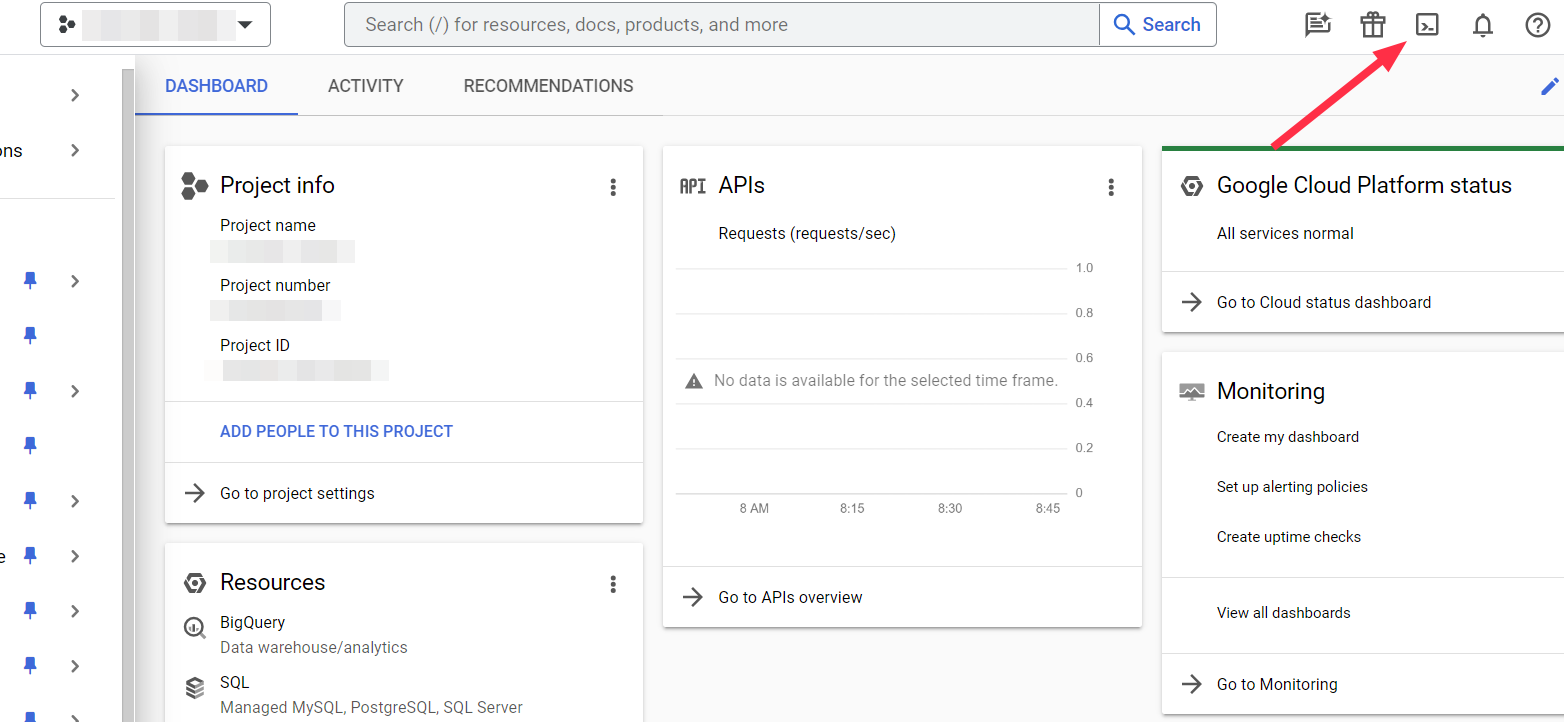
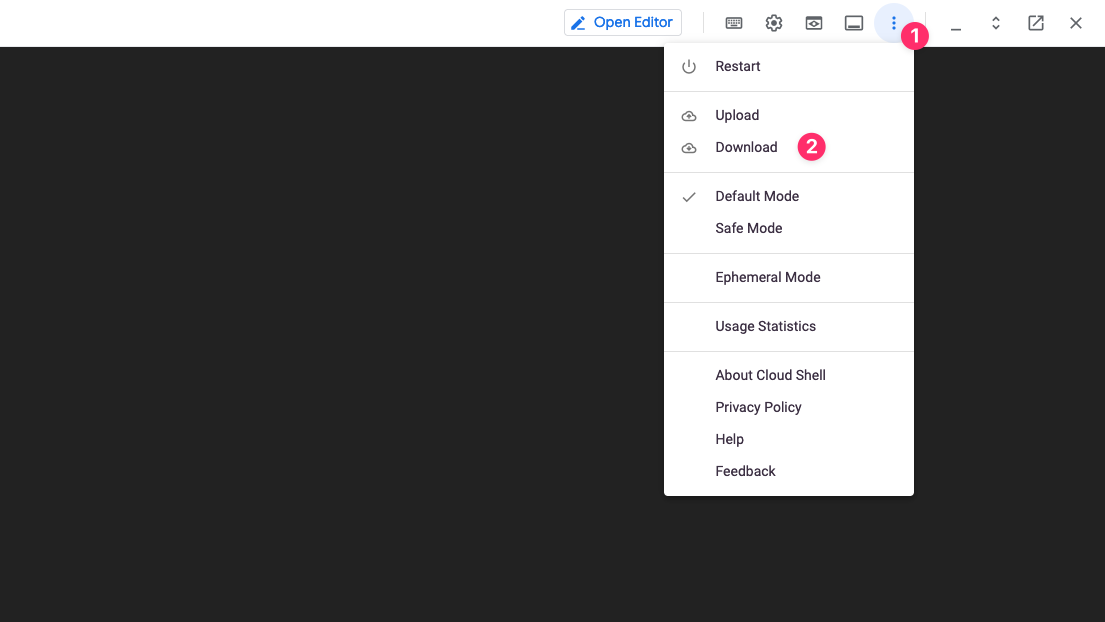
- In Google Cloud Console, click the Cloud Shell icon in the top-right
- Wait for Cloud Shell to initialize
- Ensure you’re in the correct project:
gcloud config get-value project
2
Run the Command
- Paste the command from Qovery into Cloud Shell
- Press Enter
- The script will:
- Enable required GCP APIs
- Create or reuse the Qovery service account
- Create or update the Qovery custom IAM role
- Bind the Qovery custom IAM role to the service account
- Create or reuse the Workload Identity Pool
- Create or update the AWS Workload Identity Provider
- Allow the Qovery AWS identity to impersonate the GCP service account
- Allow this service account to receive 4 hour access tokens
3
Save Workload Identity Federation Credentials in Qovery
Return to Qovery Console and paste the values returned by the script:
- Service account email
- Workload Identity provider resource
Why is this more secure than JSON keys?
Why is this more secure than JSON keys?
Service account JSON keys are long-lived private keys. If they leak, they remain valid until you rotate or delete them.With Workload Identity Federation, Qovery receives short-lived access tokens only. No customer private key is downloaded, uploaded, or stored in Qovery.
What permissions does Qovery need?
What permissions does Qovery need?
The Qovery service account still needs the same GCP permissions required to manage GKE, Compute, networking, Cloud Storage, Artifact Registry, and Cloud Run resources.The same Workload Identity Federation credentials can also be used for GCP Artifact Registry in Qovery, as long as this service account has the required Artifact Registry permissions.For a detailed breakdown of every permission and why it is needed, see the GCP IAM Permissions Reference.
Can I reuse an existing service account?
Can I reuse an existing service account?
Yes. Pass the existing service account name as
YOUR_SERVICE_ACCOUNT_NAME. The script will reuse it, bind the Qovery custom role to it, allow the Qovery AWS deployer identity to impersonate it through roles/iam.workloadIdentityUser, and allow 4 hour access tokens for this service account.Can I keep using JSON keys?
Can I keep using JSON keys?
Yes. Service account JSON keys remain supported for existing installations and organizations that allow service account key creation.However, Workload Identity Federation is recommended for new GCP credentials.
CMEK requirements (optional)
CMEK (Customer-Managed Encryption Key) lets you control the GCP KMS key used to encrypt your cluster’s data at rest instead of relying on Google-managed keys. See GCP documentation for more details. Your key encrypts the following resources:- node boot disks
- etcd data
- storage buckets
- persistent volume claims (PVCs)
Step 1 - Create the key ring and key
Step 2 - Grant required permissions
Three GCP service agents needcryptoKeyEncrypterDecrypter rights on the key.
- Google Cloud Storage Service Agent - encrypts GCS bucket data
- Kubernetes Engine Service Agent - encrypts GKE node boot disks and secrets
- Compute Engine Service Agent - encrypts persistent disks
<KMS_KEY_PROJECT_ID> - the GCP project ID of the project where your KMS key is stored (e.g. my-test-project)<CLUSTER_PROJECT_ID> - the GCP project ID of the project where your GKE cluster is created (e.g. my-test-project)<CLUSTER_PROJECT_NUMBER> - the numeric project number where your cluster is created (find it with gcloud projects describe <CLUSTER_PROJECT_ID> --format="value(projectNumber)")<LOCATION> - the region of your GKE cluster (e.g. europe-west9); the KMS key must be in the same region<KEY_RING> - the name of the key ring containing your KMS key (e.g. my-key-ring)<KEY_NAME> - the name of the KMS key (e.g. my-key)Step 3 - Grant your cluster service account on your KMS key
- Create dedicated role in your KMS Key project:
- Grant your service account on your kms key with the new role:
Step 4 - Set your KMS key on cluster creation
Enable the GKE KMS key option when creating your cluster: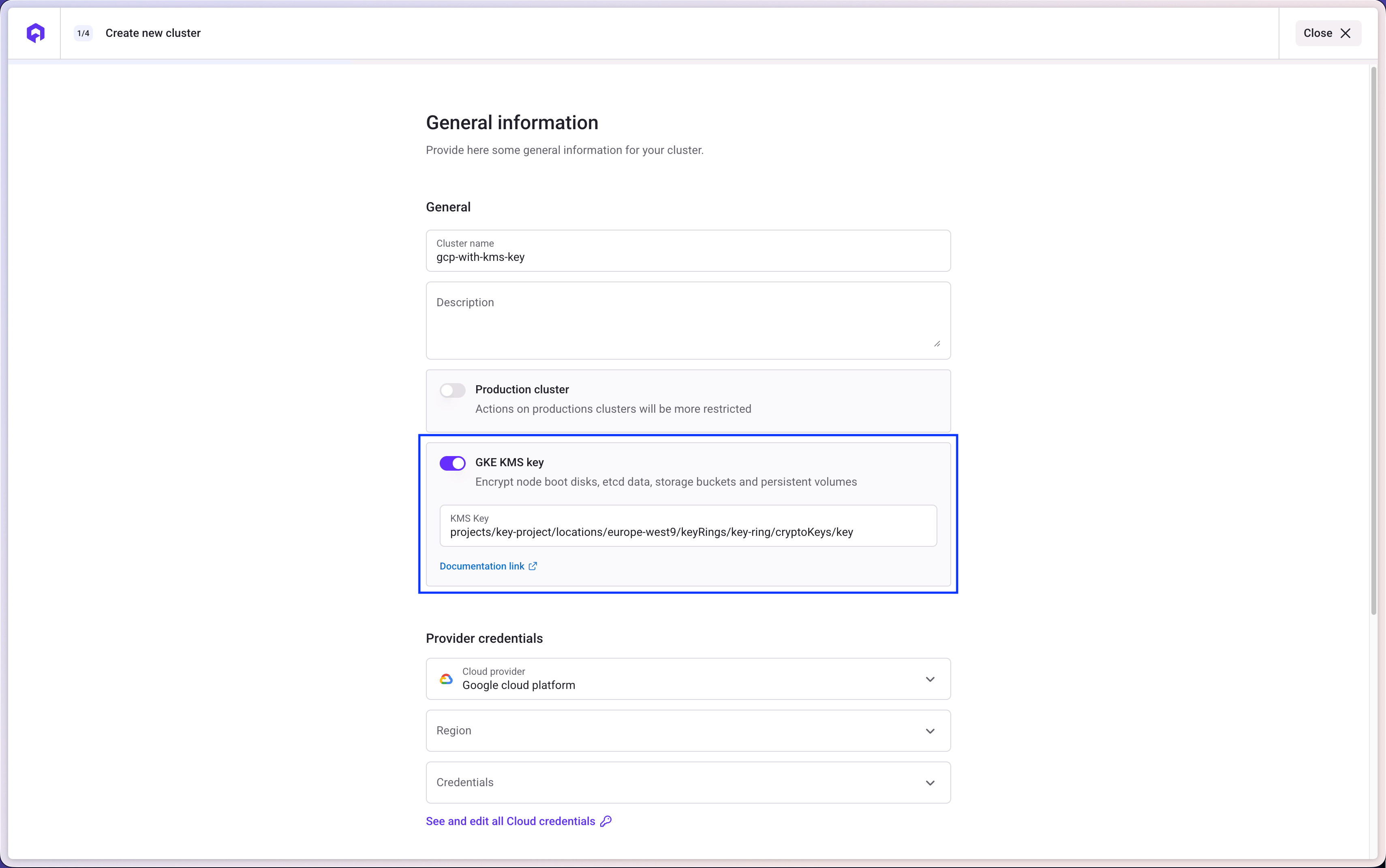
Create the Cluster
1
Select GCP as Hosting Mode
Click on
GCP as hosting mode and then Qovery Managed option.In the Create Cluster window enter:- Cluster name: enter the name of your choice for your cluster.
- Description: enter a description to identify better your cluster.
- Production cluster: select this option if your cluster will be used for production.
- GKE KMS key: (optional) paste the full KMS key resource path created in the CMEK requirements section above (format:
projects/<KMS_KEY_PROJECT_ID>/locations/<LOCATION>/keyRings/<KEY_RING>/cryptoKeys/<KEY_NAME>). - Region: select the geographical area in which you want your cluster to be hosted.
- Credentials: select one of the existing cloud provider credentials or create new credentials.
Next.2
Configure Network
In the Use those two IPs as the source addresses to allowlist with your third-party providers.
Network step, select the network mode you want to enable on your cluster.If you want to manage the network layer of your cluster by yourself, you can switch VPC mode to Deploy on my existing VPC to use your own VPC instead of the one provided by Qovery.- VPC managed by Qovery
- Use your existing VPC
Static IP
The Static IP feature is currently only available to clusters deployed with a VPC managed by Qovery and can only be enabled at cluster creation.By default, when your cluster is created, its worker nodes are allocated public IP addresses, which are used for external communication. For improved security and control, the Static IP feature allows you to ensure that outbound traffic from your cluster uses specific IP addresses.Here is what will be deployed on your cluster:- Cloud Routers
- Cloud NAT gateways
- Auto-allocated Cloud NAT IPs (default) or two reserved external IPs per cluster (opt-in, see below)
Default behavior: auto-allocated Cloud NAT IPs
By default, the Cloud NAT gateways provisioned by Qovery use auto-allocated public IPs managed by GCP. These IPs can rotate over time (for example after maintenance, scaling events, or NAT reconfiguration) and are therefore not suitable for whitelisting with third-party services that require a fixed source IP.Opt-in: stable egress IPs via the NAT Gateway feature
To get stable egress IPs that you can safely allowlist with services like Stripe, payment gateways, or partner APIs, enable static Cloud NAT IPs on the cluster’s NAT Gateway feature. When configuring the NAT Gateway feature on your GKE cluster, set thestaticIpsEnabled option to true (default false). When enabled, the engine reserves two static external IPs (google_compute_address) per cluster and binds them to the Cloud NAT in MANUAL_ONLY mode. These IPs remain stable for the entire lifetime of the cluster.This option is configured alongside the other NAT Gateway parameters via the cluster’s NAT Gateway configuration in the Console, API, or Terraform provider. On the API and Terraform sides the field is named staticIpsEnabled on NatGatewayParameters (serialized as static_ips_enabled on the JSON wire format).Things to know before enabling:
- Cost: each reserved external IP is billed by GCP at about
$0.005/hour(~$3.65per IP per month), so two IPs add roughly$7.30/monthto your GCP bill per cluster. - GCP quota: GCP enforces a default quota of 8 reserved external IPs per region. Make sure your project quota can accommodate 2 IPs per GKE cluster region before enabling.
- Connection capacity: with
MANUAL_ONLY, GCP can no longer scale NAT IPs automatically. Simultaneous outbound connections are hard-capped at2 × 64512 / min_ports_per_vm. For most clusters this is well within the budget, but very high-traffic or multi-tenant clusters should validate.
Finding the reserved IPs once enabled
OncestaticIpsEnabled is on and the cluster has been applied, here is the procedure to find the IPs in the GCP console:- Select the project that hosts your Qovery cluster.
- Go to VPC network then External IP addresses.
- Filter by the region where your cluster is deployed.
- Look for the two reserved addresses named
${vpc_name}-nat-1and${vpc_name}-nat-2, with typeExternaland statusIn use byyour Cloud NAT gateway.
On AWS, NAT Gateways always require Elastic IPs (this is the only mode AWS supports), so Qovery-managed EKS clusters have stable egress IPs by default. You can find them in the AWS console under VPC then Elastic IP addresses. See Static IP on EKS for details.
3
Create and Install
In the
Ready to install your cluster window, check that the services needed to install your cluster are correct.You can now press the Create and Install button.Your cluster is now displayed in your organization settings, featuring the Installing... status (orange status). Once your cluster is properly installed, its status turns to green and you will be able to deploy your applications on it.You can follow the execution of the action via the cluster status and/or by accessing the Cluster LogsManaging your Cluster Settings
To manage the settings of an existing cluster:1
Open Qovery Console
Open your Qovery Console.
2
Navigate to Cluster Page
On your organization overview, go on the Clusters page.
3
Access Cluster Settings
To access your cluster settings, click on your cluster card and then go on Settings tab.
General
TheGeneral tab allows you to define high-level information on your cluster:
Credentials
Here you can manage here the cloud provider credentials associated with your cluster. If you need to change the credentials:- generate a new set of credentials on your cloud provider (Procedure for GCP account)
- create the new credential on the Qovery by opening the drop-down and selecting “New Credentials”
Mirroring registry
In this tab, you will see that a container registry already exist (calledregistry-{$UIID}).
This is your cloud provider container registry used by Qovery to manage the deployment of your applications by mirroring the docker images.
The credentials configured on this registry are the one used to create the cluster. But you can still update them if you prefer to manage them separately (dedicated pair of creds just to access the registry).
Check this link for more information.
Network
TheNetwork tab in your cluster settings allows you to check if the Static IP, Deploy on existing VPC, and Private nodes features are enabled on your cluster. These settings cannot be changed after the creation of the cluster.