

Creating an Azure AKS Cluster
Connect Your Azure Account
Qovery needs credentials to manage resources in your Azure subscription. We use a secure service principal approach that avoids storing long-lived credentials.Get Your Azure IDs
1
Find Tenant ID
- Go to Azure Portal
- Navigate to Azure Active Directory
- Click Overview in the left sidebar
- Copy your Tenant ID (also called Directory ID)
2
Find Subscription ID
- In Azure Portal, go to Subscriptions
- Click on the subscription you want to use
- Copy the Subscription ID from the overview page
Generate Installation Command
1
Start Cluster Creation
- Go to Qovery Console
- Go to your organization overview and click on the Clusters tab
- Click Create Cluster
- Select Azure as the cloud provider
2
Enter Azure Details
- Enter your Tenant ID
- Enter your Subscription ID
- Click Next
3
Copy the Command
Copy the generated command to your clipboard.
This command creates a service principal using Azure’s app registration.
Run Installation Script
1
Open Azure Cloud Shell
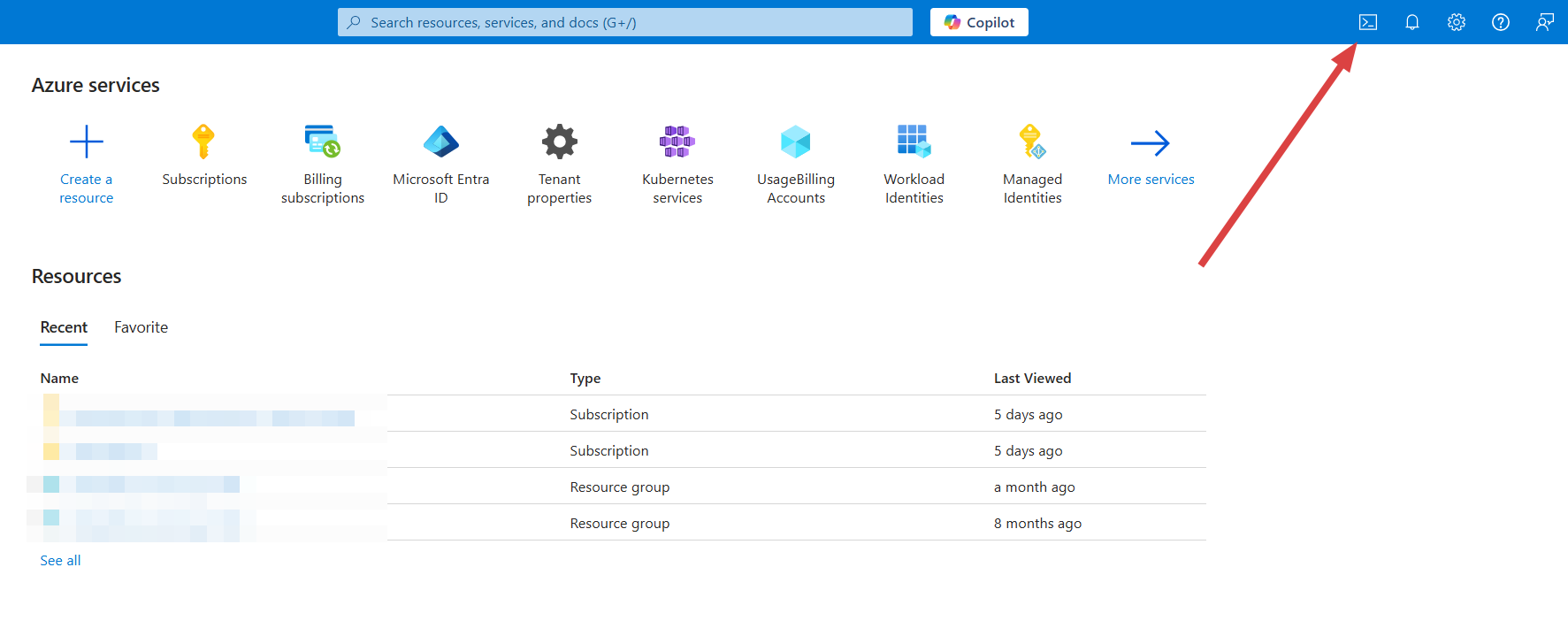
- In Azure Portal, click the Cloud Shell icon (>_) in the top navigation bar
- Important: Select Bash mode (not PowerShell)
2
Run the Command
- Paste the command from Qovery into Azure Cloud Shell
- Press Enter
- Review the subscription details displayed
- The script will create a service principal and assign necessary permissions
3
Verify in Qovery
The credentials are automatically linked to your Qovery organization.
What permissions does Qovery need?
What permissions does Qovery need?
Qovery requires these Azure permissions to manage your infrastructure:
- Contributor Role: Full access to create and manage resources (AKS, VMs, VNets, Load Balancers, etc.)
- Resource Group Management: Create and manage resource groups
- Azure Kubernetes Service: Create and manage AKS clusters
- Virtual Network: Configure VNets, subnets, NSGs, and NAT Gateways
- Compute: Provision VM Scale Sets for node pools
- Storage: Create and manage Managed Disks for persistent storage
- DNS: Configure DNS zones and records
What is a Service Principal?
What is a Service Principal?
A service principal is an identity created for use with applications, hosted services, and automated tools to access Azure resources. It’s similar to a “service account” in other cloud providers.Key benefits:
- Security: No need to share personal Azure credentials
- Scope Control: Permissions limited to specific subscription
- Auditability: All actions tracked in Azure Activity Log
- Revocable: Can be deleted without affecting user accounts
How do I rotate credentials?
How do I rotate credentials?
To rotate Azure credentials:
- In Azure Portal, go to Azure Active Directory → App registrations
- Find the Qovery service principal (name starts with
qovery-) - Go to Certificates & secrets
- Add a new certificate or client secret
- Run the Qovery credential creation script again to generate new credentials
- Update credentials in Qovery Console
- Wait 24 hours to ensure all systems use new credentials
- Remove the old certificate/secret in Azure Portal
Qovery uses certificate-based authentication by default, which is more secure than client secrets.
Can I use an existing service principal?
Can I use an existing service principal?
Yes! If you have an existing service principal with the Contributor role, you can use it instead of creating a new one. However, ensure it has:
- Contributor role at the subscription level (or at minimum, the resource group where clusters will be created)
- Certificate or client secret configured
- No expiration date conflicts with your security policies
What if the script fails?
What if the script fails?
Common issues and solutions:“Insufficient privileges”:
- You need at least “User Access Administrator” or “Owner” role to create service principals
- Contact your Azure administrator for assistance
- The script only runs in Bash mode
- Click the dropdown in Cloud Shell and select “Bash”
- Verify the Subscription ID is correct
- Ensure the subscription is active and not disabled
- Check you have access to the subscription
- Verify you’re logged into the correct Azure tenant
- Some accounts have access to multiple tenants - switch if needed
Create the Cluster
1
Select Azure as Hosting Mode
Click on
AKS as hosting mode and then Qovery Managed option.In the Create Cluster window enter:- Cluster name: enter the name of your choice for your cluster.
- Description: enter a description to identify better your cluster.
- Production cluster: select this option if your cluster will be used for production.
- Region: select the geographical area in which you want your cluster to be hosted.
- Credentials: select one of the existing cloud provider credentials or create new credentials.
Next.2
Set Resources
In the
Set Resources window, select:- Instance type: select the type of worker nodes you want to deploy to your cluster.
- Node auto-scaling: define the minimum and the maximum number of worker nodes that your cluster can run. The lowest number is the number of worker nodes running on your infrastructure at any time, while the highest number is the maximum number of worker nodes that can automatically be deployed as traffic grows. Please note that a minimum of 3 worker nodes is required to deploy your AKS cluster.
Managing your Cluster Settings
To manage the settings of an existing cluster:1
Open Qovery Console
Open your Qovery Console.
2
Navigate to Cluster Page
On your organization overview, go to the Clusters tab.
3
Access Cluster Settings
Click on your cluster card and go to the Settings tab.
General
TheGeneral tab allows you to define high-level information on your cluster:
Credentials
Here you can manage here the cloud provider credentials associated with your cluster. If you need to change the credentials:- generate a new set of credentials on your cloud provider (Procedure for Azure account)
- create the new credential on the Qovery by opening the drop-down and selecting “New Credentials”
Mirroring registry
In this tab, you will see that a container registry already exist (calledregistry-{$UIID}).
This is your cloud provider container registry used by Qovery to manage the deployment of your applications by mirroring the docker images.
The credentials configured on this registry are the one used to create the cluster. But you can still update them if you prefer to manage them separately (dedicated pair of creds just to access the registry).
Check this link for more information.