

How to configure
To better explain the process, we will try to upgrade an RDS PostgreSQL instance from the version 14 to the version 15. The same procedure applies to MySQL, with the prerequisite differences called out below.Activate the logical replication (PostgreSQL only)
This section applies to PostgreSQL only. For MySQL, RDS has no equivalent configuration to activate, the only prerequisite is that automated backups are enabled on the instance, which is the default on Qovery-managed databases. You can skip directly to the “Launch the Blue/Green deployment” section below.
This part has to be done only once for each database. If you have already activated the logical replication, go to the next section.
- Create a Custom DB Parameter group. Make sure it targets your current engine type (PostgreSQL) and version (Parameter group family = postgres14), let’s call it
parameter-group-14. (Documentation here) - Edit the DB parameter group
parameter-group-14and activate the logical replication by settingrds.logical_replicationto1(Documentation here) - Associate the DB Parameter group
parameter-group-14to your database. If you have read replicas, associate the parameter group to the replicas as well. (Documentation here) - Reboot your database to apply the changes or wait for the next maintenance window for applying these changes.
Enable logical replication for the “Green” database (PostgreSQL only)
We will create a separate DB Parameter group for our “Green group” so that we will ensure that the you won’t have to do the previous step the next time.- Create a Custom DB Parameter group. Make sure it targets your next engine type and version (Parameter group family), let’s call it
parameter-group-15Documentation here) - Edit the DB parameter group
parameter-group-15and activate the logical replication by settingrds.logical_replicationto1(Documentation here)
Launch the Blue/Green deployment
Create the Blue/Green Deployment
- Go on the Database list on the AWS console, select the database and press the “Create new Blue/Green Deployment” button.
- Define a name for the deployment (blue-green-upgrade), ensure you select the right engine version (PostgreSQL 15) and the right DB parameter group (parameter-group-15) and create the Blue/Green deployment.
- Wait for all the instances to be
Available.
Apply the switch over
- From the Database list on the AWS console, select the Blue/Green deployment
blue-green-upgrade - From the action list, select “Switch over”
- Verify that everything is fine on the configuration and confirm the switch over. This will make the “Green group” the new production environment.
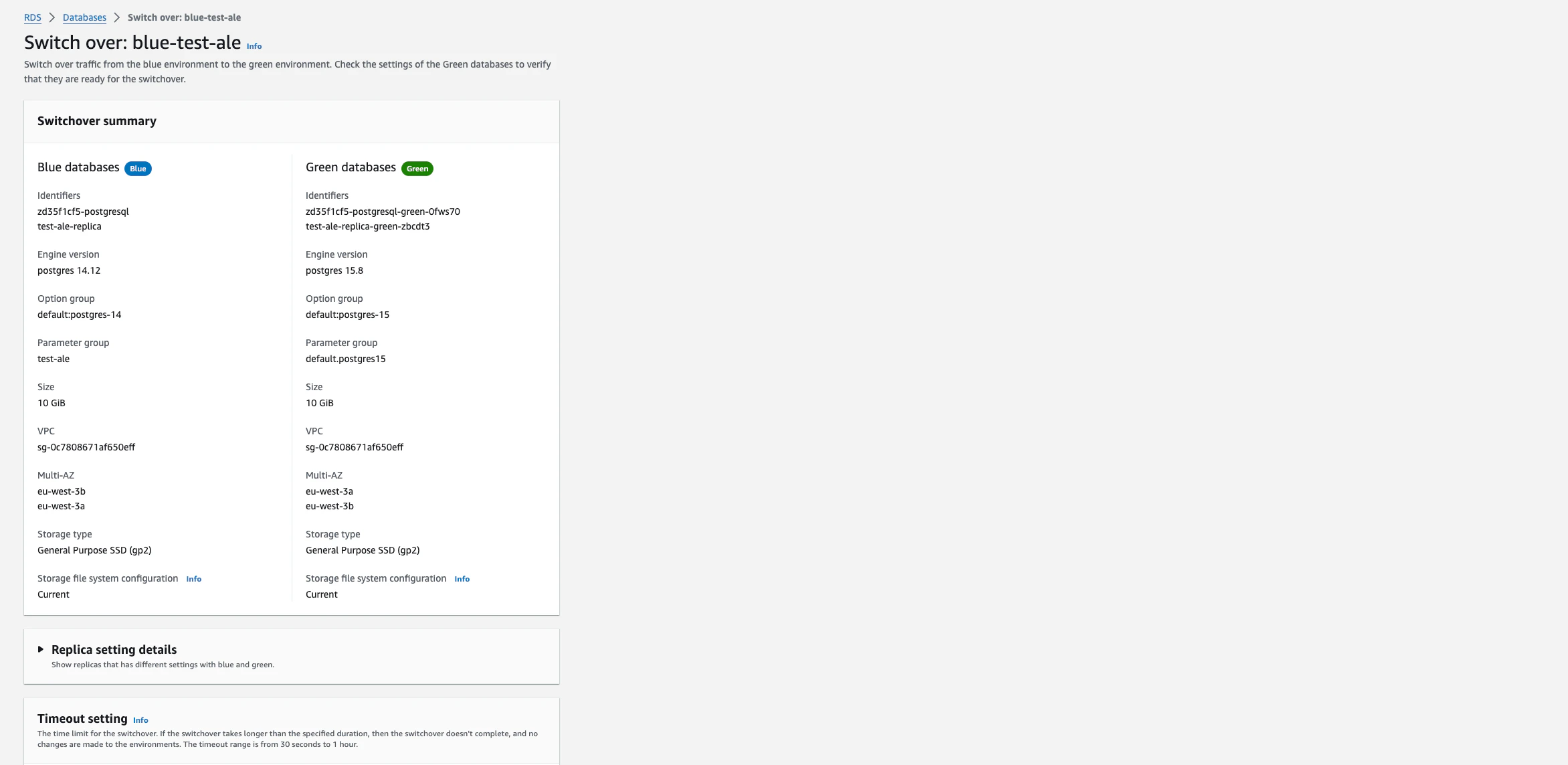
- Wait for the switch over to be completed.
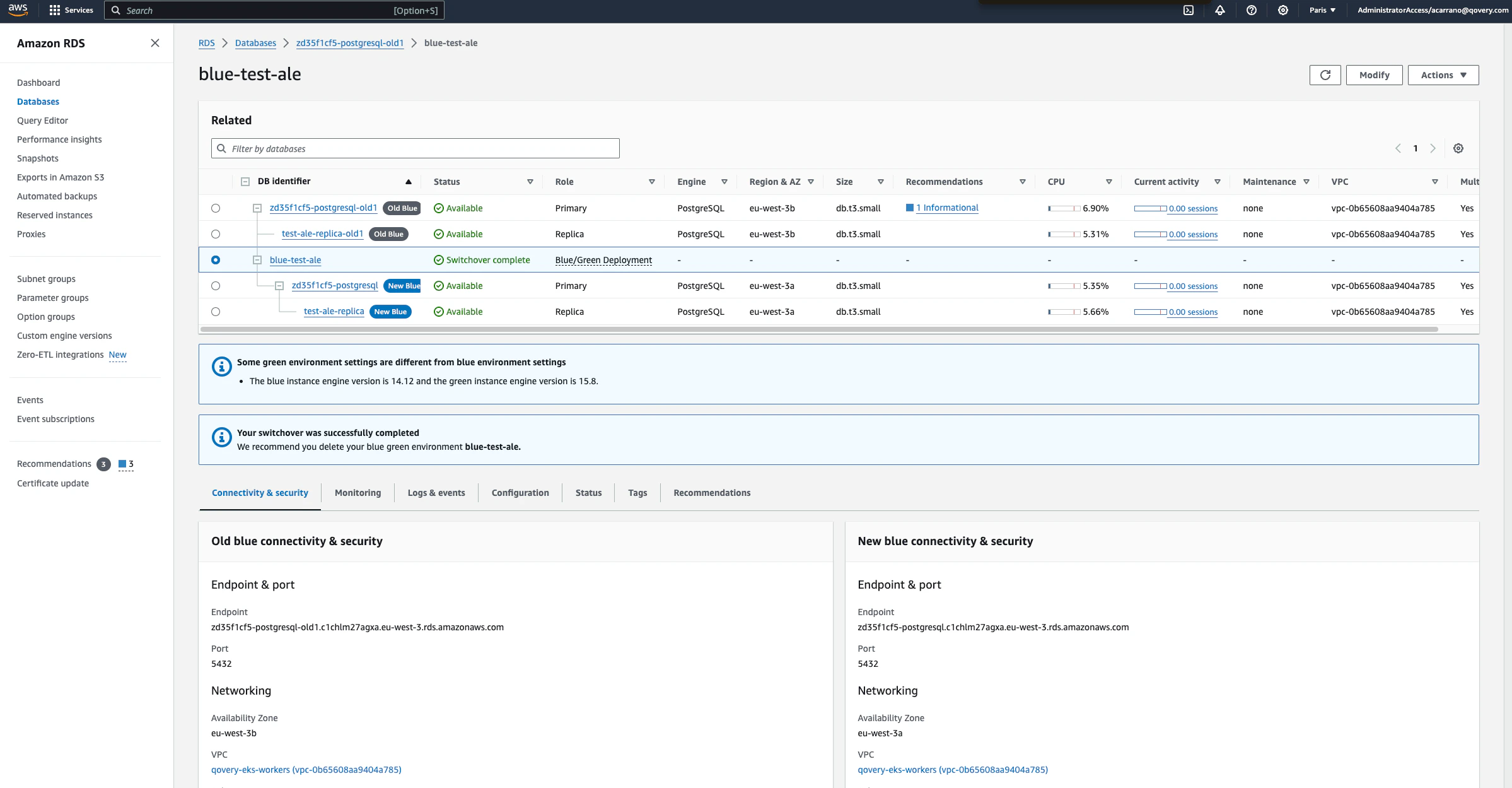
Delete the blue/green deployment
- From the Database list on the AWS console, select the Blue/Green deployment
blue-green-upgrade - From the action list, select “Delete”
- Once completed, from the Database list on the AWS console, select the database in version 14 (note it should be renamed with a suffix
old) - From the action list, select “Delete”
- Wait for the delete operation to be completed before moving to the next step
Align the configuration on Qovery
- Go on the Qovery console and align the database configuration by setting the version to
15
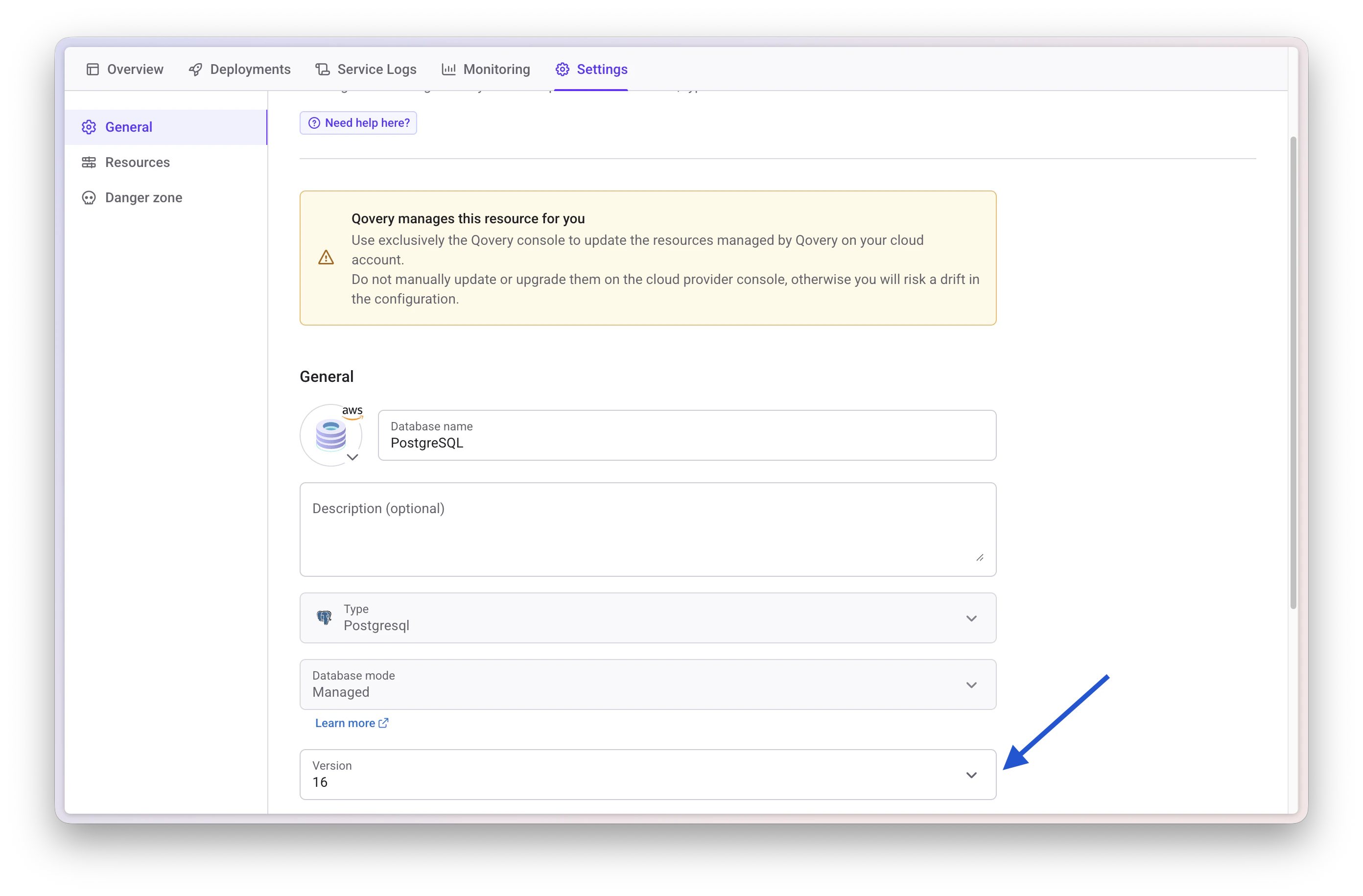
- Re-deploy your database.