

- A Terraform service creates the IAM role (and the OIDC identity provider if needed)
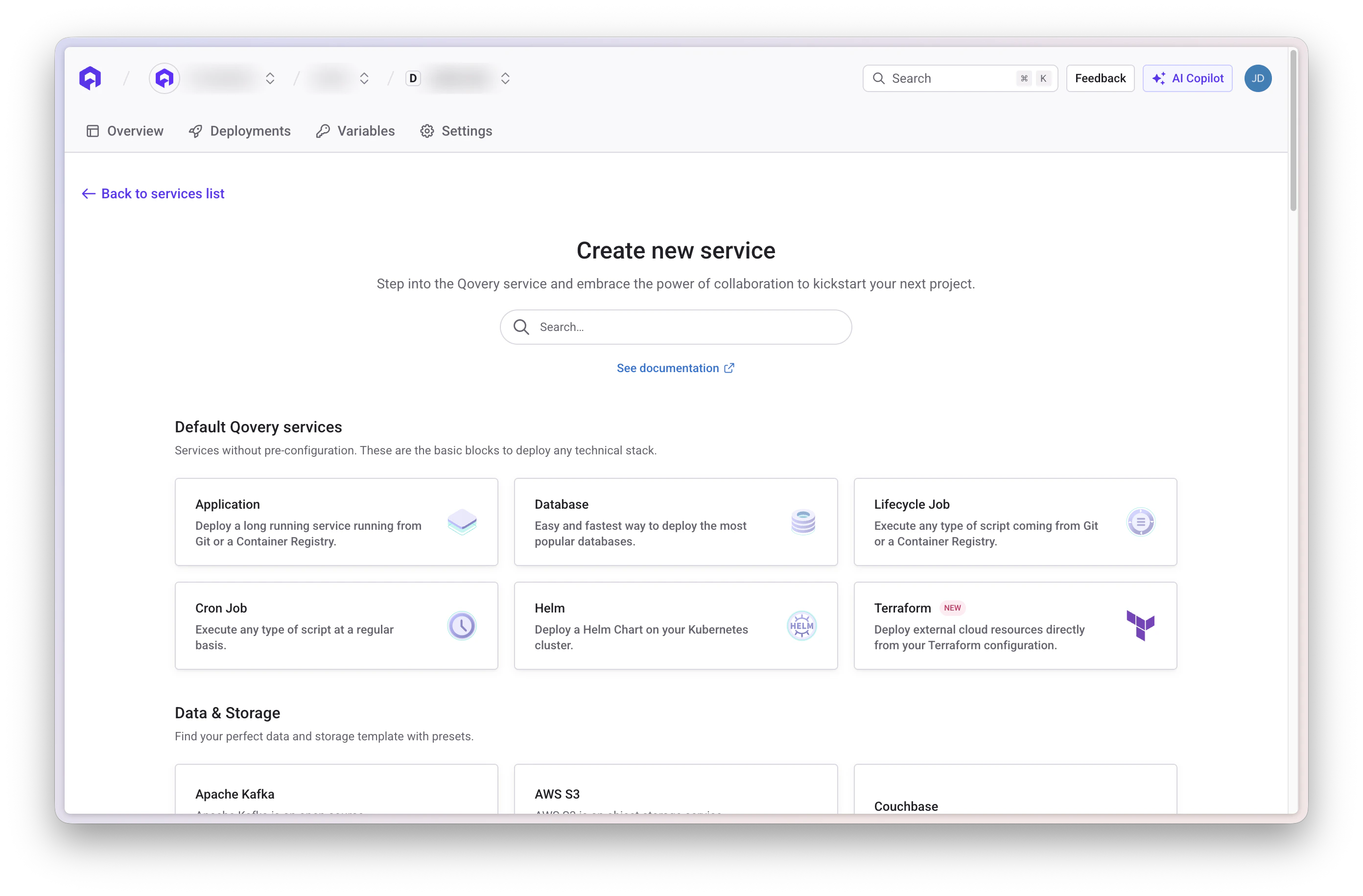
- A Helm service creates the Kubernetes ServiceAccount annotated with the role ARN
- Your application picks up the ServiceAccount through the Service account advanced setting
Prerequisites
- A Qovery cluster running on AWS EKS
- Basic knowledge of AWS IAM and Kubernetes
- AWS credentials allowed to manage IAM (for the Terraform service or the Console)
Step 1: Create an Application Requiring S3 Permissions
First, deploy a simple Debian container that will need S3 access:- Deploy a Debian container with 1 instance and 128MB memory
- You can also use existing applications, containers, or jobs
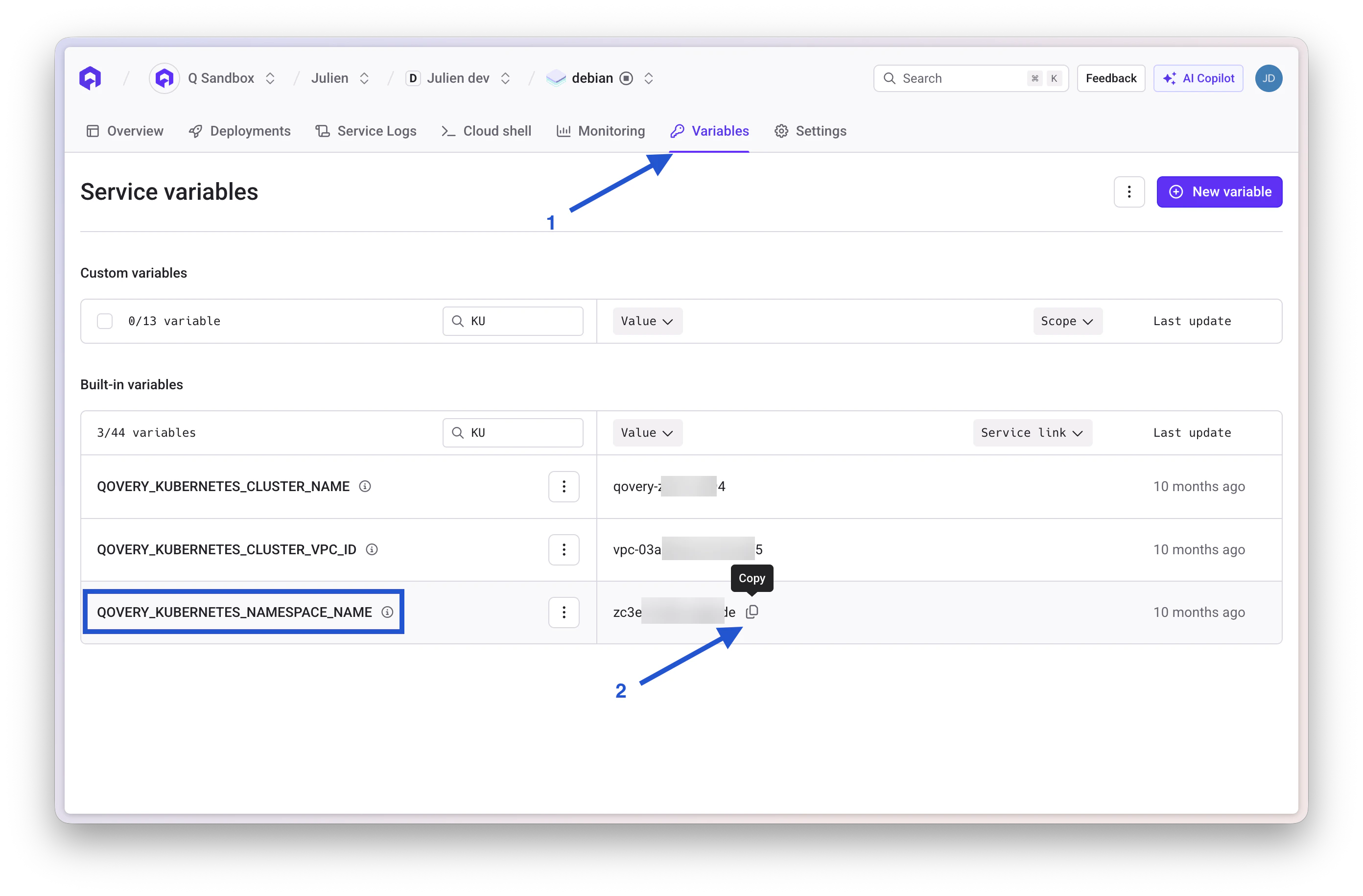
Get Kubernetes Namespace Name
- Access your container variables and locate
QOVERY_KUBERNETES_NAMESPACE_NAME - This value represents the namespace where the container runs
Step 2: Create the OIDC Provider and IAM Role
- Terraform service (recommended)
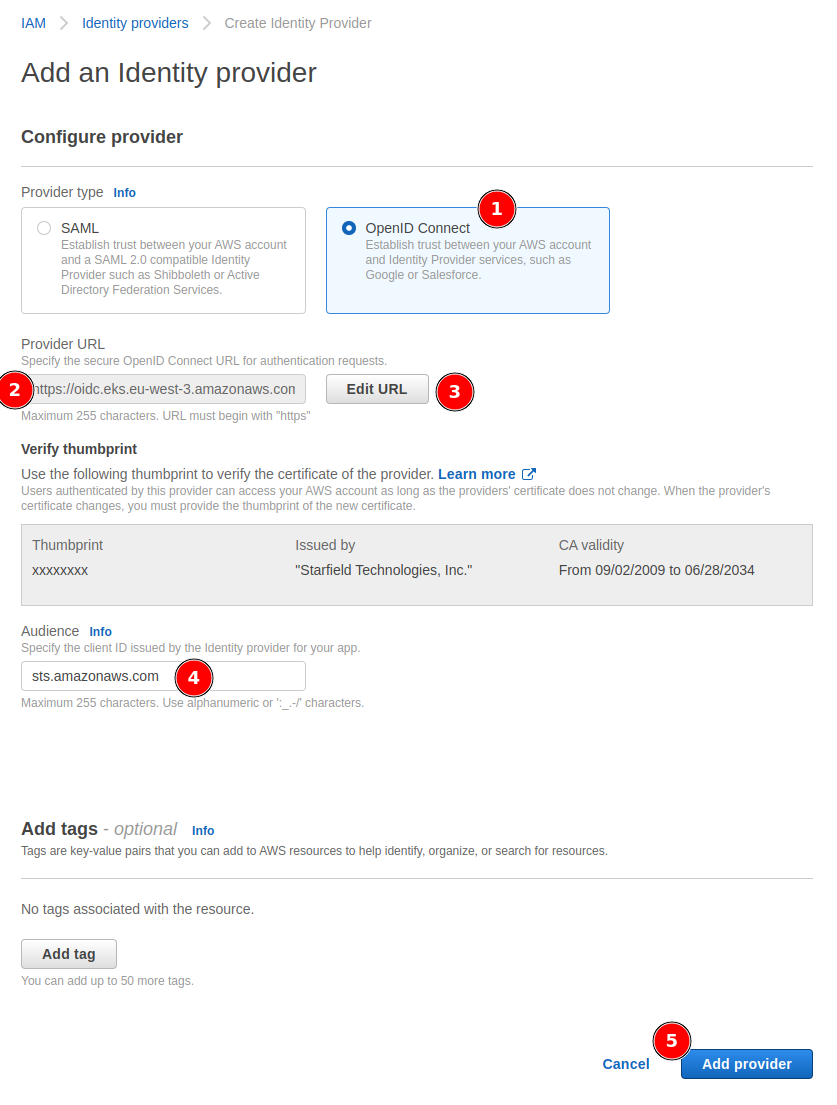
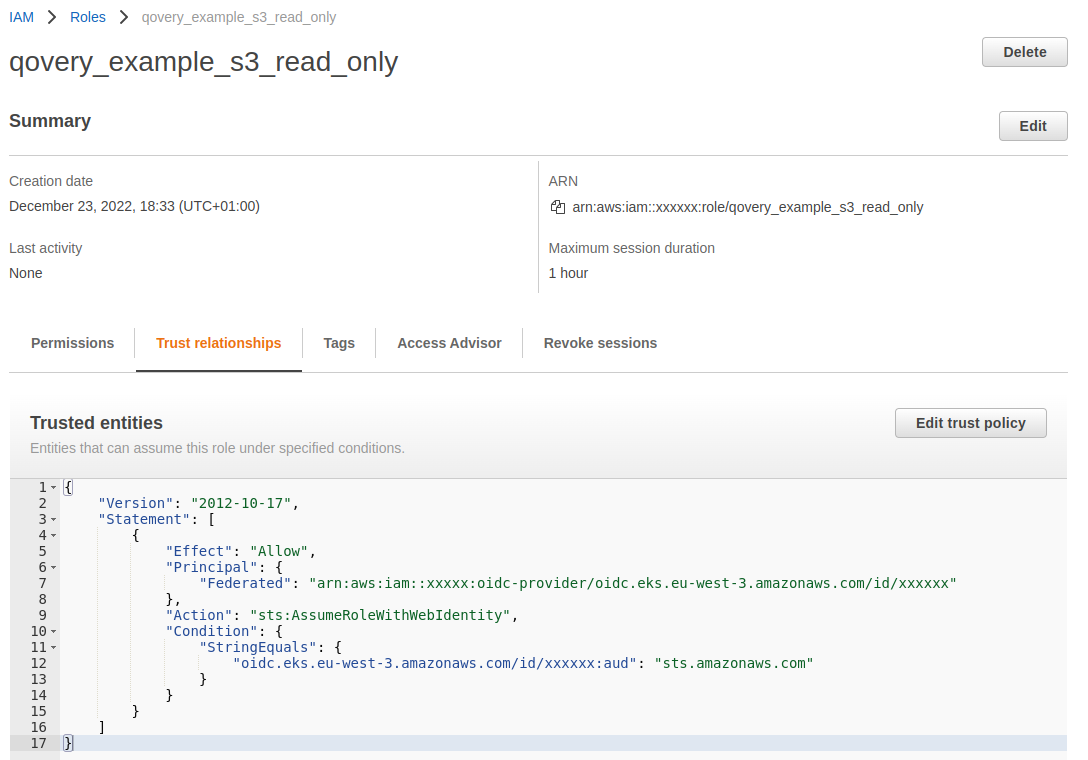
- Manually (AWS Console)
Add a Terraform service to the same environment:
- Source: Git repository
https://github.com/Qovery/create_service_account - Root path:
terraform/
Deploy the service. The module creates the trust policy for you (namespace-scoped
StringEquals, or cluster-scoped StringLike on system:serviceaccount:z*:<service_account_name> when TF_VAR_namespace is empty).The module outputs role_arn. Qovery exposes it to the environment as a variable named QOVERY_OUTPUT_TERRAFORM_<service short id>_ROLE_ARN; check the exact name in your environment variables after the first deployment. You will reference it in step 3.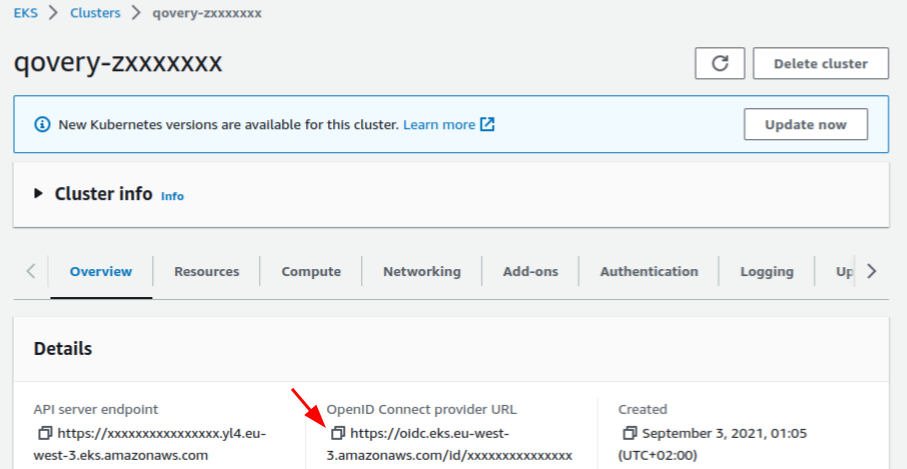

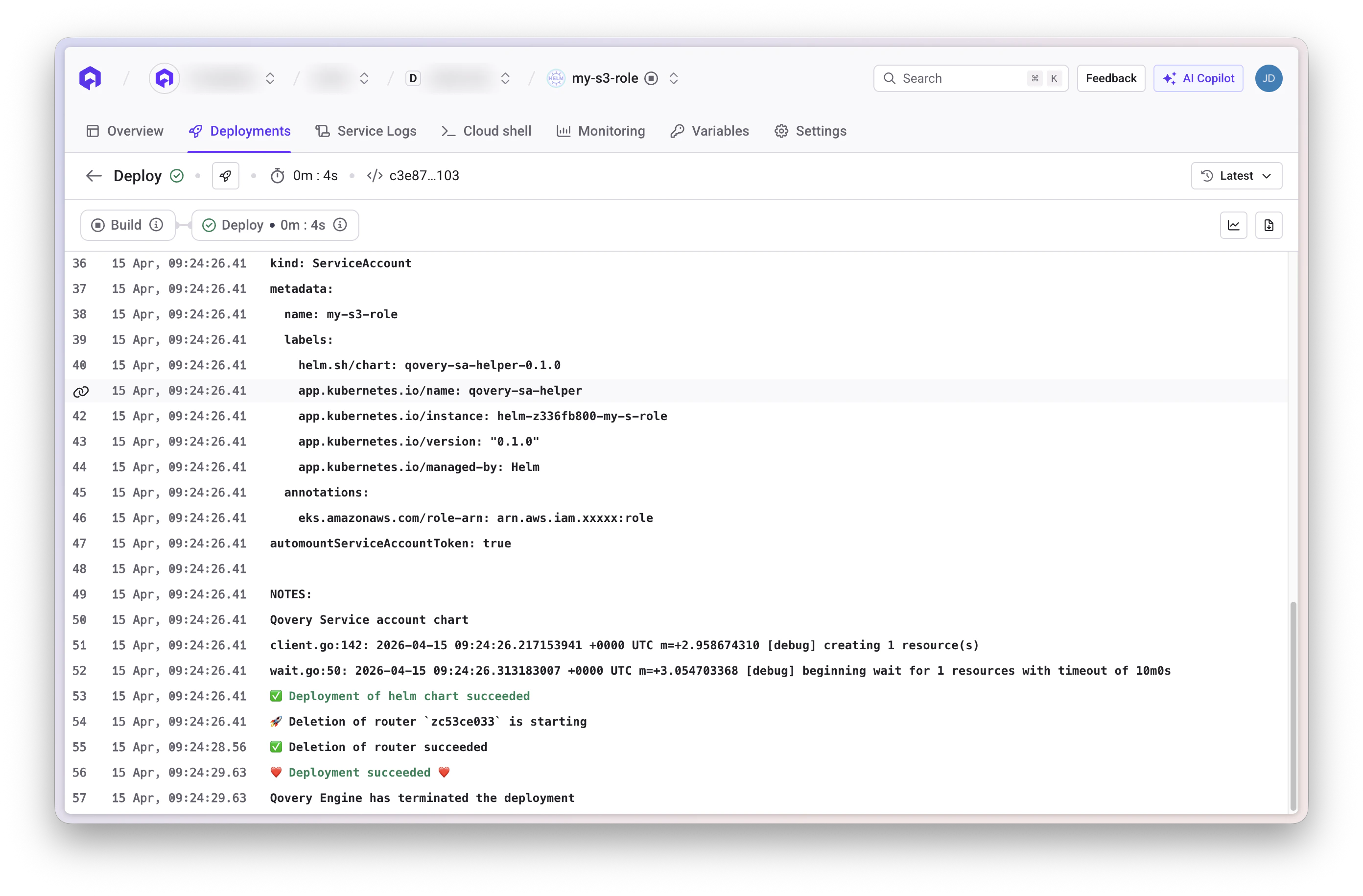
Step 3: Create the Service Account
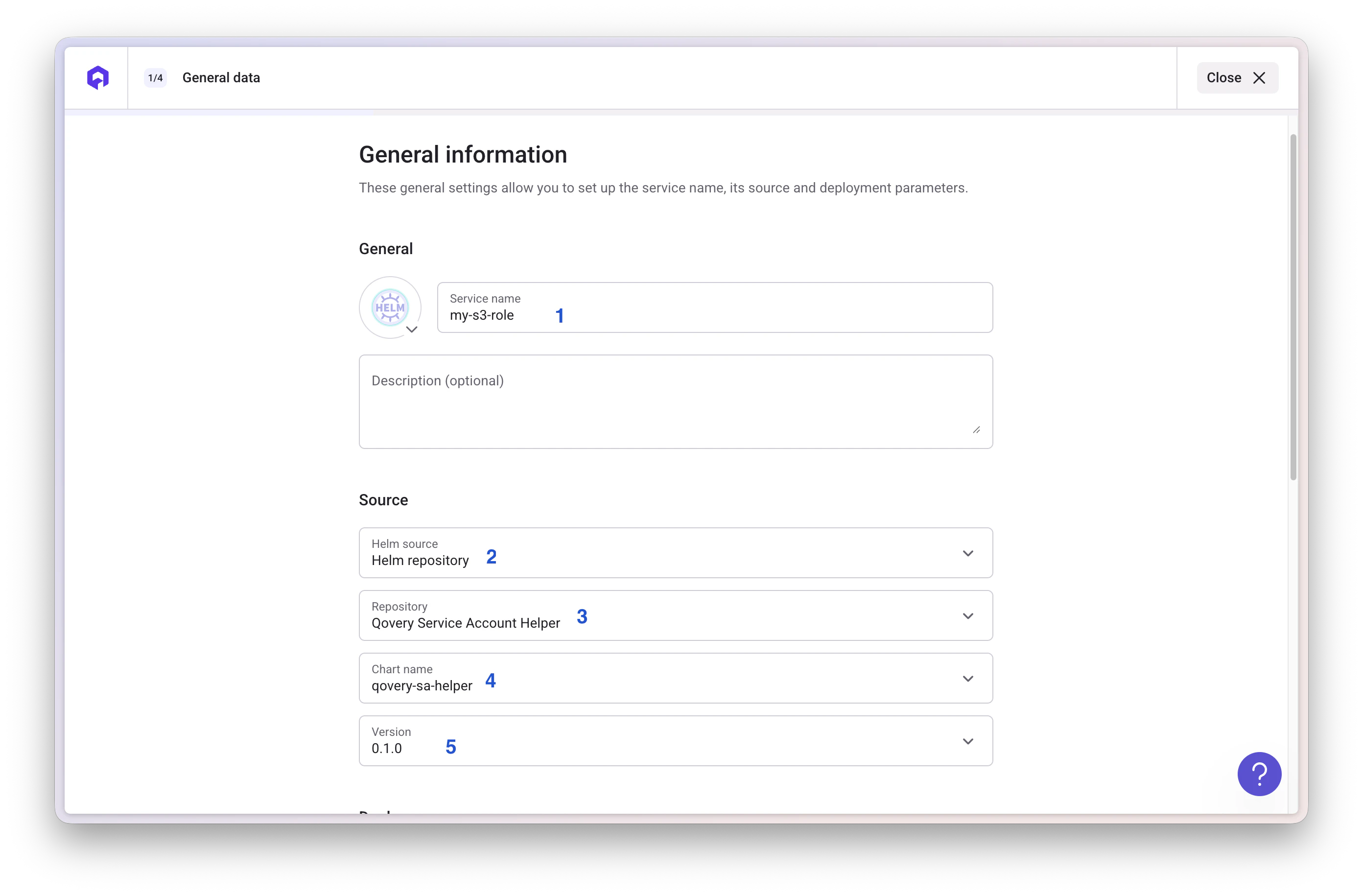
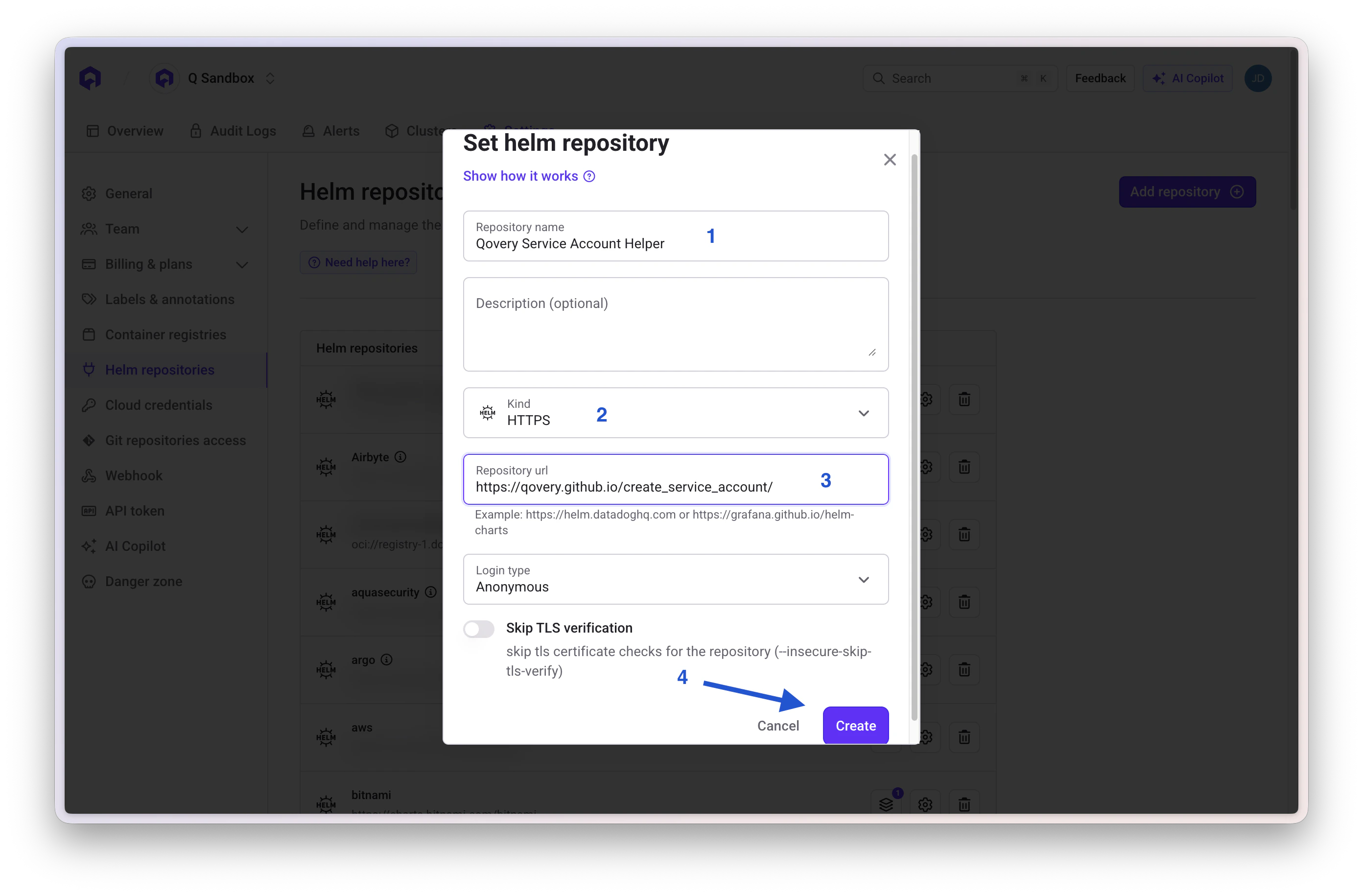
A Helm chart creates the ServiceAccount annotated for IRSA:- Repository name:
Qovery Service Account Helper - Kind:
HTTPS - URL:
https://qovery.github.io/create_service_account/
- Helm source: Helm repository
- Chart name:
qovery-sa-helper - Version:
0.2.0
- With the Terraform service
- With a manually created role
Reference the Terraform output with the
qovery.env macro, so the role ARN is never hardcoded: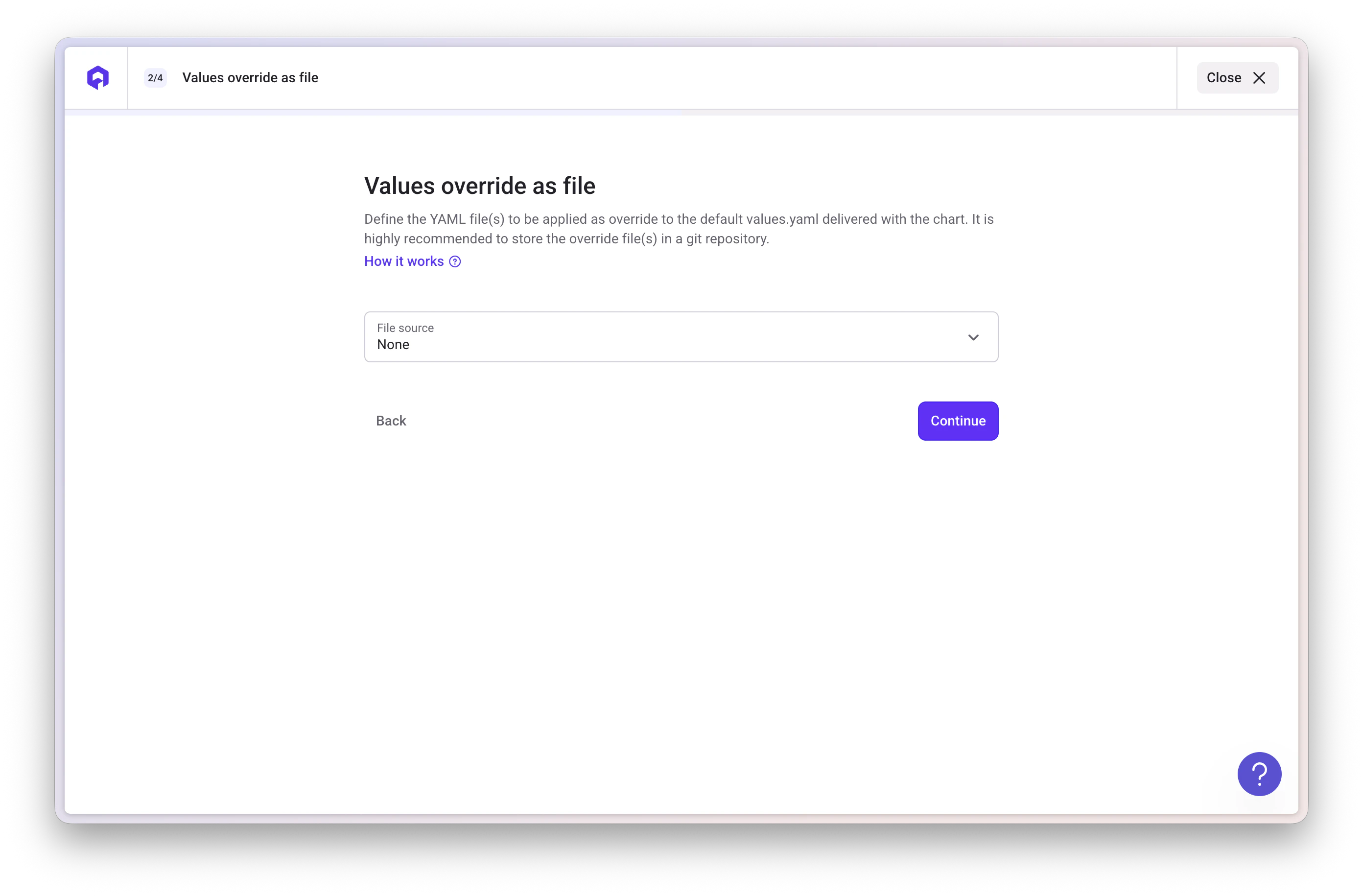
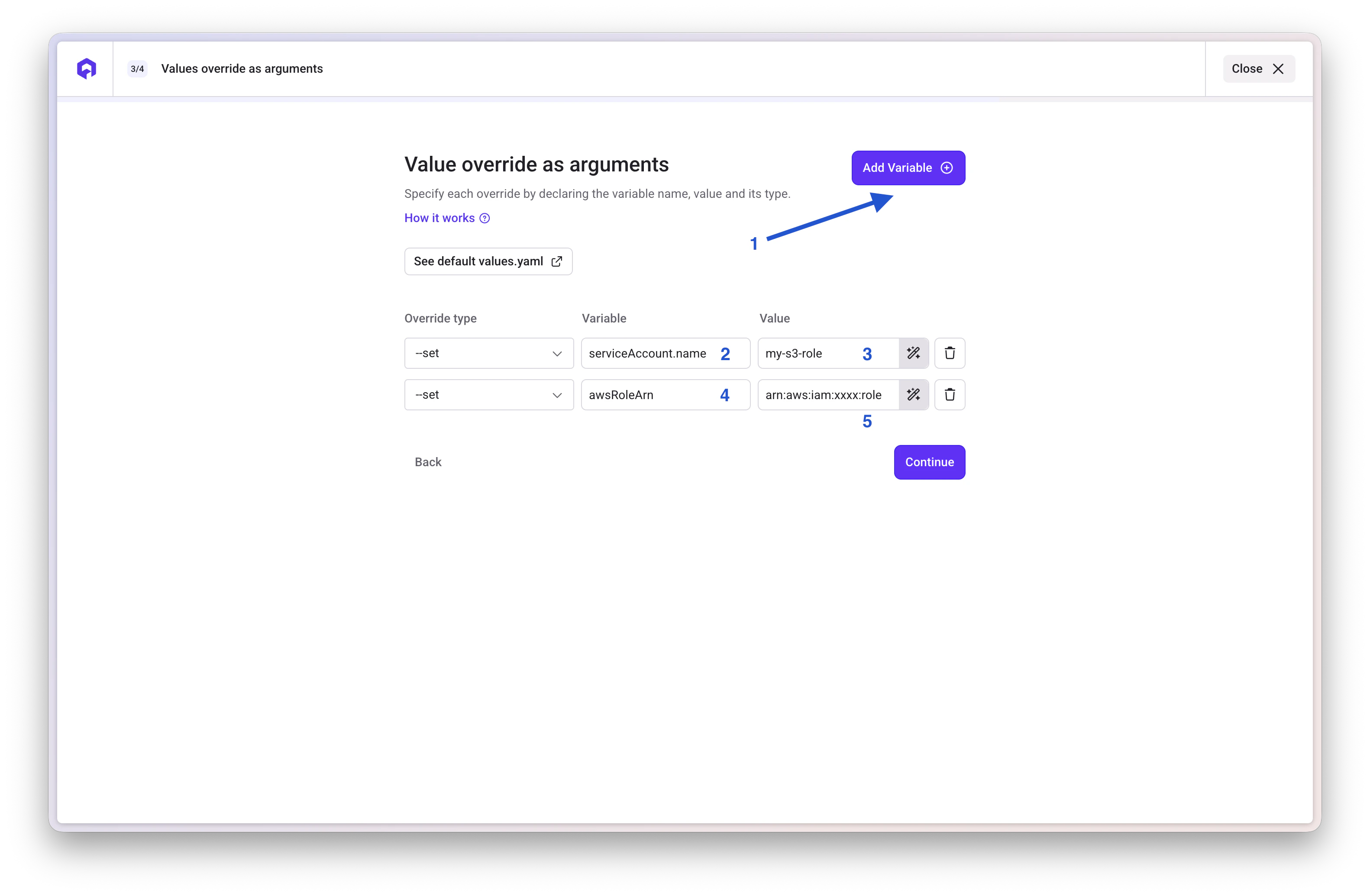
Step 4: Set Application Service Account
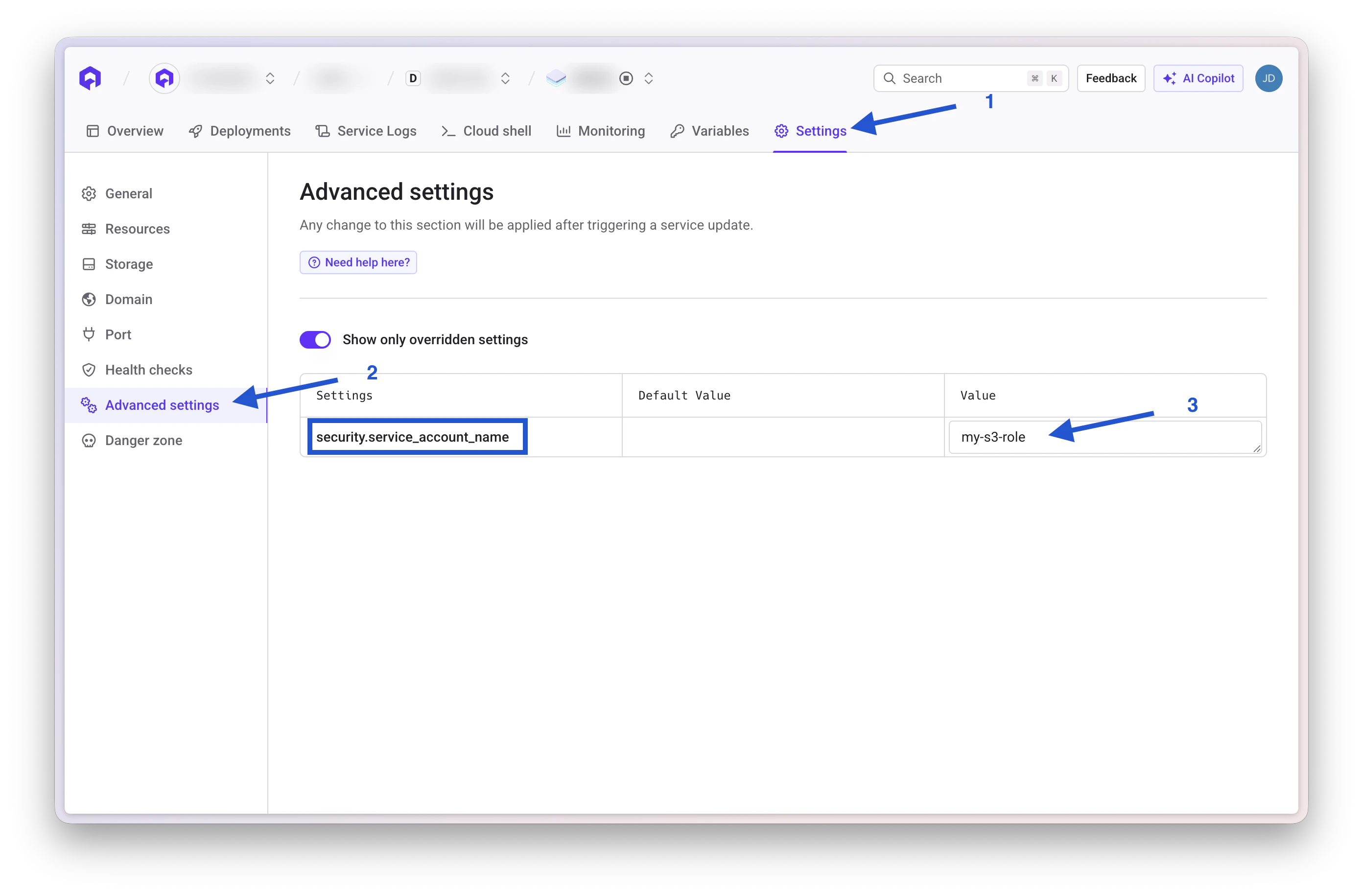
Configure Service Account
- Access your application Advanced settings
- Set Service account (
security.service_account_name) to the created service account name - Deploy using the Deploy now button
Validate Access
Using Qovery CLI:Key Concepts
- OIDC Integration: Enables Kubernetes service accounts to assume AWS roles
- Token Rotation: Automatic credential rotation without manual management
- Namespace Scoping: Restricts role access to specific Kubernetes namespaces
- Everything as Qovery services: The IAM role and the ServiceAccount are regular services in your environment, so they are versioned, visible in the Console, replicated with Clone/Preview, and cleaned up with the environment
Conclusion
With the Terraform and Helm services in place, granting a role to a new application comes down to setting one advanced setting. The IAM side lives in your environment like any other service, without credential management overhead.Related Documentation

Terraform Services
Deploy Terraform manifests with Qovery
Advanced Settings
Configure service advanced settings
Environment Variables
Manage environment variables and secrets

Helm Services
Deploy applications with Helm