

Organization Members
You can invite someone to join your organization by email. Once they accept the invitation, they will have access to the organization and all its projects based on their assigned role.Accessing Members Settings
1
Open Organization Settings
Click the Settings tab while you are on your organization overview.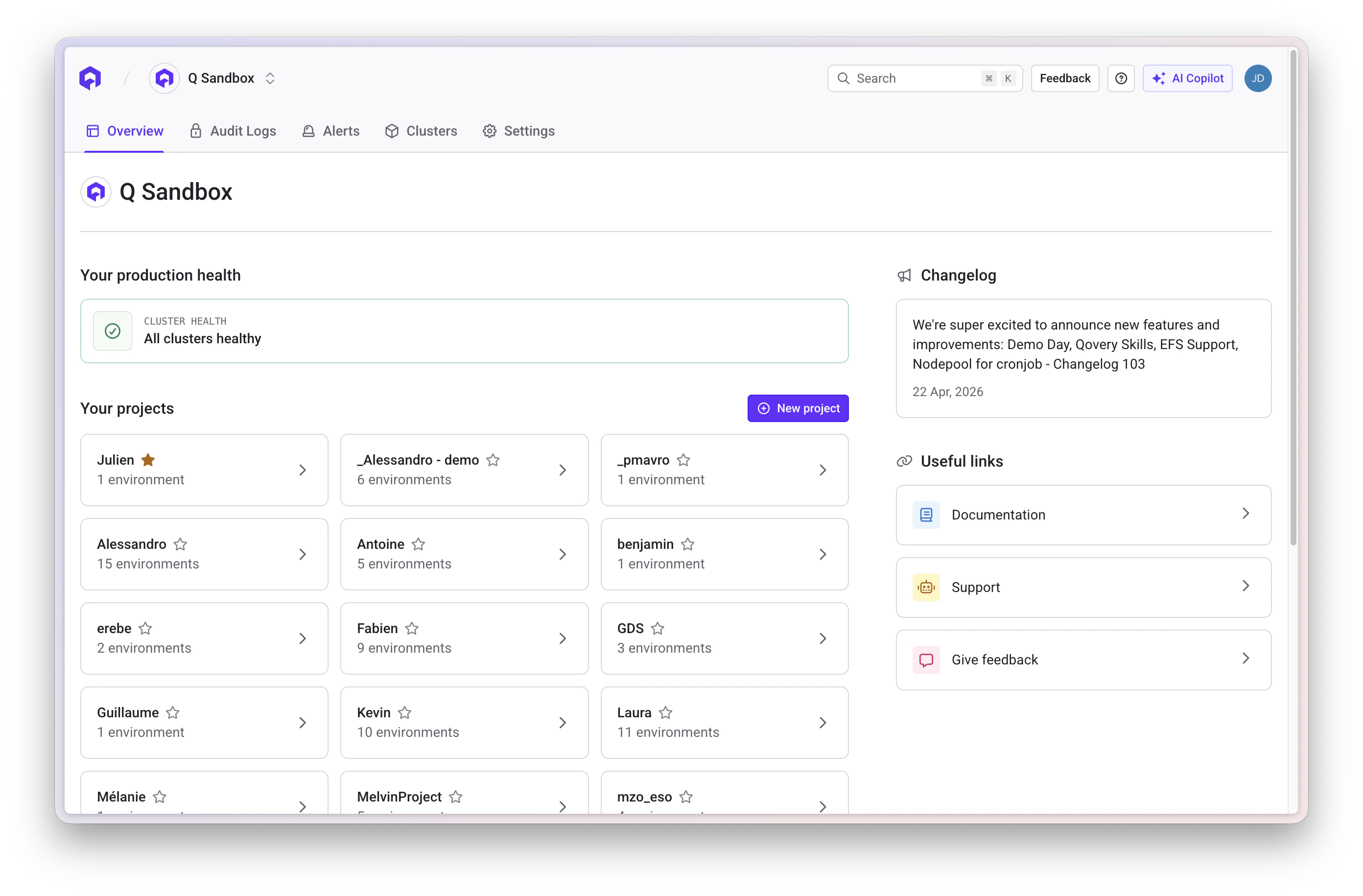
2
Navigate to Members Section
Open the Members section within the organization settings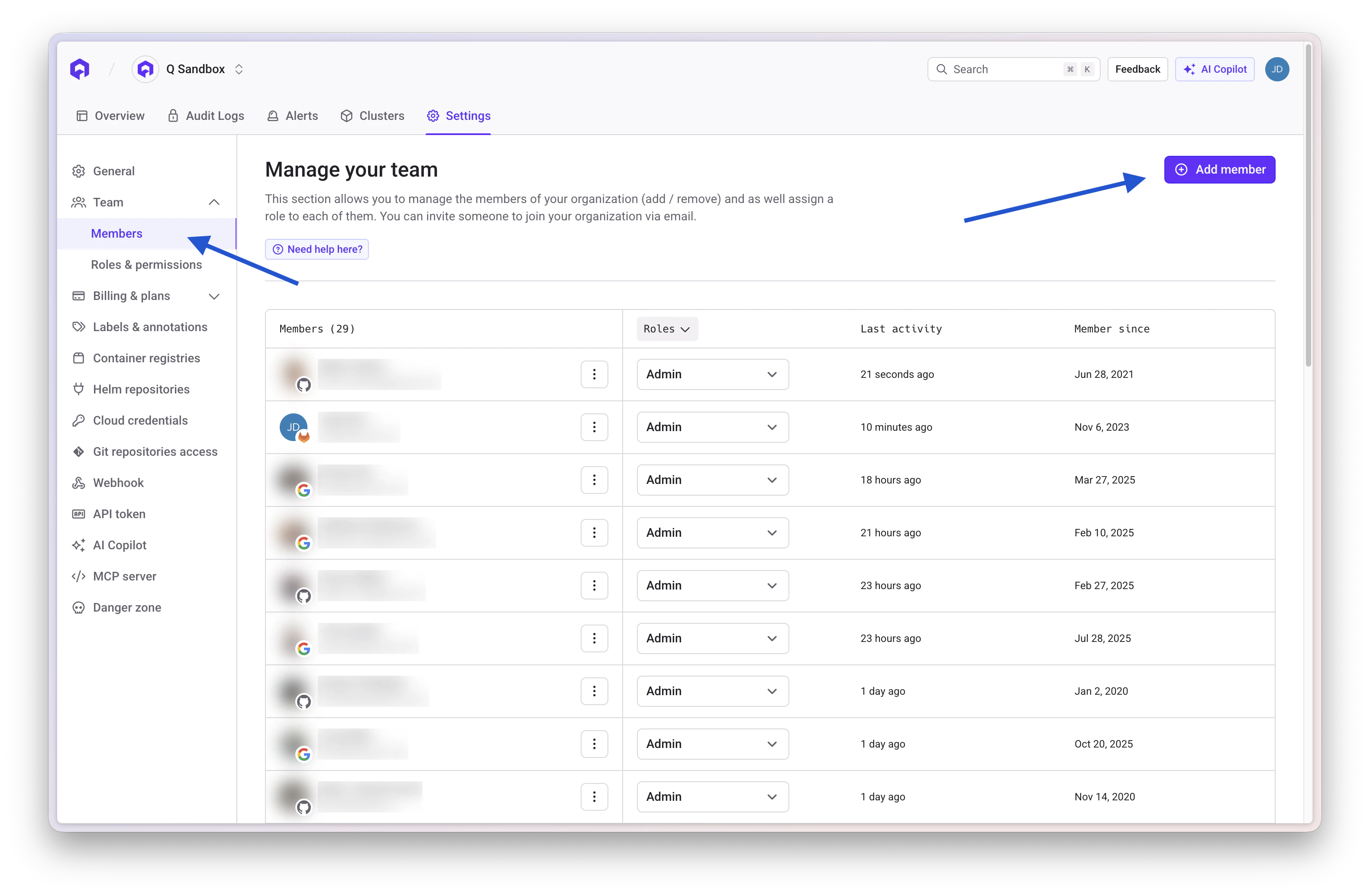
Inviting Members
- Click the Invite Member button
- Enter the member’s email address
- Select a role (see Default Roles below)
- Click Send Invitation
Each user can only hold one role at a time. Changing the role of a member requires the user to logout/login to make the changes effective or wait a few minutes (max 1 hour).
Default Roles
Qovery provides 5 built-in roles with predefined permissions that apply across the entire organization.Owner
Full access to the organization. Only one user can be the owner, and ownership can be transferred (see below).Admin
Same as Owner except cannot delete the organization or transfer ownership.DevOps
Can manage organization infrastructure (clusters, registries, webhooks, API tokens) and has full access to all projects and environments across the organization. Cannot manage members, roles, or billing.Billing Manager
Can manage billing only. Has read-only access to cluster information but no access to any project.Viewer
Read-only access to all organization resources, clusters, and projects.Default Roles - Permissions Matrix
Custom Roles
Custom roles let you grant access scoped to specific projects and clusters, instead of applying permissions across the entire organization. This is useful when you want to give a user access to only certain projects or restrict what they can do within a project.Scope and limitations
Custom roles are configured through cluster-level and project-level permissions only. They always inherit the ability to read organization data (registries, clusters, label groups). Custom roles cannot:- Generate API tokens
- Manage organization settings (webhooks, SSO)
- Manage members & roles
- Manage billing
If a user with a custom role needs to generate an API token (e.g. for the CLI or Terraform provider), an org admin or DevOps user must generate it for them.
Cluster Level Permissions
Set per cluster, or applied to all clusters at once:Project Level Permissions
Set per project, independently for each environment type (Development, Preview, Staging, Production):Custom roles vs built-in DevOps role
A custom role configured with Full Access on all clusters and Full Access on all projects covers the same day-to-day operations as the DevOps role, but with two differences: it cannot generate API tokens or manage org-level settings, and it can optionally be scoped to specific projects only.Example configurations
Developer - access to a specific project A developer who should deploy and configure services in one project but have no visibility into other projects:
On-call engineer - deploy to any project, no config changes
An engineer who needs to trigger deployments and read logs across all projects in an incident, but should not be able to modify service configuration:
Security auditor - read-only across everything
A user who needs visibility into all environments for audit purposes:
Infrastructure-as-code operator - manage a specific environment
A user running Terraform or similar tooling against a single environment (API token must be generated by an admin):
Transfer Ownership
You can transfer ownership of the organization to another member. To do so:- Navigate to the Members section in organization settings
- Click on the member you want to transfer ownership to
- Select Transfer Ownership from the menu
- Confirm the transfer