> ## Documentation Index
> Fetch the complete documentation index at: https://www.qovery.com/docs/llms.txt
> Use this file to discover all available pages before exploring further.
# Audit Logs
> Track all actions and changes in your Qovery organization
Qovery allows you to monitor any action happened within your organization thanks to the audit logs section.
This feature enables you to track all changes to your organizational configuration, answering **who did what, where, and when?**
## Access
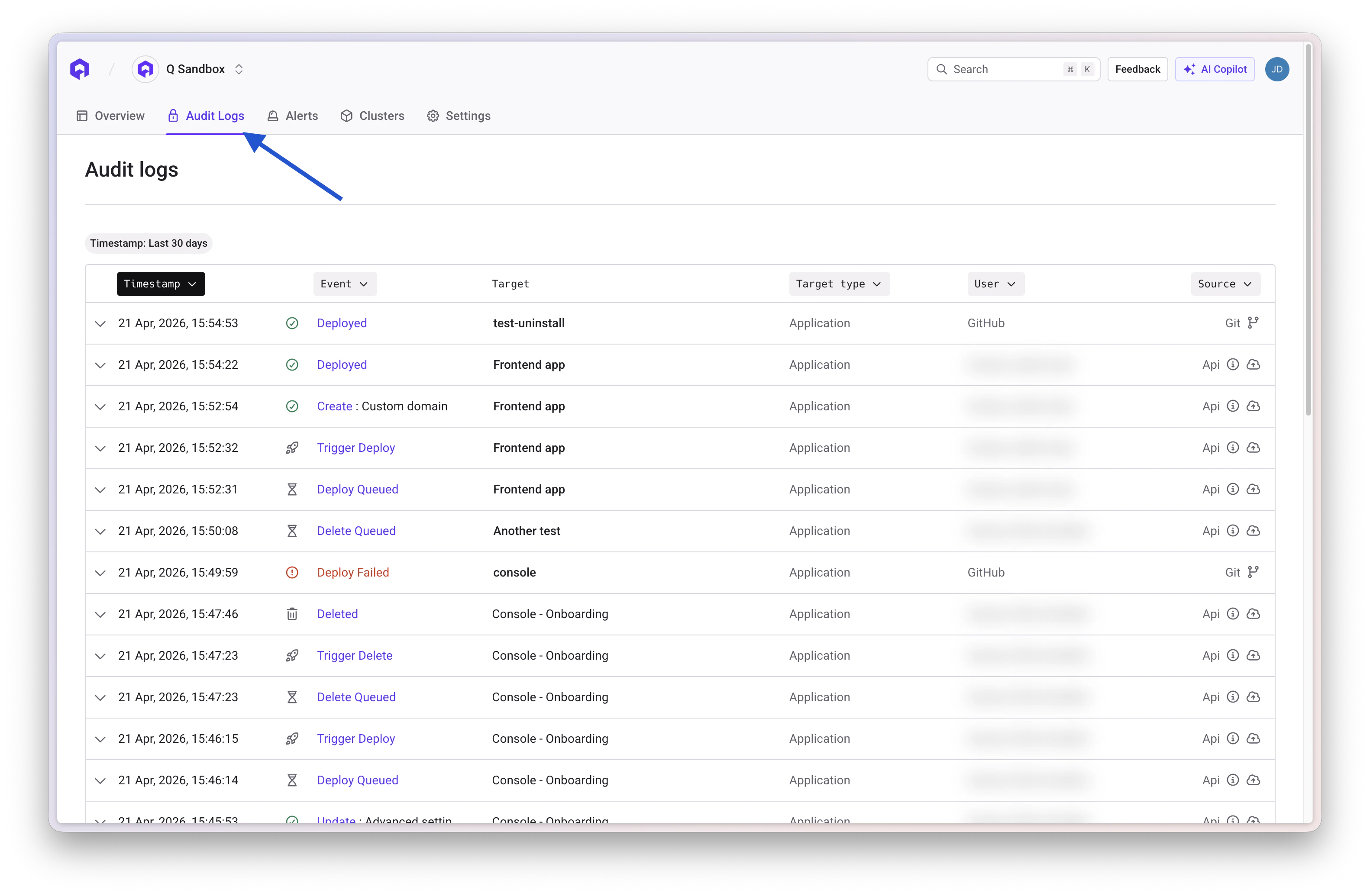
Navigate to the `Audit logs` section from the top navigation bar in the Qovery Console.
 ## Event Retention
The event retention depends on your plan:
* **User**: 3 days
* **Team**: 7 days
* **Business**: 30 days
* **Enterprise**: Custom
## How It Works
Qovery tracks in the audit logs any call happening on our API for your organization.
For example, when you modify an application via the console, an `UPDATE` event is logged from the API endpoint call that was made.
## Event Information
Each logged event includes the following information:
* **Timestamp**: When the event occurred
* **Event Type**: Category of action (Create, Update, Delete, Trigger Deployment, etc.)
* **Target Type**: Type of object that was modified (Environment, Cluster, Role, Container Registry, etc.)
* **Target**: The specific object that was modified (hover to see details)
* **Change**: High-level description of the modification
* **User**: Who made the changes (or API token name if automated)
* **Tool**: Method used to make the change (Console, Terraform provider, Git push, etc.)
### View Event Details
You can click on any event to reveal the JSON response containing the post-event object status. This is useful for granular change comparison.
***
## Filters
You can filter audit logs by:
* **Time range** - Select a specific date range
* **Event** - Select a specific event
* **Target specification**:
* For a Service: you can fine tune your research by
* selecting a specific project
* selecting a specific environment
* selecting a target service
* For an Environment: you can fine tune your research by
* selecting a specific project
* selecting a target environment
* For other types: you can filter on a specific target
* **User** - Select a specific user
* **Source** - Select a specific source
### Quick Filters
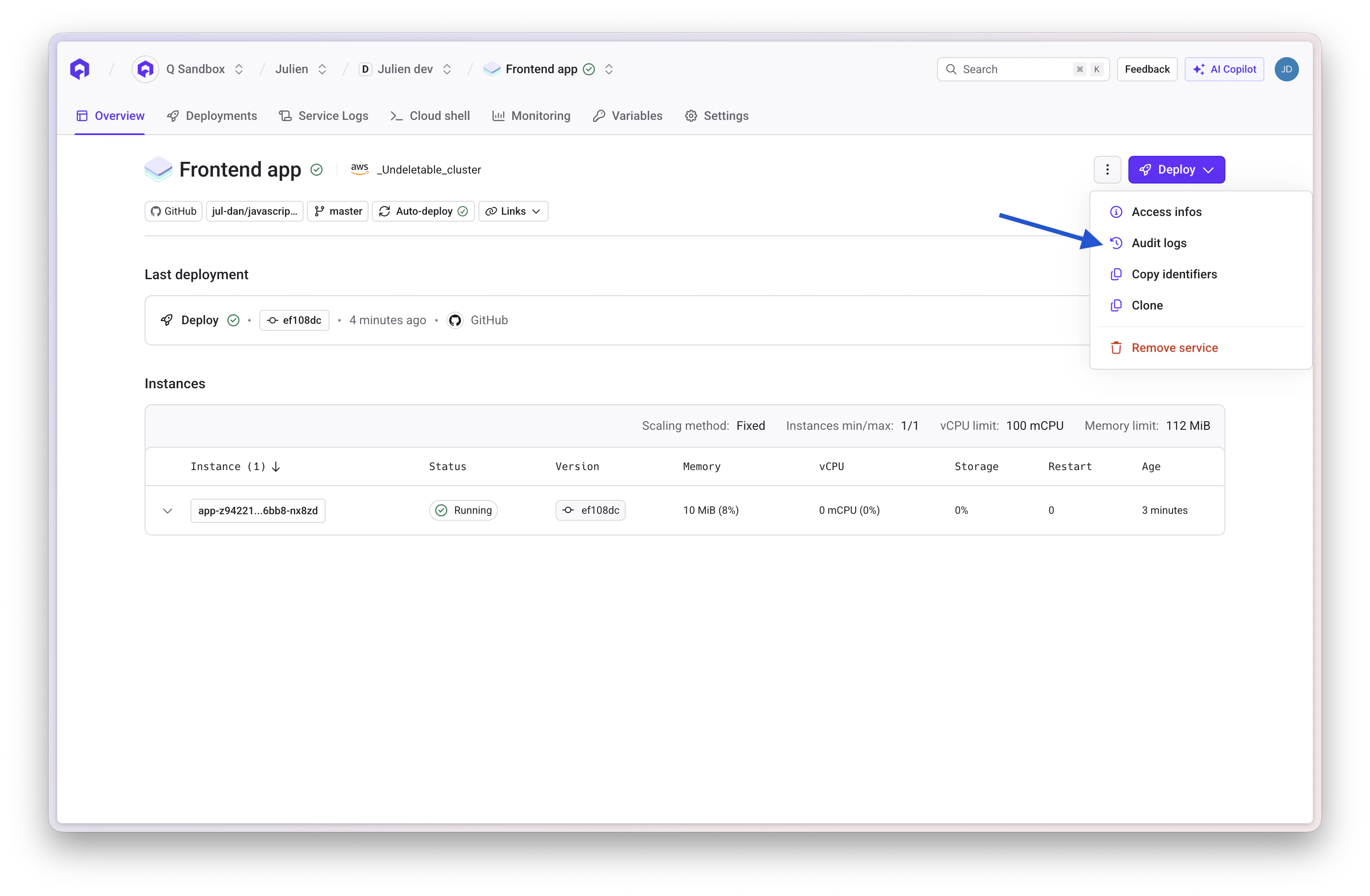
Throughout the Qovery Console, you'll find quick access to audit logs via the **"See Events"** button in the 3-dot submenus. This allows you to quickly filter and view events for specific resources.
## Event Retention
The event retention depends on your plan:
* **User**: 3 days
* **Team**: 7 days
* **Business**: 30 days
* **Enterprise**: Custom
## How It Works
Qovery tracks in the audit logs any call happening on our API for your organization.
For example, when you modify an application via the console, an `UPDATE` event is logged from the API endpoint call that was made.
## Event Information
Each logged event includes the following information:
* **Timestamp**: When the event occurred
* **Event Type**: Category of action (Create, Update, Delete, Trigger Deployment, etc.)
* **Target Type**: Type of object that was modified (Environment, Cluster, Role, Container Registry, etc.)
* **Target**: The specific object that was modified (hover to see details)
* **Change**: High-level description of the modification
* **User**: Who made the changes (or API token name if automated)
* **Tool**: Method used to make the change (Console, Terraform provider, Git push, etc.)
### View Event Details
You can click on any event to reveal the JSON response containing the post-event object status. This is useful for granular change comparison.
***
## Filters
You can filter audit logs by:
* **Time range** - Select a specific date range
* **Event** - Select a specific event
* **Target specification**:
* For a Service: you can fine tune your research by
* selecting a specific project
* selecting a specific environment
* selecting a target service
* For an Environment: you can fine tune your research by
* selecting a specific project
* selecting a target environment
* For other types: you can filter on a specific target
* **User** - Select a specific user
* **Source** - Select a specific source
### Quick Filters
Throughout the Qovery Console, you'll find quick access to audit logs via the **"See Events"** button in the 3-dot submenus. This allows you to quickly filter and view events for specific resources.
 ***
## Related Documentation
Configure role-based access control
Manage API access tokens
Comprehensive security practices
***
## Related Documentation
Configure role-based access control
Manage API access tokens
Comprehensive security practices