> ## Documentation Index
> Fetch the complete documentation index at: https://www.qovery.com/docs/llms.txt
> Use this file to discover all available pages before exploring further.
# Integrate Application Logs to CloudWatch
> Stream Kubernetes pod logs to AWS CloudWatch for full-text search
This tutorial explains how to stream Kubernetes pod logs to AWS CloudWatch for full-text search capabilities. While Qovery provides log access through its Console and CLI using Loki, that solution has limitations for direct querying and full-text search functionality.
Loki is not a full-text search engine. It is a log aggregation system designed for Qovery's interface rather than direct queries.
## Prerequisites
* Qovery cluster running on AWS EKS
* Access to AWS IAM Console
* Basic knowledge of Helm charts
## Step 1: AWS Permissions Setup
### Create IAM Policy
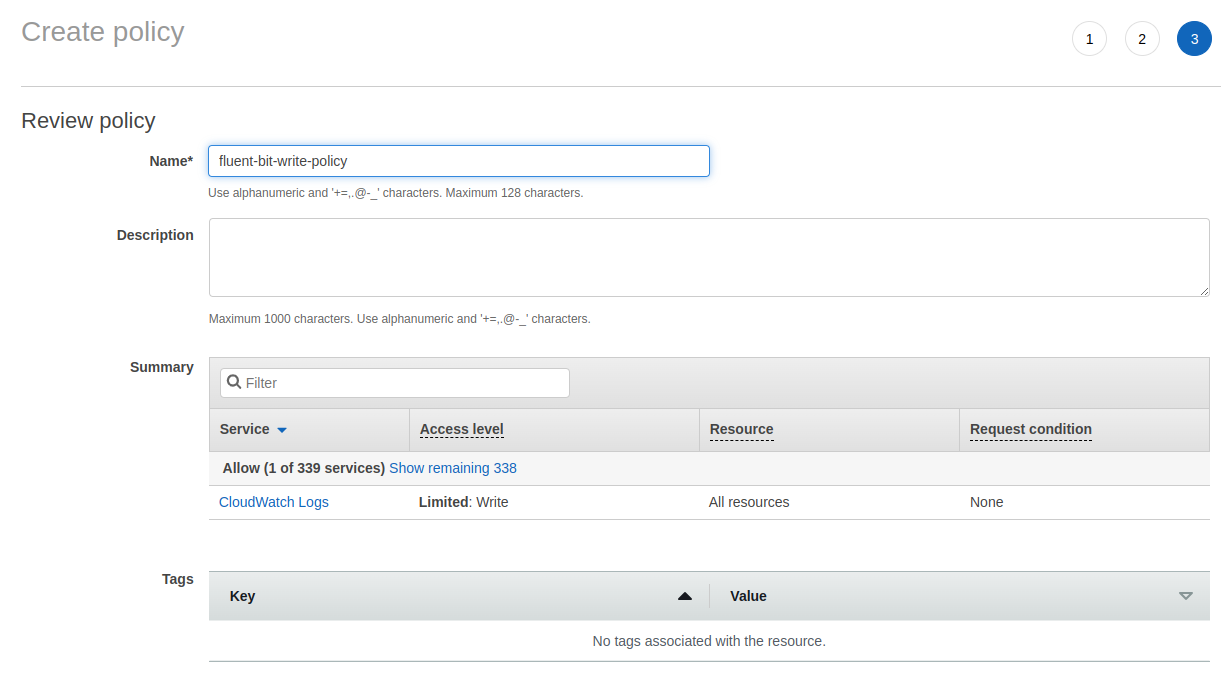
Create an IAM policy named `fluent-bit-write-policy` with these permissions:
```json theme={null}
{
"Version": "2012-10-17",
"Statement": [
{
"Effect": "Allow",
"Action": [
"logs:CreateLogGroup",
"logs:CreateLogStream",
"logs:DescribeLogStreams",
"logs:PutRetentionPolicy",
"logs:PutLogEvents"
],
"Resource": "*"
}
]
}
```
 ### Create IAM User
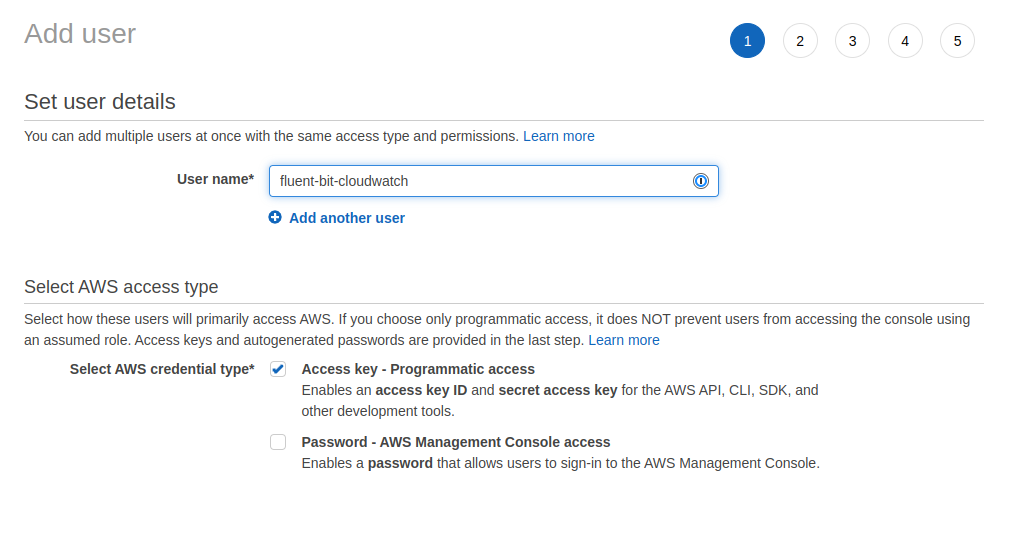
1. Create an IAM user
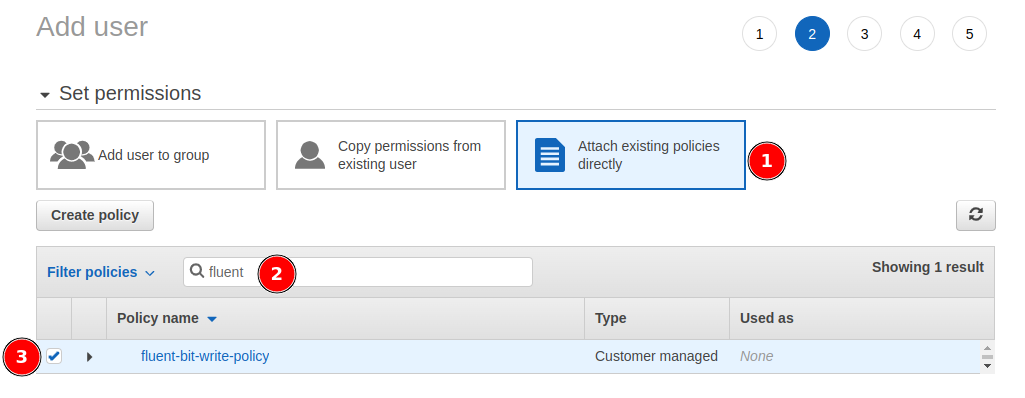
2. Attach the `fluent-bit-write-policy` to the user
3. Generate access credentials for later use
### Create IAM User
1. Create an IAM user
2. Attach the `fluent-bit-write-policy` to the user
3. Generate access credentials for later use
 ***
## Step 2: Deploy Fluent Bit with Helm
### Add AWS EKS Helm Repository
1. In Qovery Console, navigate to your environment
2. Add a new Helm repository:
* **Name**: `eks`
* **Kind**: `HTTPS`
* **URL**: `https://aws.github.io/eks-charts`
### Create Helm Service
Configure the Helm service with the following settings:
**Basic Configuration:**
* **Chart**: `aws-for-fluent-bit`
* **Version**: `0.1.21`
* **Enable cluster-wide resources**: Yes
**Values Override:**
```yaml theme={null}
cloudWatch:
enabled: true
region: us-east-1 # Change to your region
logGroupName: /aws/eks/fluent-bit
env:
- name: AWS_ACCESS_KEY_ID
valueFrom:
secretKeyRef:
name: fluent-bit-secrets
key: AWS_ACCESS_KEY
- name: AWS_SECRET_ACCESS_KEY
valueFrom:
secretKeyRef:
name: fluent-bit-secrets
key: AWS_SECRET_ACCESS_KEY
```
***
## Step 3: Store AWS Secrets
Add two service-scoped secret variables:
1. **AWS\_ACCESS\_KEY**: Your IAM user access key ID
2. **AWS\_SECRET\_ACCESS\_KEY**: Your IAM user secret access key
Always use secret variables (not regular environment variables) for AWS credentials to ensure they are encrypted.
***
## Step 4: Deploy
1. Save your Helm configuration
2. Click the **Play button** to trigger deployment
3. Wait for the deployment to complete
4. Verify the pods are running successfully
***
## Step 5: Access CloudWatch Logs
### Using CloudWatch Logs Insight
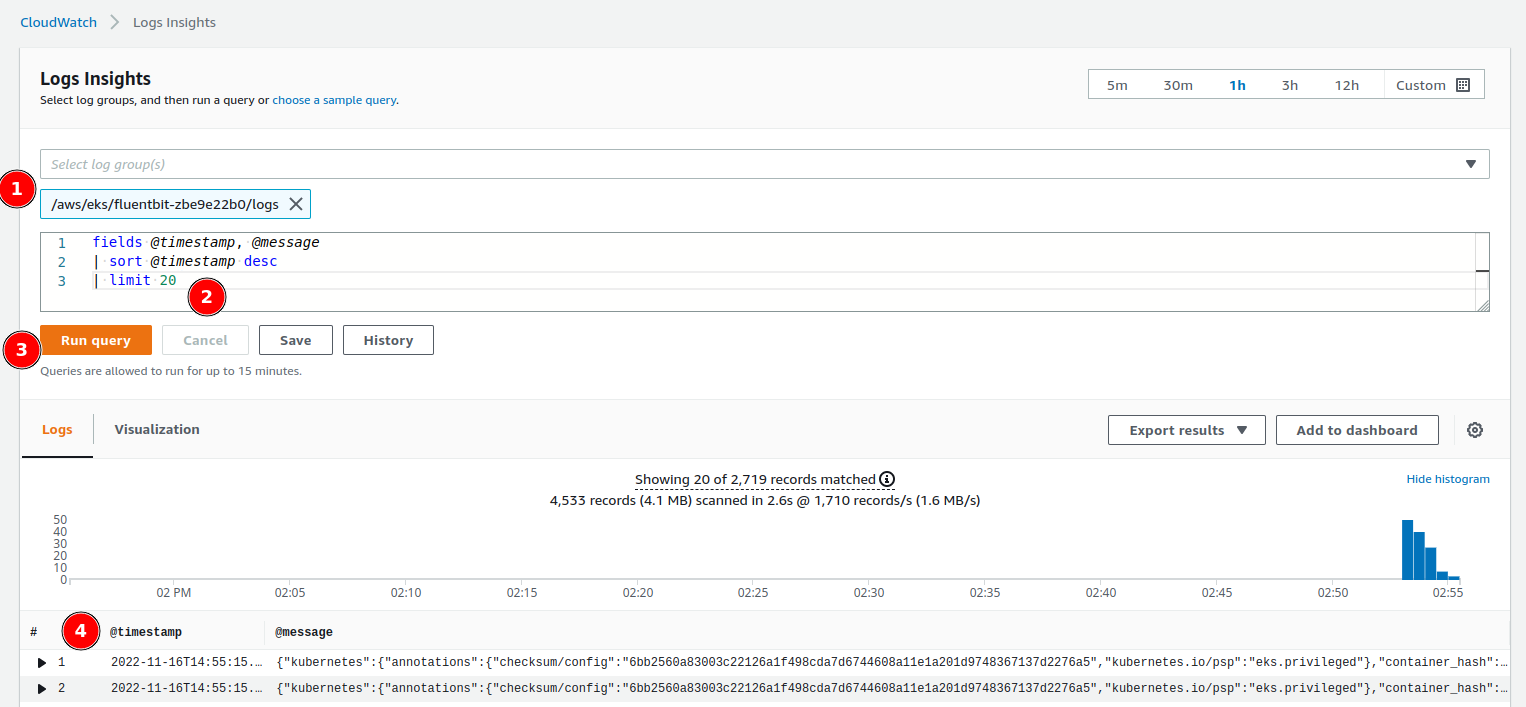
1. Navigate to AWS CloudWatch Console
2. Go to **Logs** → **Insights**
3. Select the `fluent-bit` log group
4. Use CloudWatch Logs Insights query syntax to filter and search logs
***
## Step 2: Deploy Fluent Bit with Helm
### Add AWS EKS Helm Repository
1. In Qovery Console, navigate to your environment
2. Add a new Helm repository:
* **Name**: `eks`
* **Kind**: `HTTPS`
* **URL**: `https://aws.github.io/eks-charts`
### Create Helm Service
Configure the Helm service with the following settings:
**Basic Configuration:**
* **Chart**: `aws-for-fluent-bit`
* **Version**: `0.1.21`
* **Enable cluster-wide resources**: Yes
**Values Override:**
```yaml theme={null}
cloudWatch:
enabled: true
region: us-east-1 # Change to your region
logGroupName: /aws/eks/fluent-bit
env:
- name: AWS_ACCESS_KEY_ID
valueFrom:
secretKeyRef:
name: fluent-bit-secrets
key: AWS_ACCESS_KEY
- name: AWS_SECRET_ACCESS_KEY
valueFrom:
secretKeyRef:
name: fluent-bit-secrets
key: AWS_SECRET_ACCESS_KEY
```
***
## Step 3: Store AWS Secrets
Add two service-scoped secret variables:
1. **AWS\_ACCESS\_KEY**: Your IAM user access key ID
2. **AWS\_SECRET\_ACCESS\_KEY**: Your IAM user secret access key
Always use secret variables (not regular environment variables) for AWS credentials to ensure they are encrypted.
***
## Step 4: Deploy
1. Save your Helm configuration
2. Click the **Play button** to trigger deployment
3. Wait for the deployment to complete
4. Verify the pods are running successfully
***
## Step 5: Access CloudWatch Logs
### Using CloudWatch Logs Insight
1. Navigate to AWS CloudWatch Console
2. Go to **Logs** → **Insights**
3. Select the `fluent-bit` log group
4. Use CloudWatch Logs Insights query syntax to filter and search logs
 ### Example Queries
**Find all error logs:**
```
fields @timestamp, @message
| filter @message like /ERROR/
| sort @timestamp desc
| limit 100
```
**Search by application name:**
```
fields @timestamp, kubernetes.pod_name, @message
| filter kubernetes.namespace_name = "your-namespace"
| sort @timestamp desc
| limit 100
```
**Count logs by pod:**
```
stats count() by kubernetes.pod_name
| sort count desc
```
***
## Benefits of CloudWatch Integration
Perform complex queries across all your logs
Configure custom retention policies up to 10 years
Use CloudWatch Insights for log analysis
Set up metric filters and alarms on log patterns
***
## Troubleshooting
* Verify IAM permissions are correct
* Check Fluent Bit pod logs for errors
* Ensure AWS credentials are properly configured as secrets
* Verify the log group name matches your configuration
* Confirm IAM policy includes all required permissions
* Check that the IAM user credentials are valid
* Verify the region in your configuration matches your cluster region
* Configure log retention policies to reduce storage costs
* Use log filtering to send only relevant logs
* Consider using S3 archiving for older logs
***
## Related Documentation
Access logs through Qovery Console
Deploy applications with Helm
Learn about observability options
Configure service advanced settings
### Example Queries
**Find all error logs:**
```
fields @timestamp, @message
| filter @message like /ERROR/
| sort @timestamp desc
| limit 100
```
**Search by application name:**
```
fields @timestamp, kubernetes.pod_name, @message
| filter kubernetes.namespace_name = "your-namespace"
| sort @timestamp desc
| limit 100
```
**Count logs by pod:**
```
stats count() by kubernetes.pod_name
| sort count desc
```
***
## Benefits of CloudWatch Integration
Perform complex queries across all your logs
Configure custom retention policies up to 10 years
Use CloudWatch Insights for log analysis
Set up metric filters and alarms on log patterns
***
## Troubleshooting
* Verify IAM permissions are correct
* Check Fluent Bit pod logs for errors
* Ensure AWS credentials are properly configured as secrets
* Verify the log group name matches your configuration
* Confirm IAM policy includes all required permissions
* Check that the IAM user credentials are valid
* Verify the region in your configuration matches your cluster region
* Configure log retention policies to reduce storage costs
* Use log filtering to send only relevant logs
* Consider using S3 archiving for older logs
***
## Related Documentation
Access logs through Qovery Console
Deploy applications with Helm
Learn about observability options
Configure service advanced settings