> ## Documentation Index
> Fetch the complete documentation index at: https://www.qovery.com/docs/llms.txt
> Use this file to discover all available pages before exploring further.
# Qovery Console AI Copilot
> Use AI Copilot directly in the Qovery Console
## Overview
The Qovery Console includes a built-in AI Copilot that provides contextual assistance directly within the web interface. Access intelligent help, troubleshooting guidance, and infrastructure management without leaving the console.
**Available Now**: The Console AI Copilot is available to all Qovery users. Simply click the **AI Copilot** button in the top-right corner of the console.
**Settings**: You can manage AI Copilot credits and activation under **Settings > AI Copilot** in the Console.
## Operating Modes
The Qovery AI Copilot supports two operating modes:
**Default behavior** - Safe for exploration and learning
**What it can do:**
* ✅ View and display information
* ✅ Answer questions about your infrastructure
* ✅ Provide guidance and recommendations
* ✅ Explain concepts and features
* ✅ Show deployment status and logs
* ✅ List services, environments, and resources
**What it cannot do:**
* ❌ Create, modify, or delete resources
* ❌ Deploy or restart services
* ❌ Change configurations
* ❌ Update environment variables
* ❌ Execute any write operations
Read-only mode is **enabled by default** for safety. Each new thread starts in read-only mode, even when read-write is enabled in the settings.
**Full automation capabilities** - When you need to take action
**What it can do:**
* ✅ Everything in read-only mode, plus:
* ✅ Deploy applications and services
* ✅ Create new environments
* ✅ Update configurations and settings
* ✅ Add, modify, or delete environment variables
* ✅ Scale services
* ✅ Restart or stop services
* ✅ Delete resources
Read-write mode allows the Copilot to make **real changes** to your infrastructure. The Copilot will always ask for confirmation before making any changes.
## Enabling Read-Write Mode
Read-write capabilities must first be enabled by an organization administrator in the Copilot settings panel.
In the Qovery Console, open the AI Copilot panel and navigate to its **settings**.
Toggle on the **Read-Write Mode** option. This unlocks write capabilities for all users in your organization who have the appropriate permissions.
Once enabled, a **read/write toggle** appears at the bottom of each Copilot thread. Each new thread starts in **read-only mode** by default — switch the toggle to read-write only when you intend to make changes.
This setting applies to the Console Copilot and the [MCP Server](/docs/copilot/mcp-server). The [Slack Bot](/docs/copilot/slack-bot) is always read-only.
## Accessing the AI Copilot
### Opening the Copilot
There are two ways to open the AI Copilot in the console:
1. **Click the AI Copilot button** in the top-right corner of any console page
2. **Use keyboard shortcut**: Press `⌘ I` (Mac) or `Ctrl I` (Windows/Linux)
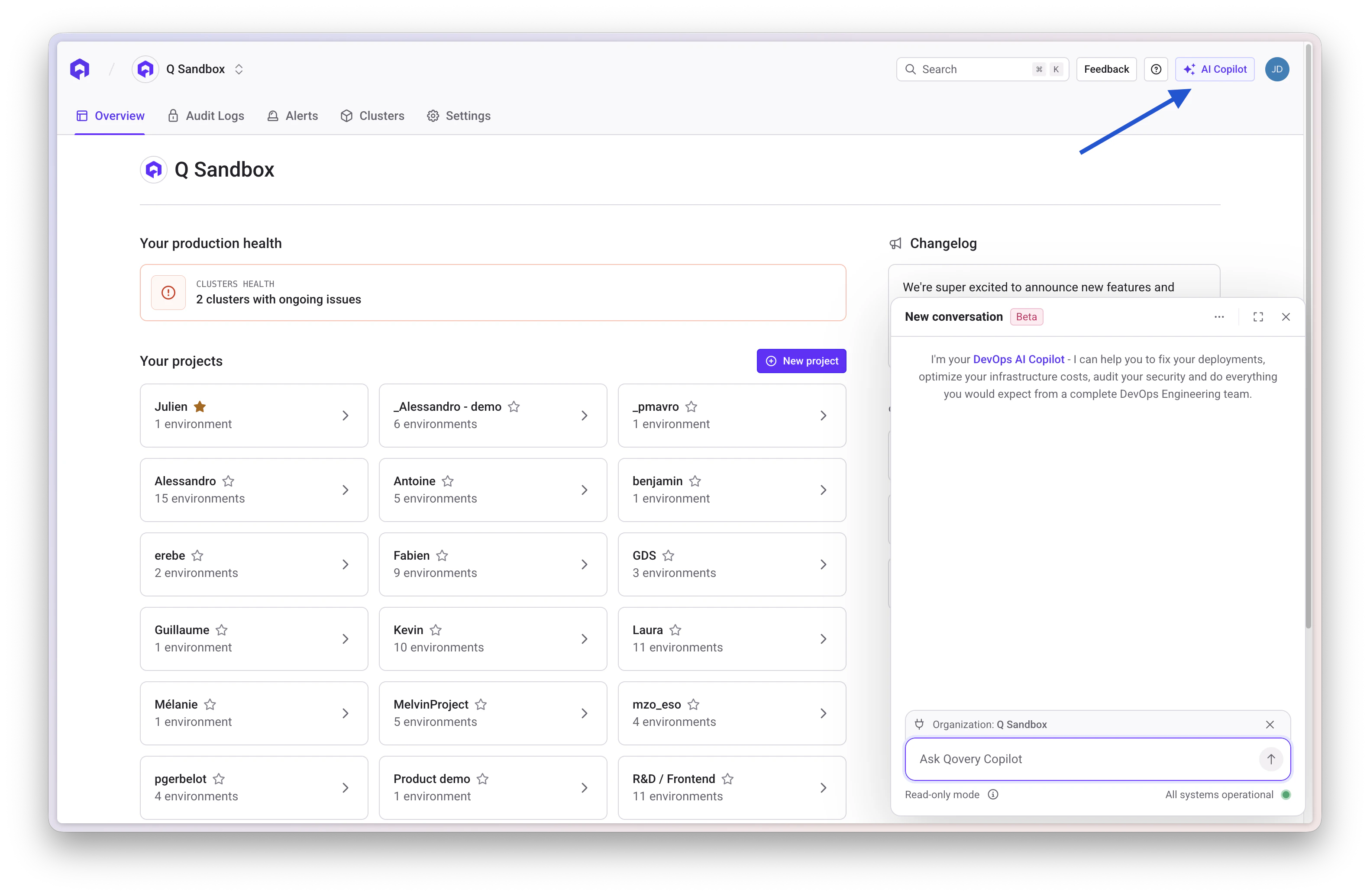 ### The Copilot Panel
Once opened, the Copilot appears as a side panel on the right side of the console:
* **Contextual awareness**: Automatically knows what page and environment you're viewing
* **Suggested actions**: Pre-populated questions based on your current context
* **Chat interface**: Natural language interaction with your infrastructure
* **System status**: Shows operational status at the bottom
## Contextual Suggestions
The Copilot provides contextual suggestions based on where you are in the console:
### Environment Page Suggestions
When viewing an environment, you'll see suggestions like:
* **"What is an environment?"** - Learn about environment concepts
* **"Monitor the running and deployment status of your environments and services"** - Check current status
* **"How do I manage the deployment order of my services?"** - Configure deployment pipelines
* **"Manage the deployment lifecycle of your services and environments"** - Control deployments
* **"Check my deployments and application logs"** - Investigate issues
### Service-Specific Context
The Copilot automatically knows:
* Which environment you're viewing
* Which services are deployed
* Current deployment status
* Recent errors or issues
## Using the Console Copilot
### Ask Questions
Simply type your question in natural language:
```
How do I deploy this application?
Why is my Frontend service showing an error?
What's the status of my PostgreSQL database?
How do I add environment variables?
```
### Get Contextual Help
The Copilot provides answers specific to your current context:
**You ask:** "What services are running?"
**Copilot responds:** Based on your current environment "Julien dev", you have:
* Frontend (Error)
* Grafana (Stopped)
* PostgreSQL (Starting)
* My service (Error)
* And 4 more services...
**You ask:** "Why is Frontend failing?"
**Copilot responds:** Analyzing the Frontend service in your environment, I can see:
* Last deployment aborted
* Check the deployment logs for specific errors
* Common causes include: build failures, missing environment variables...
**You ask:** "How do I add a database?"
**Copilot responds:** To add a database to your "Julien dev" environment:
1. Click "New service" button
2. Select "Database"
3. Choose your database type...
## Features
Automatically understands your current environment, services, and deployment status
Pre-populated questions based on common tasks for your current page
Ask questions in plain English without technical jargon
Shows current system operational status
Keyboard shortcut (⌘ I) for instant access
Context switches automatically as you navigate
## Common Use Cases
### Getting Started
**New to Qovery?** Ask the basics:
```
What is an environment?
How do I deploy my first application?
What's the difference between staging and production?
How do I connect a database to my app?
```
### Troubleshooting Deployments
**Having issues?** Get instant help:
```
Why is my deployment failing?
How do I check application logs?
My service shows an error, what should I do?
How do I rollback to a previous version?
```
### Managing Services
**Configure your infrastructure:**
```
How do I scale my application?
How do I add environment variables?
What's the deployment order of my services?
How do I manage secrets?
```
### Understanding Status
**Check what's happening:**
```
What's the status of my services?
Which services are currently running?
Are there any errors in my environment?
When was my last deployment?
```
## Current Mode in Console
Each Copilot thread starts in **read-only mode** by default, even if read-write is enabled in your organization settings. Use the **toggle at the bottom of the thread** to switch to read-write mode when you need to make changes.
## Context Switching
The Copilot automatically adjusts its context as you navigate:
Switch to a different environment in the console
The Copilot immediately becomes aware of the new environment
Contextual suggestions update to match the new environment
The current environment is shown in the Copilot panel (e.g., "Environment: Julien dev")
## Best Practices
While the Copilot knows your current environment, being specific helps:
**Instead of:** "Why is it failing?"
**Try:** "Why is the Frontend service deployment failing?"
The contextual suggestions are tailored to common tasks:
* Click on a suggested question to get started
* They're designed for your current page context
* Great for learning what's possible
Build on previous answers:
1. "What services are in error state?"
2. "Show me logs for the Frontend service"
3. "How do I fix this deployment error?"
Speed up your workflow:
* `⌘ I` (Mac) or `Ctrl I` (Windows/Linux) to open
* Type your question and press Enter
* ESC to close the panel
## System Status
At the bottom of the Copilot panel, you'll see the system status:
* **All systems operational** 🟢 - Everything working normally
* **Degraded performance** 🟡 - Some issues affecting performance
* **Partial outage** 🟠 - Some features unavailable
* **Major outage** 🔴 - Significant service disruption
This helps you understand if issues you're experiencing are related to the Qovery platform itself.
## Authentication Modes
The Copilot supports two authentication modes, configured by an organization administrator in the Copilot settings. See the [Getting Started guide](/docs/copilot/getting-started#authentication-modes) for full details.
The Copilot acts on behalf of the currently logged-in user, using their JWT token. Actions are limited to what that user is authorized to do in Qovery.
The Copilot uses a token linked to a dedicated **"AI Copilot"** role. An admin can configure this role to define exactly which permissions the Copilot has, the role has viewer permissions by default — independently of individual users. Useful for centralized access control and cleaner audit trails.
## Privacy & Security
The Console Copilot can access:
* Your current page context (environment, services)
* Service names and status
* Deployment history visible in the console
* Public documentation and help content
It cannot access:
* Your application code
* Application logs content
* Secret values
* API tokens
* Conversations are associated with your user account
* Used to improve Copilot responses
* Not shared with other users
* Follow Qovery's privacy policy
## Comparison: Console vs Slack Bot vs MCP Server
**Best for:**
* Quick help while working in the console
* Learning about features
* Understanding current status
* Troubleshooting guidance
**Mode:**
* Read-only by default per thread
* Read-write available (requires admin activation in Copilot settings)
**Advantages:**
* No setup required
* Contextual awareness
* Always available
* Integrated experience
* Safe exploration by default
**Use when:**
* You're already in the console
* You need quick answers or contextual help
* Learning the platform
* You want to take actions directly from the console
**Best for:**
* Team collaboration
* Shared status monitoring
* ChatOps workflows
**Mode:**
* Read-only
**Advantages:**
* Team collaboration
* Mobile access
* No installation required
**Use when:**
* Working with a team
* Need status checks and monitoring
* Want mobile access
* Prefer Slack interface
[Learn more →](/docs/copilot/slack-bot)
**Best for:**
* Individual power users
* Complex automation
* Desktop workflows
* Advanced integrations
**Mode:**
* Read-write mode supported (defaults to read-only)
**Advantages:**
* Most powerful capabilities
* Can create, modify, delete resources
* Desktop integration
* Richer context
* Advanced features
**Use when:**
* Working individually
* Need advanced automation
* Want desktop integration
* Require maximum capabilities
* Need complex workflows
[Learn more →](/docs/copilot/mcp-server)
## Next Steps
Use Copilot in Slack for team collaboration and automation
Use Copilot in Claude Desktop for power users
Explore all Copilot capabilities
Learn from practical examples
## Feedback
Help us improve the Console Copilot:
* **In-Console Feedback**: Use the feedback button in the Copilot panel
* **Email**: Contact [support@qovery.com](mailto:support@qovery.com)
* **Feature Requests**: Share ideas for new capabilities
Your feedback helps us make the Copilot more helpful!
### The Copilot Panel
Once opened, the Copilot appears as a side panel on the right side of the console:
* **Contextual awareness**: Automatically knows what page and environment you're viewing
* **Suggested actions**: Pre-populated questions based on your current context
* **Chat interface**: Natural language interaction with your infrastructure
* **System status**: Shows operational status at the bottom
## Contextual Suggestions
The Copilot provides contextual suggestions based on where you are in the console:
### Environment Page Suggestions
When viewing an environment, you'll see suggestions like:
* **"What is an environment?"** - Learn about environment concepts
* **"Monitor the running and deployment status of your environments and services"** - Check current status
* **"How do I manage the deployment order of my services?"** - Configure deployment pipelines
* **"Manage the deployment lifecycle of your services and environments"** - Control deployments
* **"Check my deployments and application logs"** - Investigate issues
### Service-Specific Context
The Copilot automatically knows:
* Which environment you're viewing
* Which services are deployed
* Current deployment status
* Recent errors or issues
## Using the Console Copilot
### Ask Questions
Simply type your question in natural language:
```
How do I deploy this application?
Why is my Frontend service showing an error?
What's the status of my PostgreSQL database?
How do I add environment variables?
```
### Get Contextual Help
The Copilot provides answers specific to your current context:
**You ask:** "What services are running?"
**Copilot responds:** Based on your current environment "Julien dev", you have:
* Frontend (Error)
* Grafana (Stopped)
* PostgreSQL (Starting)
* My service (Error)
* And 4 more services...
**You ask:** "Why is Frontend failing?"
**Copilot responds:** Analyzing the Frontend service in your environment, I can see:
* Last deployment aborted
* Check the deployment logs for specific errors
* Common causes include: build failures, missing environment variables...
**You ask:** "How do I add a database?"
**Copilot responds:** To add a database to your "Julien dev" environment:
1. Click "New service" button
2. Select "Database"
3. Choose your database type...
## Features
Automatically understands your current environment, services, and deployment status
Pre-populated questions based on common tasks for your current page
Ask questions in plain English without technical jargon
Shows current system operational status
Keyboard shortcut (⌘ I) for instant access
Context switches automatically as you navigate
## Common Use Cases
### Getting Started
**New to Qovery?** Ask the basics:
```
What is an environment?
How do I deploy my first application?
What's the difference between staging and production?
How do I connect a database to my app?
```
### Troubleshooting Deployments
**Having issues?** Get instant help:
```
Why is my deployment failing?
How do I check application logs?
My service shows an error, what should I do?
How do I rollback to a previous version?
```
### Managing Services
**Configure your infrastructure:**
```
How do I scale my application?
How do I add environment variables?
What's the deployment order of my services?
How do I manage secrets?
```
### Understanding Status
**Check what's happening:**
```
What's the status of my services?
Which services are currently running?
Are there any errors in my environment?
When was my last deployment?
```
## Current Mode in Console
Each Copilot thread starts in **read-only mode** by default, even if read-write is enabled in your organization settings. Use the **toggle at the bottom of the thread** to switch to read-write mode when you need to make changes.
## Context Switching
The Copilot automatically adjusts its context as you navigate:
Switch to a different environment in the console
The Copilot immediately becomes aware of the new environment
Contextual suggestions update to match the new environment
The current environment is shown in the Copilot panel (e.g., "Environment: Julien dev")
## Best Practices
While the Copilot knows your current environment, being specific helps:
**Instead of:** "Why is it failing?"
**Try:** "Why is the Frontend service deployment failing?"
The contextual suggestions are tailored to common tasks:
* Click on a suggested question to get started
* They're designed for your current page context
* Great for learning what's possible
Build on previous answers:
1. "What services are in error state?"
2. "Show me logs for the Frontend service"
3. "How do I fix this deployment error?"
Speed up your workflow:
* `⌘ I` (Mac) or `Ctrl I` (Windows/Linux) to open
* Type your question and press Enter
* ESC to close the panel
## System Status
At the bottom of the Copilot panel, you'll see the system status:
* **All systems operational** 🟢 - Everything working normally
* **Degraded performance** 🟡 - Some issues affecting performance
* **Partial outage** 🟠 - Some features unavailable
* **Major outage** 🔴 - Significant service disruption
This helps you understand if issues you're experiencing are related to the Qovery platform itself.
## Authentication Modes
The Copilot supports two authentication modes, configured by an organization administrator in the Copilot settings. See the [Getting Started guide](/docs/copilot/getting-started#authentication-modes) for full details.
The Copilot acts on behalf of the currently logged-in user, using their JWT token. Actions are limited to what that user is authorized to do in Qovery.
The Copilot uses a token linked to a dedicated **"AI Copilot"** role. An admin can configure this role to define exactly which permissions the Copilot has, the role has viewer permissions by default — independently of individual users. Useful for centralized access control and cleaner audit trails.
## Privacy & Security
The Console Copilot can access:
* Your current page context (environment, services)
* Service names and status
* Deployment history visible in the console
* Public documentation and help content
It cannot access:
* Your application code
* Application logs content
* Secret values
* API tokens
* Conversations are associated with your user account
* Used to improve Copilot responses
* Not shared with other users
* Follow Qovery's privacy policy
## Comparison: Console vs Slack Bot vs MCP Server
**Best for:**
* Quick help while working in the console
* Learning about features
* Understanding current status
* Troubleshooting guidance
**Mode:**
* Read-only by default per thread
* Read-write available (requires admin activation in Copilot settings)
**Advantages:**
* No setup required
* Contextual awareness
* Always available
* Integrated experience
* Safe exploration by default
**Use when:**
* You're already in the console
* You need quick answers or contextual help
* Learning the platform
* You want to take actions directly from the console
**Best for:**
* Team collaboration
* Shared status monitoring
* ChatOps workflows
**Mode:**
* Read-only
**Advantages:**
* Team collaboration
* Mobile access
* No installation required
**Use when:**
* Working with a team
* Need status checks and monitoring
* Want mobile access
* Prefer Slack interface
[Learn more →](/docs/copilot/slack-bot)
**Best for:**
* Individual power users
* Complex automation
* Desktop workflows
* Advanced integrations
**Mode:**
* Read-write mode supported (defaults to read-only)
**Advantages:**
* Most powerful capabilities
* Can create, modify, delete resources
* Desktop integration
* Richer context
* Advanced features
**Use when:**
* Working individually
* Need advanced automation
* Want desktop integration
* Require maximum capabilities
* Need complex workflows
[Learn more →](/docs/copilot/mcp-server)
## Next Steps
Use Copilot in Slack for team collaboration and automation
Use Copilot in Claude Desktop for power users
Explore all Copilot capabilities
Learn from practical examples
## Feedback
Help us improve the Console Copilot:
* **In-Console Feedback**: Use the feedback button in the Copilot panel
* **Email**: Contact [support@qovery.com](mailto:support@qovery.com)
* **Feature Requests**: Share ideas for new capabilities
Your feedback helps us make the Copilot more helpful!