> ## Documentation Index
> Fetch the complete documentation index at: https://www.qovery.com/docs/llms.txt
> Use this file to discover all available pages before exploring further.
# Project
> Configure and manage projects to group environments
## Overview
A project allows you to group together a set of environments with the objective to run the same application. Projects are automatically created when you create a new organization and support role-based access control through [Qovery's RBAC system](/docs/configuration/organization/members-rbac).
## Prerequisites
* An existing organization in Qovery
## Create a New Project
Go to your organization overview in the [Qovery Console](https://console.qovery.com)
Click the **New Project** button
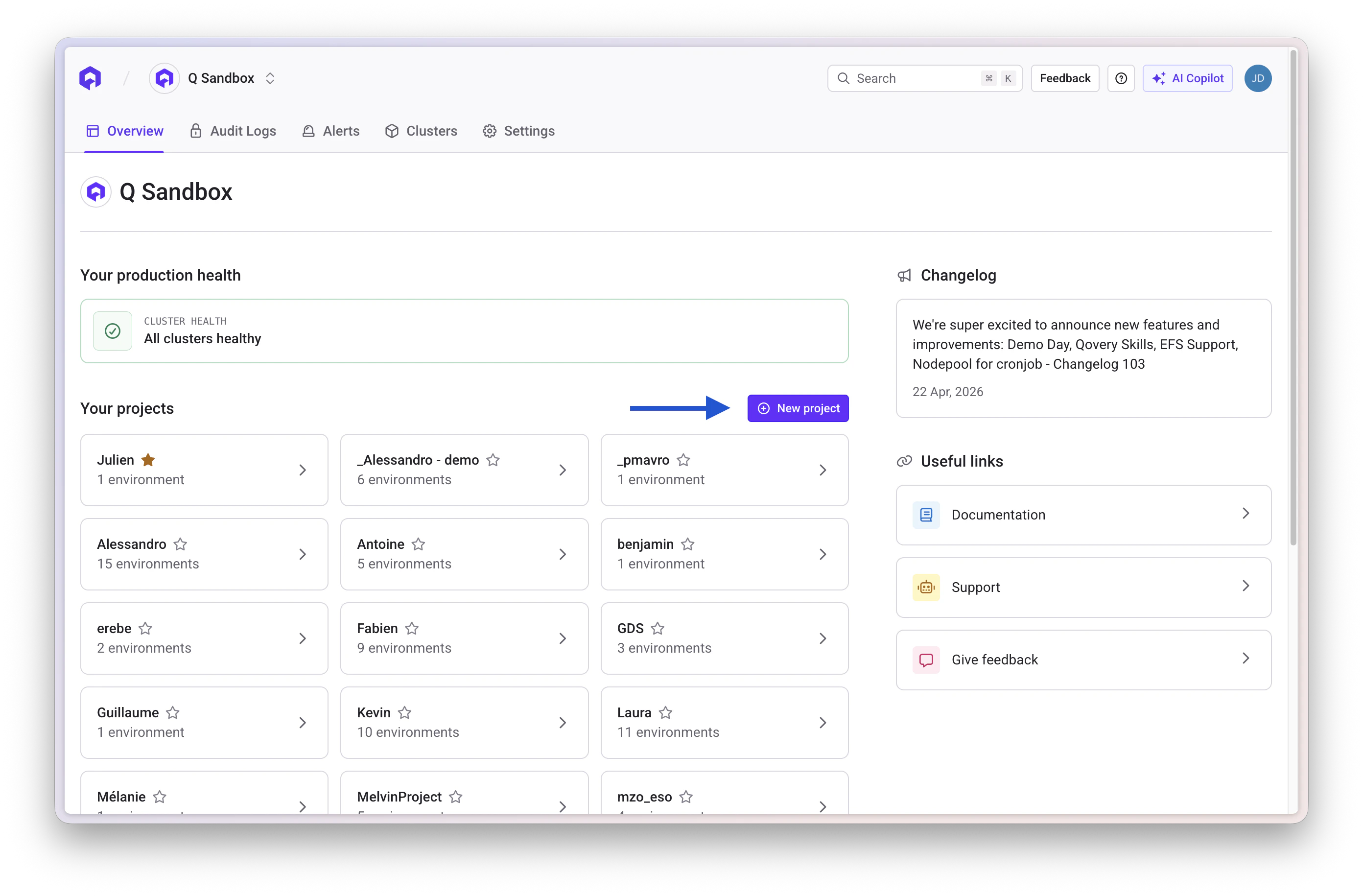 Enter the following information:
* **Name**: A descriptive name for your project
* **Description**: (Optional) Brief description of the project's purpose
Click **Create** to finalize the project creation
## Edit Project General Information
To update project details:
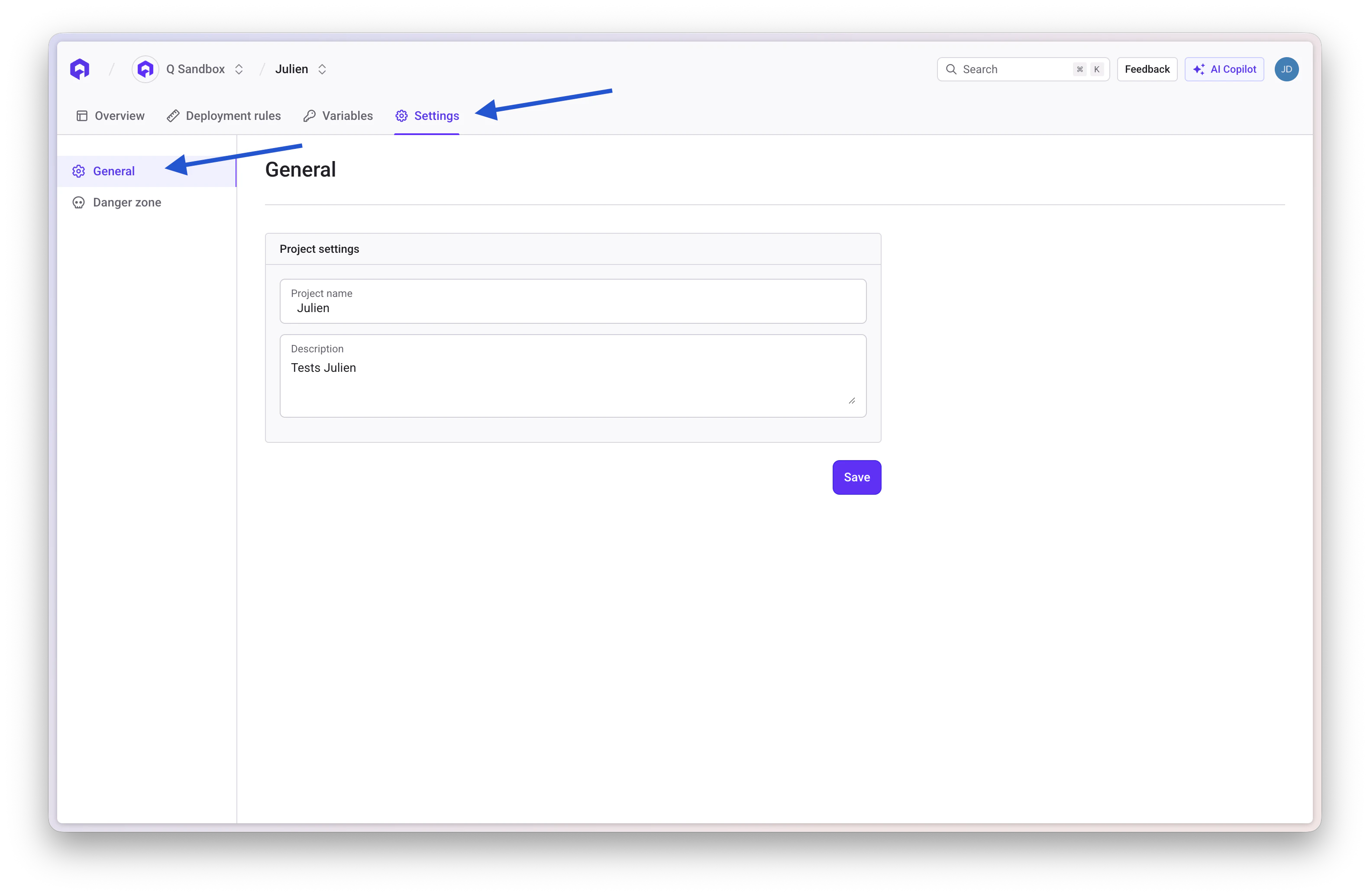
Open the project settings page
Choose the project you want to edit
Navigate to the **GENERAL** section
Modify the name or description and save your changes
Enter the following information:
* **Name**: A descriptive name for your project
* **Description**: (Optional) Brief description of the project's purpose
Click **Create** to finalize the project creation
## Edit Project General Information
To update project details:
Open the project settings page
Choose the project you want to edit
Navigate to the **GENERAL** section
Modify the name or description and save your changes
 ## Delete a Project
Deleting a project is a **non-recoverable operation**. This will permanently delete:
* All environments within the project
* All running applications and their data
* All databases and their data
* All configuration and secrets
* All deployment history
To delete a project:
Open the project settings page
Choose the project you want to delete
Go to the **DANGER** section
Click the **Delete Project** button
## Delete a Project
Deleting a project is a **non-recoverable operation**. This will permanently delete:
* All environments within the project
* All running applications and their data
* All databases and their data
* All configuration and secrets
* All deployment history
To delete a project:
Open the project settings page
Choose the project you want to delete
Go to the **DANGER** section
Click the **Delete Project** button
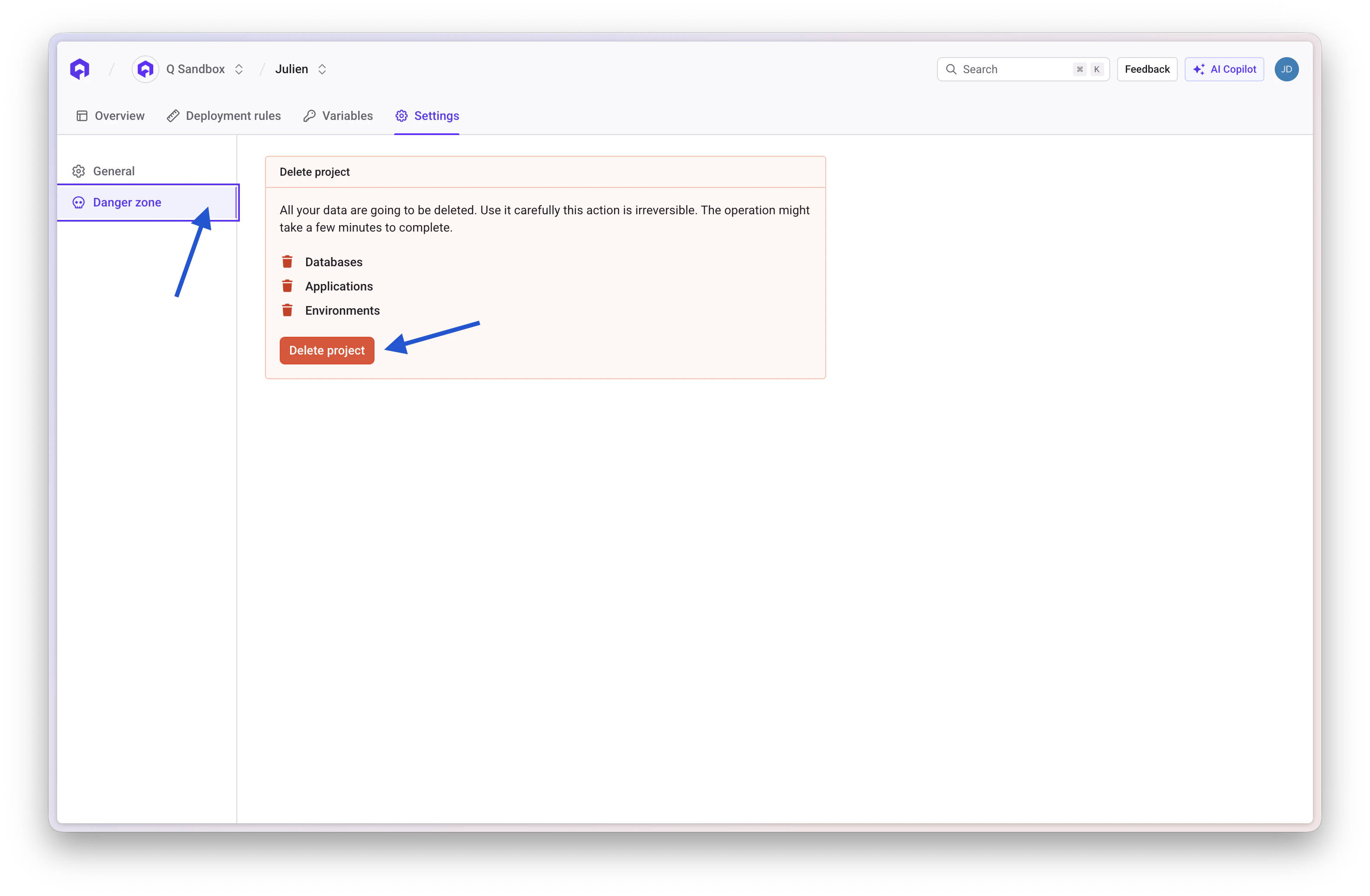 Type the project name to confirm and complete the deletion
## Related Topics
Learn about organization configuration
Configure environments within projects
Manage access control for projects
Manage projects using the Qovery CLI
Type the project name to confirm and complete the deletion
## Related Topics
Learn about organization configuration
Configure environments within projects
Manage access control for projects
Manage projects using the Qovery CLI