> ## Documentation Index
> Fetch the complete documentation index at: https://www.qovery.com/docs/llms.txt
> Use this file to discover all available pages before exploring further.
# Organization
> Configure and manage your Qovery organization
An organization is a shared account where developers can collaborate across many projects. Organization owners and admins can manage all aspects of the organization, from clusters to member access.
## Prerequisites
To follow this section, you must have [created an account](https://console.qovery.com/signup).
## Creating an Organization
### When Signing Up
When you sign up for Qovery, you will be asked to create your first organization and project. You will need to:
1. Sign in through your Git provider (GitHub, GitLab, or Bitbucket), Google or Microsoft
2. Create your first organization
3. You will be on Team plan by default during your trial
For more information on available plans, visit the [pricing page](https://www.qovery.com/pricing).
### After Signing Up
You can create multiple organizations to separate concerns. To create a new organization:
Click on your current organization dropdown meny in the header
Click the `+` button in the bottom of the dropdown menu
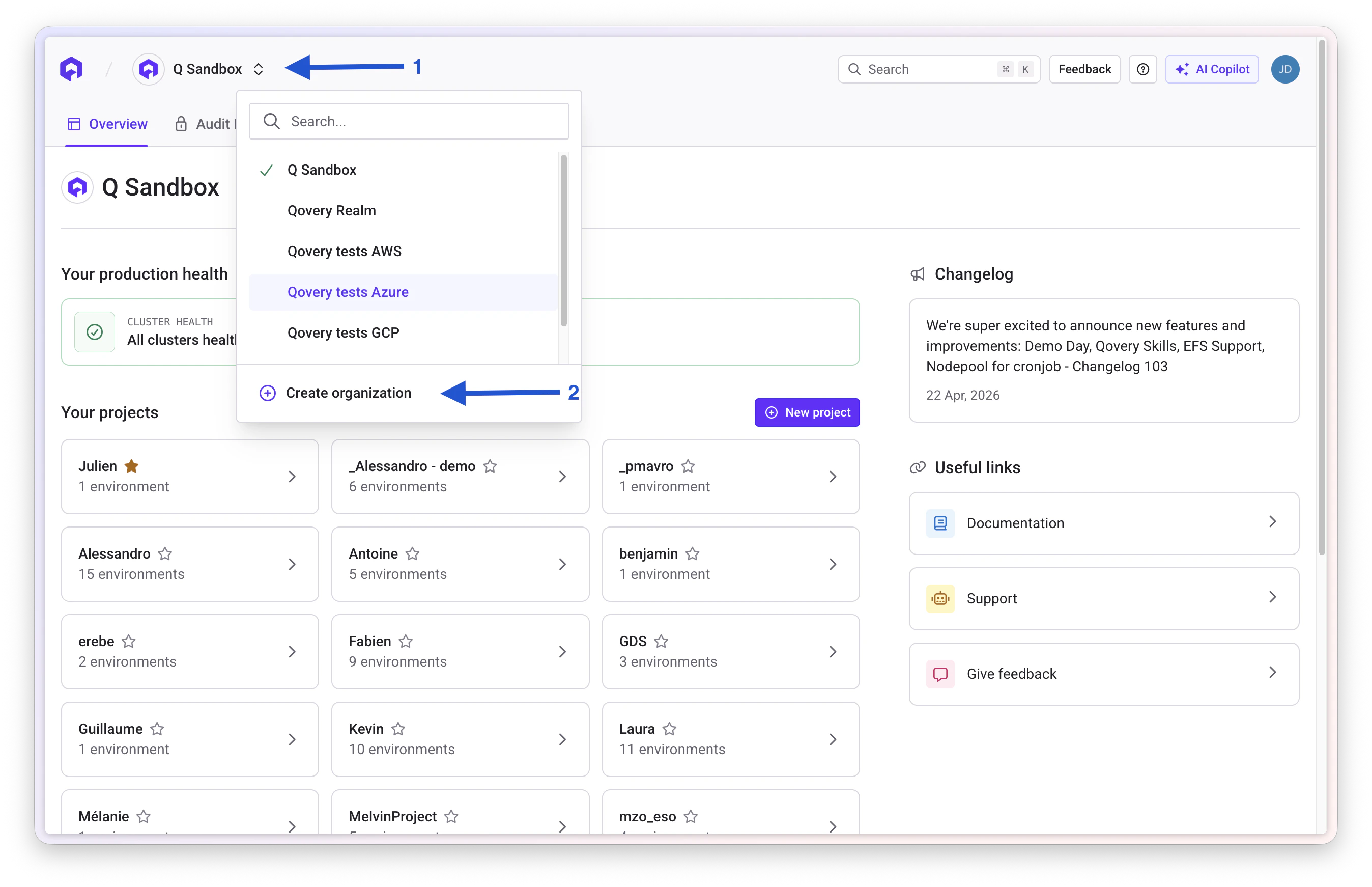 Fill in the required information and select your plan
## Change an Organization
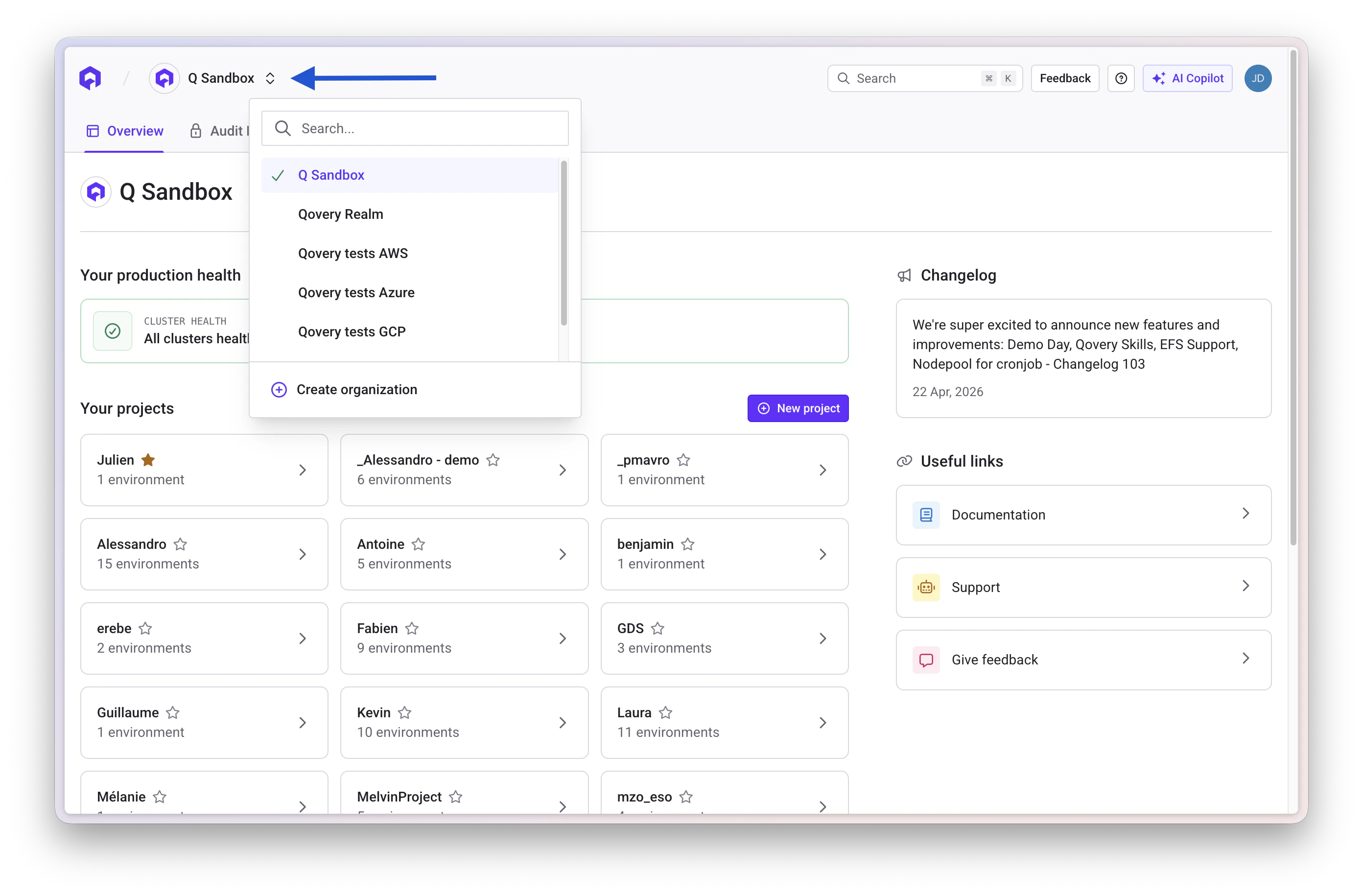
If you have access to multiple organizations, you can switch between them:
1. Locate the organization dropdown in the header
2. Click on the dropdown to see all available organizations
3. Select the organization you want to switch to
Fill in the required information and select your plan
## Change an Organization
If you have access to multiple organizations, you can switch between them:
1. Locate the organization dropdown in the header
2. Click on the dropdown to see all available organizations
3. Select the organization you want to switch to
 ## Delete an Organization
Deleting an organization is **irreversible**. All data associated with the
organization will be permanently deleted.
To delete an organization:
1. Navigate to Organization Settings
2. Scroll to the "Danger Zone" section
3. Click "Delete Organization"
4. Confirm the deletion by typing the organization name
## Billing
Manage your organization's billing and subscription:
* **View Invoices**: Access all past and current invoices
* **Payment Methods**: Add or update credit cards and payment details
* **Subscription**: Upgrade or downgrade your plan
* **Usage**: Monitor resource usage and costs
For pricing details, visit the [pricing page](https://www.qovery.com/pricing).
## Organization Admin Settings
### Accessing Settings
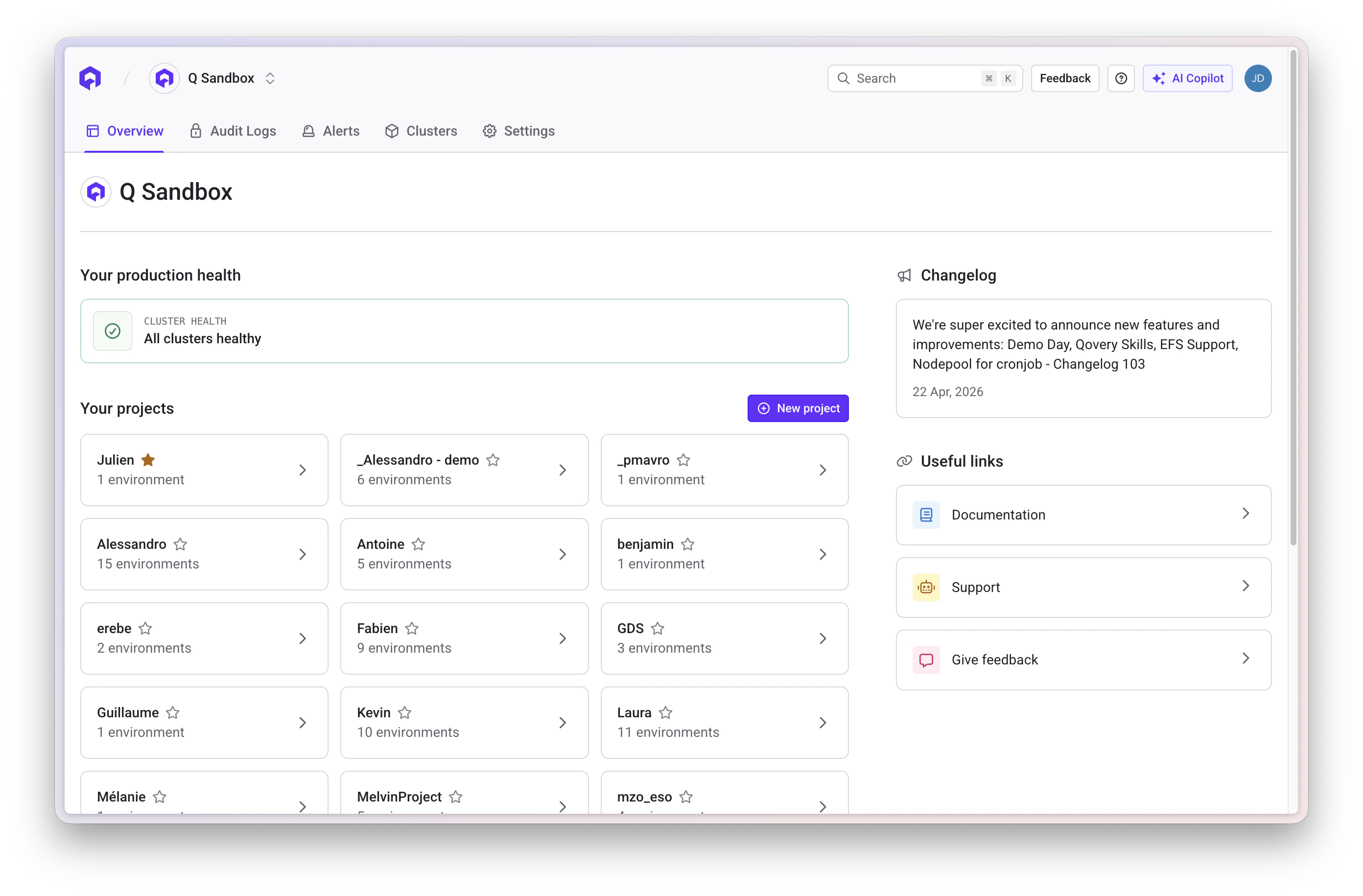
Click the Settings tab while you are on your organization overview.
## Delete an Organization
Deleting an organization is **irreversible**. All data associated with the
organization will be permanently deleted.
To delete an organization:
1. Navigate to Organization Settings
2. Scroll to the "Danger Zone" section
3. Click "Delete Organization"
4. Confirm the deletion by typing the organization name
## Billing
Manage your organization's billing and subscription:
* **View Invoices**: Access all past and current invoices
* **Payment Methods**: Add or update credit cards and payment details
* **Subscription**: Upgrade or downgrade your plan
* **Usage**: Monitor resource usage and costs
For pricing details, visit the [pricing page](https://www.qovery.com/pricing).
## Organization Admin Settings
### Accessing Settings
Click the Settings tab while you are on your organization overview.
 ### General Information
Configure basic organization details:
* **Company name**: Your organization's official name
* **Description**: Brief description of your organization
* **Website**: Your company website URL
* **Admin contact emails**: Enter one or multiple email addresses separated by commas
Admin contact emails are used for communications about infrastructure outages,
maintenance updates, and weekly and monthly usage reports.
Click **Update** to save your changes.
### Other Settings
Generate and manage API tokens for programmatic access
Connect your cloud provider accounts (AWS, GCP, Azure, Scaleway)
Configure access to your container registries
Manage Git provider integrations and repository access
Add and configure Helm chart repositories
Define custom labels and annotations for your resources
Manage team members and role-based access control
### General Information
Configure basic organization details:
* **Company name**: Your organization's official name
* **Description**: Brief description of your organization
* **Website**: Your company website URL
* **Admin contact emails**: Enter one or multiple email addresses separated by commas
Admin contact emails are used for communications about infrastructure outages,
maintenance updates, and weekly and monthly usage reports.
Click **Update** to save your changes.
### Other Settings
Generate and manage API tokens for programmatic access
Connect your cloud provider accounts (AWS, GCP, Azure, Scaleway)
Configure access to your container registries
Manage Git provider integrations and repository access
Add and configure Helm chart repositories
Define custom labels and annotations for your resources
Manage team members and role-based access control