> ## Documentation Index
> Fetch the complete documentation index at: https://www.qovery.com/docs/llms.txt
> Use this file to discover all available pages before exploring further.
# Object Storage
> Use cloud object storage for persistent data in your applications
**Object Storage is not a native Qovery service type.** You will not find an "Object Storage" option in the "New service" creation flow. This page explains how to connect your Qovery-deployed applications to external object storage providers (AWS S3, DigitalOcean Spaces, Scaleway Object Storage) using environment variables and compatible SDKs.
The default filesystem for Qovery applications is ephemeral, meaning data isn't retained across deploys and restarts. Object Storage addresses this limitation for applications needing persistent storage across restarts or managing large unstructured datasets unsuitable for traditional databases.
## Use Cases
### Good Use Cases ✅
Object storage is ideal for:
* **Large volumes of read-only data storage** - Store and serve static content efficiently
* **High availability requirements** - Built-in redundancy across multiple locations
* **High scalability needs** - Seamlessly scale from gigabytes to petabytes
* **Unstructured data** - Music, photos, videos, backups, and archives
* **Geographically distributed data** - Serve content closer to users globally
**Example Applications:**
* Music streaming services (Spotify-like applications)
* Photo-heavy platforms (Instagram, Facebook)
* Long-term backup and archive storage
### Bad Use Cases ❌
Object storage is **not** ideal for:
* **I/O intensive operations** - Database-like workloads requiring frequent reads/writes
* **Frequent data modifications** - Objects that change constantly
* **Temporary file storage** - Use ephemeral storage for temporary data
* **Transactional data handling** - Applications requiring ACID guarantees
## Pros & Cons
### Advantages
* **Cost-effective** - Reduces infrastructure costs for data storage
* **Easy scalability** - Minimizes management overhead with automatic scaling
* **Durability** - Built-in redundancy protects against data loss
* **Accessibility** - Access data from anywhere via HTTP/S APIs
### Disadvantages
* **Not optimal for frequently changing datasets** - Every update creates a new version
* **Eventual consistency** - May be insufficient for applications requiring strong consistency guarantees
* **Higher latency** - Not suitable for low-latency database operations
## Using Object Storage
### AWS S3
Amazon S3 is the most popular object storage service with excellent integration options.
**Setup Steps:**
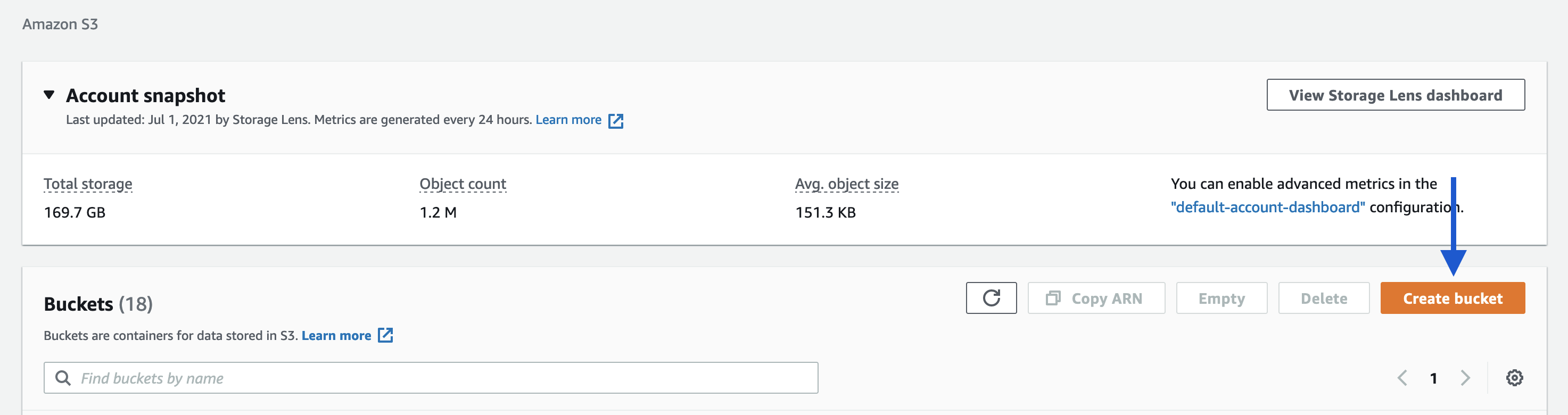
1. **Access AWS S3 Console**
* Navigate to [AWS S3 Console](https://s3.console.aws.amazon.com/)
* Click **Create bucket**
2. **Create Bucket**
* Choose a unique bucket name
* Select your region (preferably same as your Qovery cluster)
* Configure bucket settings (versioning, encryption, etc.)
 3. **Configure Application**
* Use the AWS SDK in your application code
* Set up authentication via environment variables
**Node.js Example:**
```javascript theme={null}
const aws = require('aws-sdk');
const express = require('express');
const multer = require('multer');
const multerS3 = require('multer-s3');
const endpoint = new aws.Endpoint('s3.us-east-2.amazonaws.com');
const s3 = new aws.S3({ endpoint: endpoint });
const upload = multer({
storage: multerS3({
s3: s3,
bucket: 'your-bucket-here',
acl: 'public-read',
key: function (request, file, cb) {
console.log(file);
cb(null, file.originalname);
}
})
}).array('upload', 1);
```
**Required Environment Variables** (for secured access):
```bash theme={null}
AWS_ACCESS_KEY_ID=your_access_key_id
AWS_SECRET_ACCESS_KEY=your_secret_access_key
```
Add these environment variables in your Qovery application settings to securely authenticate with AWS S3.
***
### Digital Ocean Spaces
DigitalOcean Spaces provides S3-compatible object storage with predictable pricing.
**Setup Steps:**
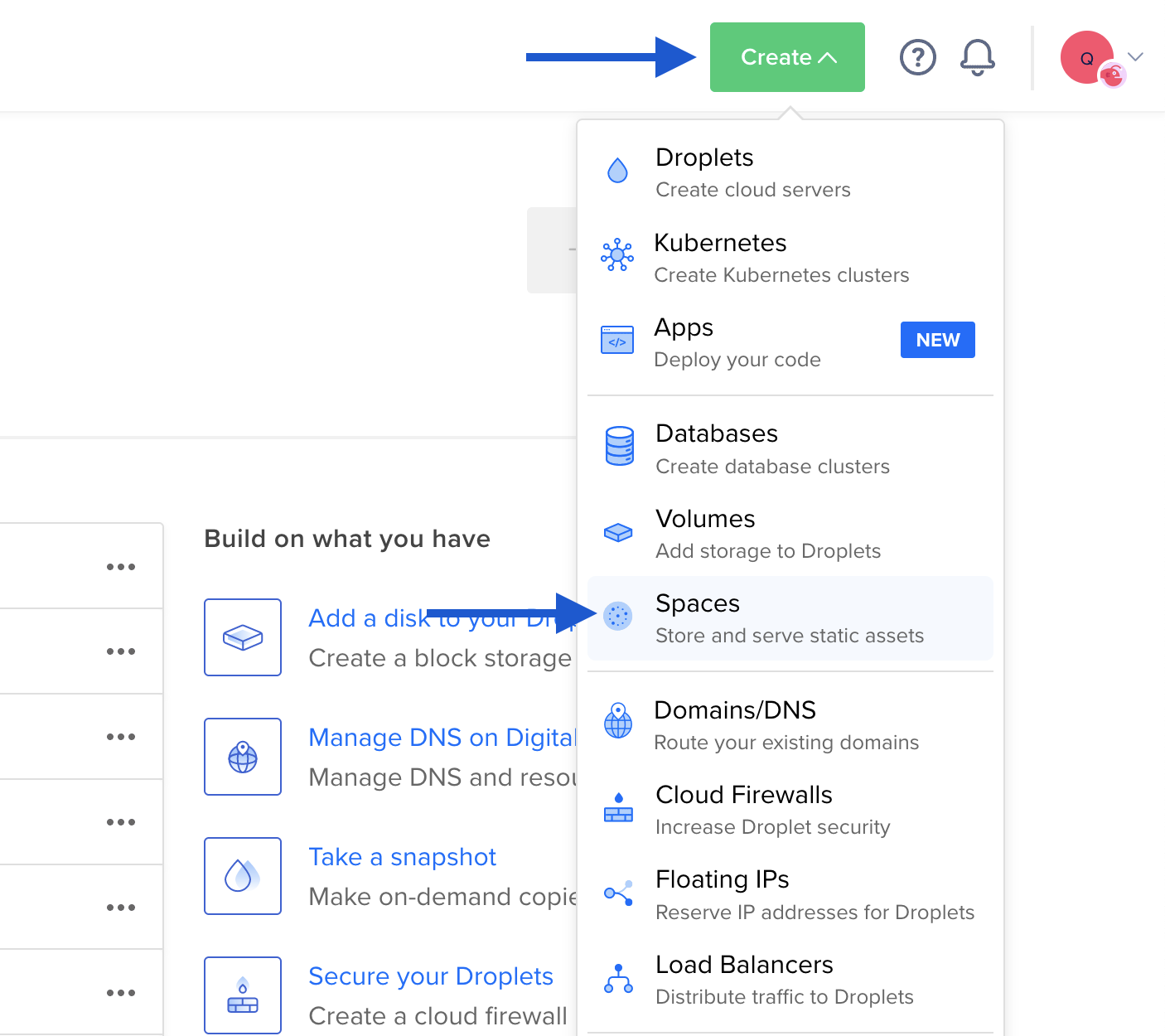
1. **Navigate to DO Console**
* Go to [DigitalOcean Spaces](https://cloud.digitalocean.com/spaces)
* Click **Create a Space**
2. **Create Space**
* Choose a datacenter region
* Configure CDN settings (optional)
* Set bucket name and permissions
3. **Configure Application**
* Use the AWS SDK in your application code
* Set up authentication via environment variables
**Node.js Example:**
```javascript theme={null}
const aws = require('aws-sdk');
const express = require('express');
const multer = require('multer');
const multerS3 = require('multer-s3');
const endpoint = new aws.Endpoint('s3.us-east-2.amazonaws.com');
const s3 = new aws.S3({ endpoint: endpoint });
const upload = multer({
storage: multerS3({
s3: s3,
bucket: 'your-bucket-here',
acl: 'public-read',
key: function (request, file, cb) {
console.log(file);
cb(null, file.originalname);
}
})
}).array('upload', 1);
```
**Required Environment Variables** (for secured access):
```bash theme={null}
AWS_ACCESS_KEY_ID=your_access_key_id
AWS_SECRET_ACCESS_KEY=your_secret_access_key
```
Add these environment variables in your Qovery application settings to securely authenticate with AWS S3.
***
### Digital Ocean Spaces
DigitalOcean Spaces provides S3-compatible object storage with predictable pricing.
**Setup Steps:**
1. **Navigate to DO Console**
* Go to [DigitalOcean Spaces](https://cloud.digitalocean.com/spaces)
* Click **Create a Space**
2. **Create Space**
* Choose a datacenter region
* Configure CDN settings (optional)
* Set bucket name and permissions
 3. **Configure Application**
* Use AWS S3-compatible SDK
* Set endpoint to DigitalOcean
**S3-Compatible Configuration:**
DigitalOcean Spaces maintains AWS S3 compatibility, enabling S3 client usage with the appropriate endpoint:
```
https://nyc3.digitaloceanspaces.com (for NYC3 region)
https://sfo3.digitaloceanspaces.com (for SFO3 region)
https://ams3.digitaloceanspaces.com (for AMS3 region)
```
**Required Environment Variables** (for private buckets):
```bash theme={null}
AWS_ACCESS_KEY_ID=your_spaces_access_key
AWS_SECRET_ACCESS_KEY=your_spaces_secret_key
```
Use the same AWS S3 SDK libraries - just change the endpoint to point to DigitalOcean Spaces.
***
### Scaleway Object Storage
Scaleway provides cost-effective European-based object storage.
**Setup Steps:**
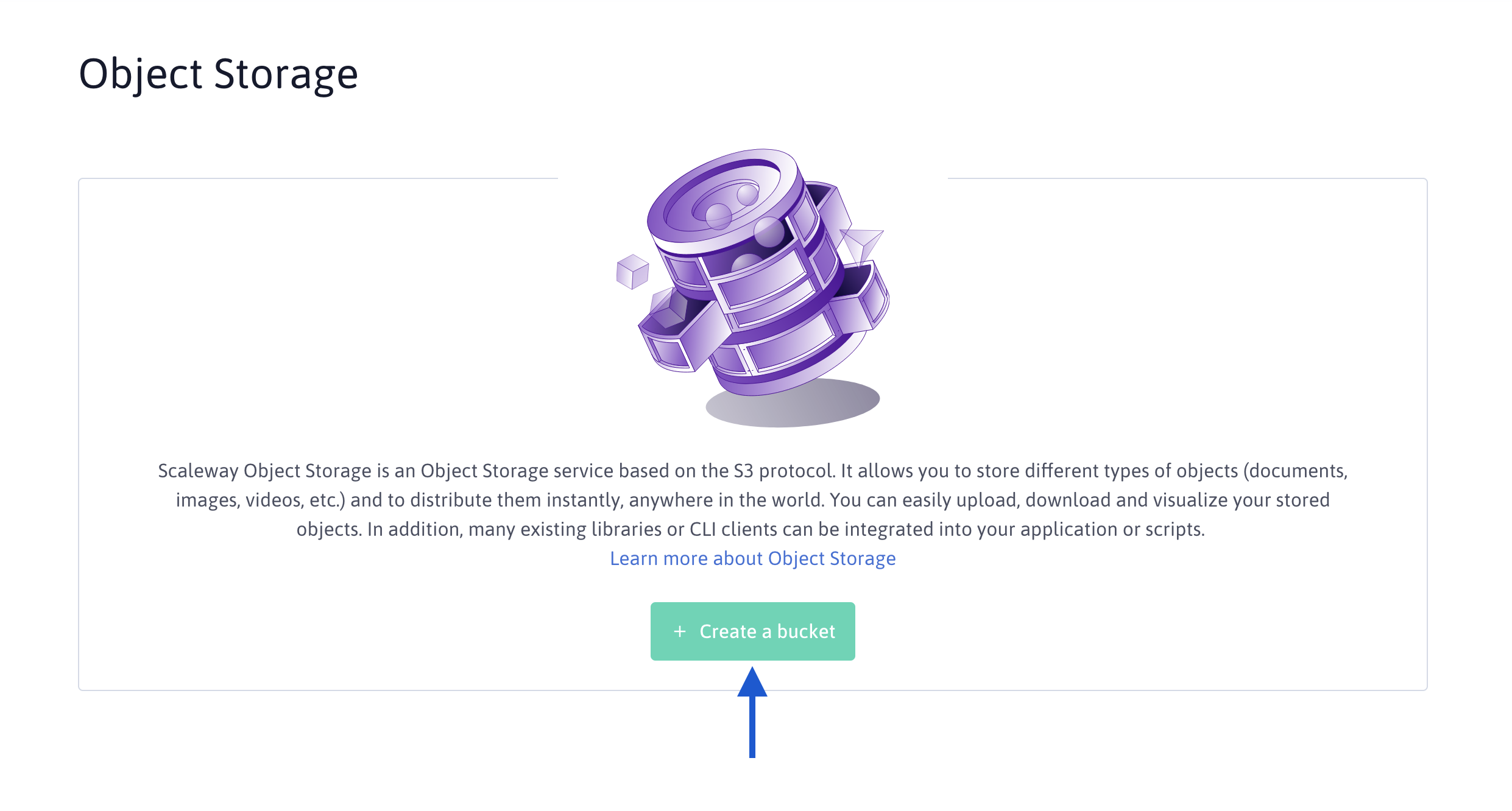
1. **Access Scaleway Console**
* Go to [Scaleway Object Storage](https://console.scaleway.com/object-storage/buckets)
* Click **Create a bucket**
2. **Create Bucket**
* Choose a region (Paris, Amsterdam, Warsaw)
* Configure bucket settings
* Set up access permissions
3. **Configure Application**
* Use AWS S3-compatible SDK
* Set endpoint to DigitalOcean
**S3-Compatible Configuration:**
DigitalOcean Spaces maintains AWS S3 compatibility, enabling S3 client usage with the appropriate endpoint:
```
https://nyc3.digitaloceanspaces.com (for NYC3 region)
https://sfo3.digitaloceanspaces.com (for SFO3 region)
https://ams3.digitaloceanspaces.com (for AMS3 region)
```
**Required Environment Variables** (for private buckets):
```bash theme={null}
AWS_ACCESS_KEY_ID=your_spaces_access_key
AWS_SECRET_ACCESS_KEY=your_spaces_secret_key
```
Use the same AWS S3 SDK libraries - just change the endpoint to point to DigitalOcean Spaces.
***
### Scaleway Object Storage
Scaleway provides cost-effective European-based object storage.
**Setup Steps:**
1. **Access Scaleway Console**
* Go to [Scaleway Object Storage](https://console.scaleway.com/object-storage/buckets)
* Click **Create a bucket**
2. **Create Bucket**
* Choose a region (Paris, Amsterdam, Warsaw)
* Configure bucket settings
* Set up access permissions
 3. **Configure Application**
* Use S3-compatible SDK
* Set endpoint to Scaleway region
**Endpoint Configuration:**
```
https://s3.fr-par.scw.cloud (Paris)
https://s3.nl-ams.scw.cloud (Amsterdam)
https://s3.pl-waw.scw.cloud (Warsaw)
```
**Required Environment Variables** (for private buckets):
```bash theme={null}
AWS_ACCESS_KEY_ID=your_scaleway_access_key
AWS_SECRET_ACCESS_KEY=your_scaleway_secret_key
```
Scaleway offers generous free tier allowances for object storage - perfect for testing and small projects.
***
## Next Steps
Once you've set up object storage:
Configure credentials securely
Deploy apps using object storage
3. **Configure Application**
* Use S3-compatible SDK
* Set endpoint to Scaleway region
**Endpoint Configuration:**
```
https://s3.fr-par.scw.cloud (Paris)
https://s3.nl-ams.scw.cloud (Amsterdam)
https://s3.pl-waw.scw.cloud (Warsaw)
```
**Required Environment Variables** (for private buckets):
```bash theme={null}
AWS_ACCESS_KEY_ID=your_scaleway_access_key
AWS_SECRET_ACCESS_KEY=your_scaleway_secret_key
```
Scaleway offers generous free tier allowances for object storage - perfect for testing and small projects.
***
## Next Steps
Once you've set up object storage:
Configure credentials securely
Deploy apps using object storage