> ## Documentation Index
> Fetch the complete documentation index at: https://www.qovery.com/docs/llms.txt
> Use this file to discover all available pages before exploring further.
# Slack Integration
> Get real-time deployment notifications and alerts in Slack
## Overview
The Slack integration enables automatic team notifications for two use cases:
* **Deployment notifications**: Get notified whenever changes occur within your applications (deployments, failures, etc.)
* **Alerting notifications**: Receive real-time alerts when your services trigger monitoring conditions (CPU, memory, errors, latency, etc.)
Choose your use case below. Steps 1 and 2 are common for both integrations.
Step 3 differs depending on your needs.
## Step 1: Create a Slack App
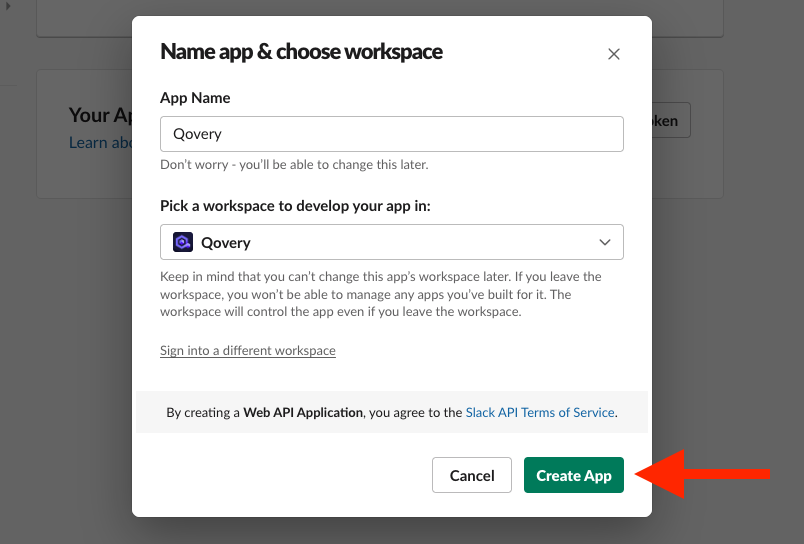
Navigate to the [Slack app creation page](https://api.slack.com/apps) and build a new application from scratch. The app should be named "Qovery" and connected to the desired workspace.


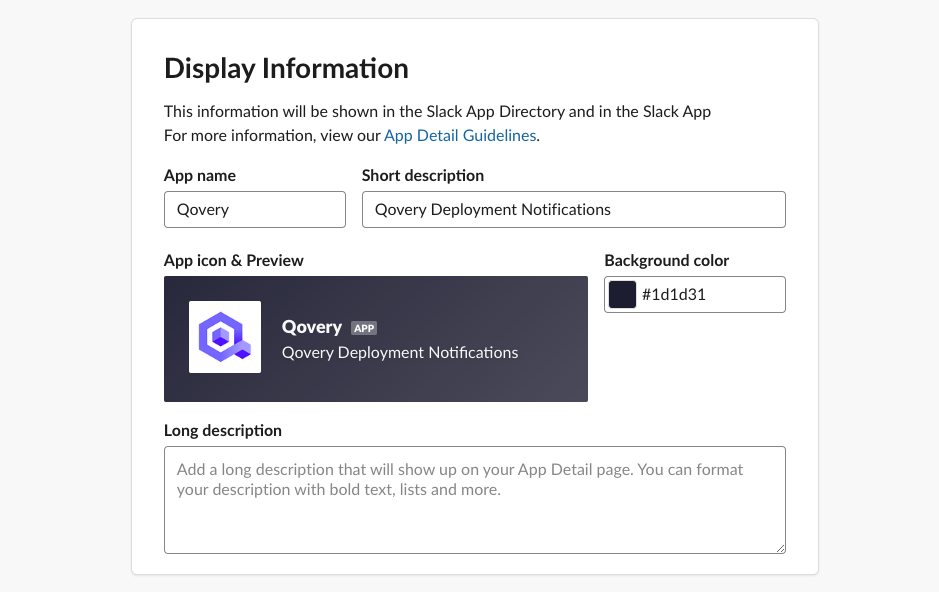
 You can customize your Slack app with an optional logo available from
[Qovery's public resources
repository](https://uploads-ssl.webflow.com/6046393ad41fc8c21e77d3d7/60c0dc4f7c3f2e3e6e2c3b5f_qovery-logo-square.png).
You can customize your Slack app with an optional logo available from
[Qovery's public resources
repository](https://uploads-ssl.webflow.com/6046393ad41fc8c21e77d3d7/60c0dc4f7c3f2e3e6e2c3b5f_qovery-logo-square.png).
 ## Step 2: Configure Incoming Webhooks
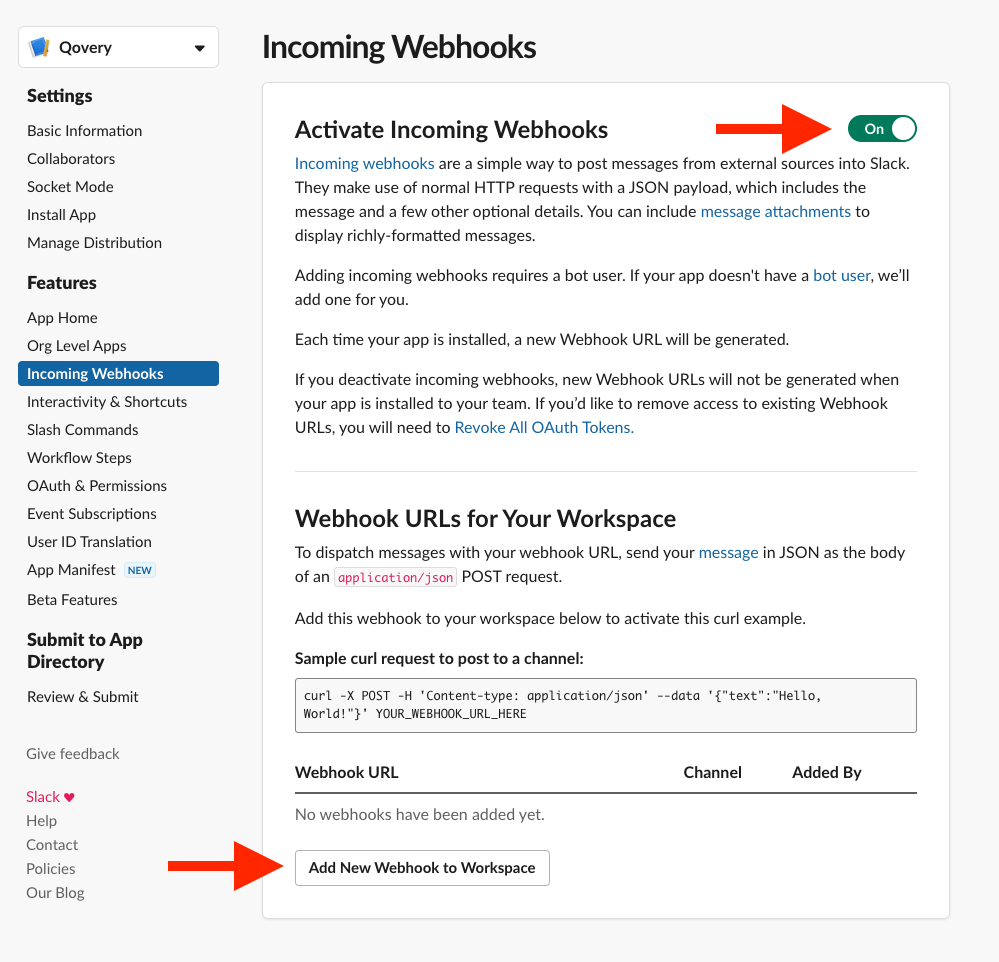
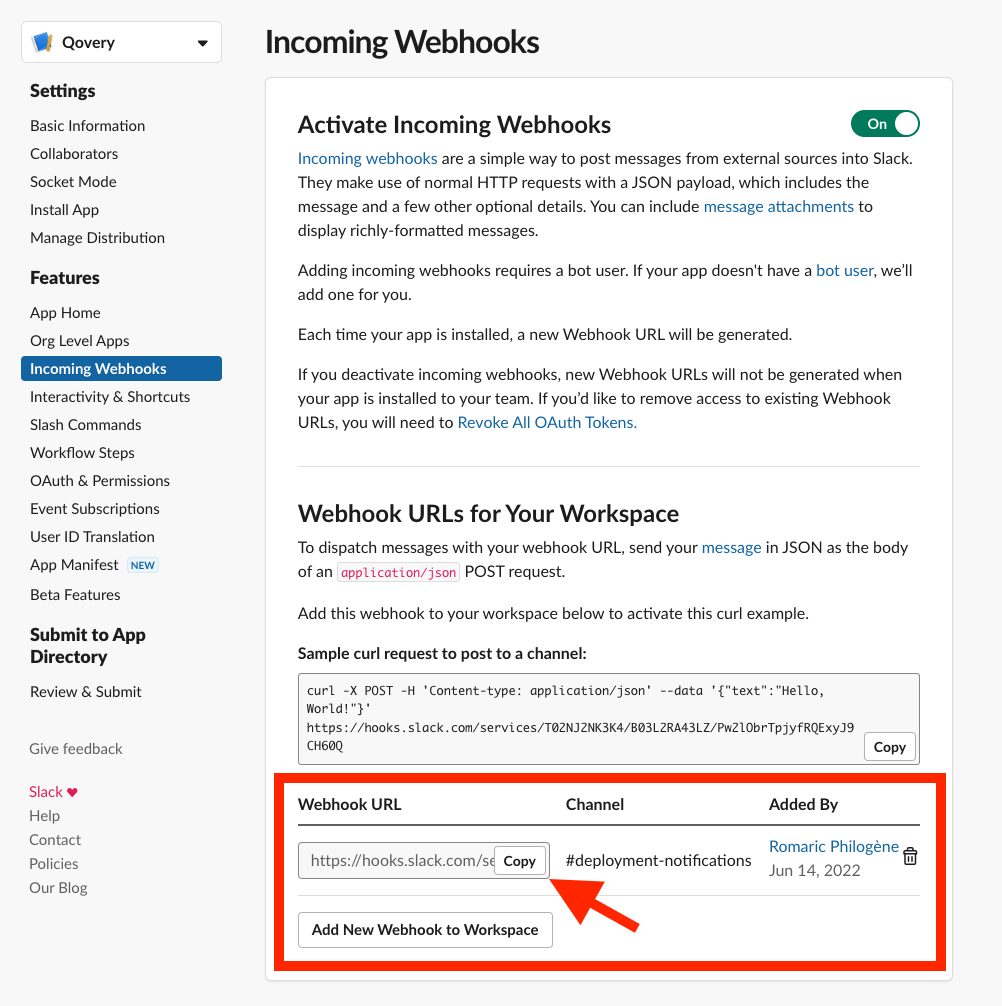
Activate the Incoming Webhooks feature within your app, then add a new webhook to your workspace. Select the target notification channel and copy the generated webhook URL.
## Step 2: Configure Incoming Webhooks
Activate the Incoming Webhooks feature within your app, then add a new webhook to your workspace. Select the target notification channel and copy the generated webhook URL.


 ## Step 3: Configure Slack in Qovery
Choose your use case:
### Configure Qovery Webhook
Reference the [webhook documentation](/docs/configuration/integrations/webhooks) to establish the connection within Qovery, using the copied Slack webhook URL as the endpoint.
Multiple webhooks can target different channels. Specific events can be filtered (e.g., `"events": ["DEPLOYMENT_FAILURE"]`). Webhooks are manageable and deletable anytime.
### Test the Integration
Launch a deployment to verify notifications appear in your designated Slack channel.
### Add Notification Channel
1. Navigate to the **Alerting** section in the Qovery Console navigation menu
2. Click on **Notification channel**
3. Click the **Add channel** button
4. In the **New channel** modal:
* **Display name**: Enter a descriptive name for this notification channel (e.g., "Production Alerts", "Team DevOps")
* **Webhook URL**: Paste the webhook URL you copied from Step 2
5. Click **Confirm creation**
## Step 3: Configure Slack in Qovery
Choose your use case:
### Configure Qovery Webhook
Reference the [webhook documentation](/docs/configuration/integrations/webhooks) to establish the connection within Qovery, using the copied Slack webhook URL as the endpoint.
Multiple webhooks can target different channels. Specific events can be filtered (e.g., `"events": ["DEPLOYMENT_FAILURE"]`). Webhooks are manageable and deletable anytime.
### Test the Integration
Launch a deployment to verify notifications appear in your designated Slack channel.
### Add Notification Channel
1. Navigate to the **Alerting** section in the Qovery Console navigation menu
2. Click on **Notification channel**
3. Click the **Add channel** button
4. In the **New channel** modal:
* **Display name**: Enter a descriptive name for this notification channel (e.g., "Production Alerts", "Team DevOps")
* **Webhook URL**: Paste the webhook URL you copied from Step 2
5. Click **Confirm creation**
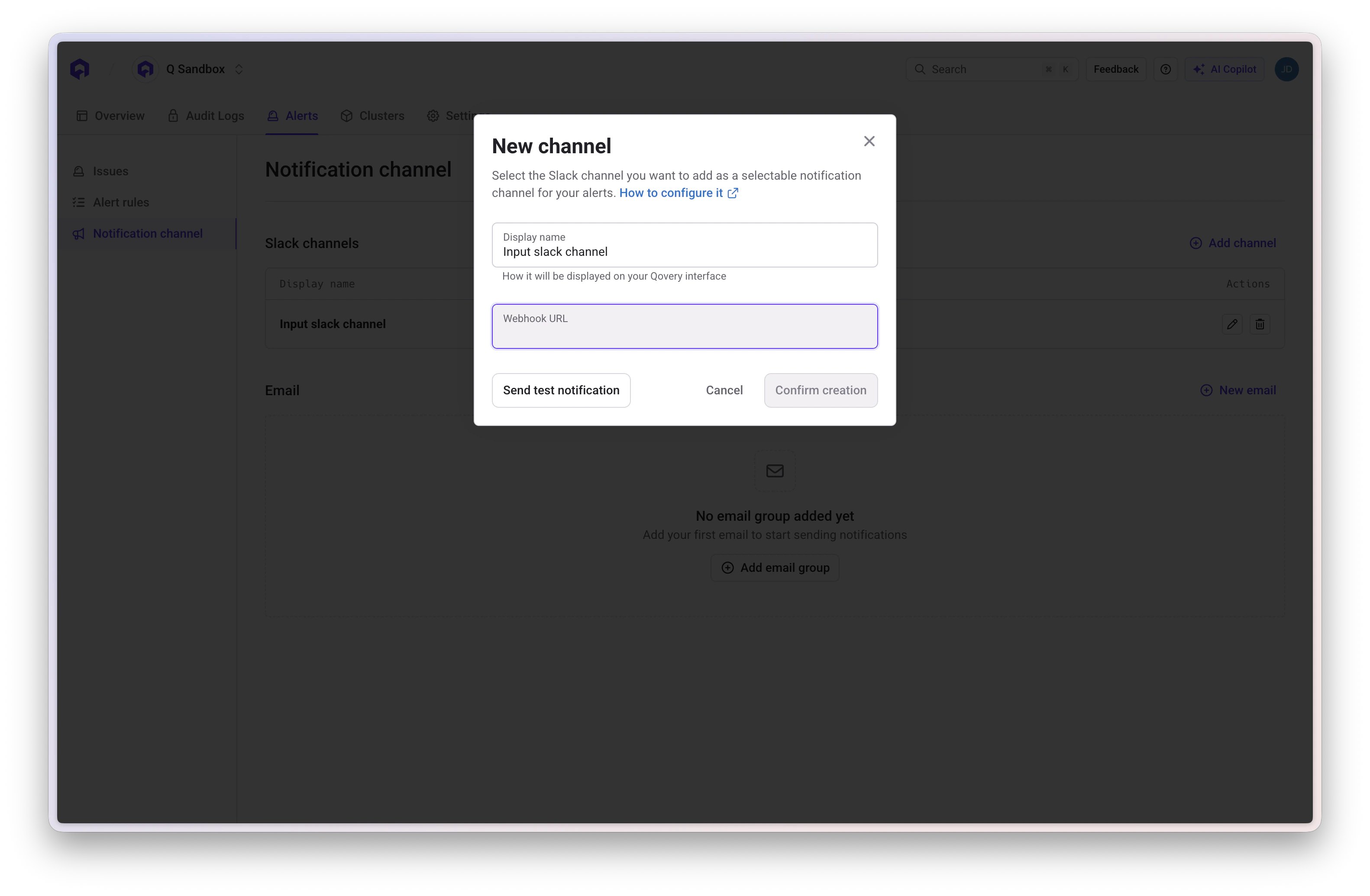 The display name is how this channel will appear when configuring alerts. Choose a clear name that indicates which Slack channel or team will receive these notifications.
### Test the Integration
Create a test alert with a low threshold to verify notifications appear in your designated Slack channel. See the [Alert Conditions guide](/docs/configuration/integrations/observability/qovery-observe#alerts) for details on creating alerts.
## Support
Existing customers can reach out via Pylon directly in the [Qovery console](https://console.qovery.com).
The display name is how this channel will appear when configuring alerts. Choose a clear name that indicates which Slack channel or team will receive these notifications.
### Test the Integration
Create a test alert with a low threshold to verify notifications appear in your designated Slack channel. See the [Alert Conditions guide](/docs/configuration/integrations/observability/qovery-observe#alerts) for details on creating alerts.
## Support
Existing customers can reach out via Pylon directly in the [Qovery console](https://console.qovery.com).