> ## Documentation Index
> Fetch the complete documentation index at: https://www.qovery.com/docs/llms.txt
> Use this file to discover all available pages before exploring further.
# Email Integration
> Receive real-time alerts via email when your services trigger monitoring conditions
## Overview
The Email integration enables you to receive real-time alerts when your services trigger monitoring conditions (CPU, memory, errors, latency, etc.). Configure SMTP settings to send alert notifications directly to your team's email addresses.
## Add Email Notification Channel
1. Navigate to the **Alerting** section in the Qovery Console navigation menu
2. Click on **Notification channel**
3. Click the **New email** button in the Email section
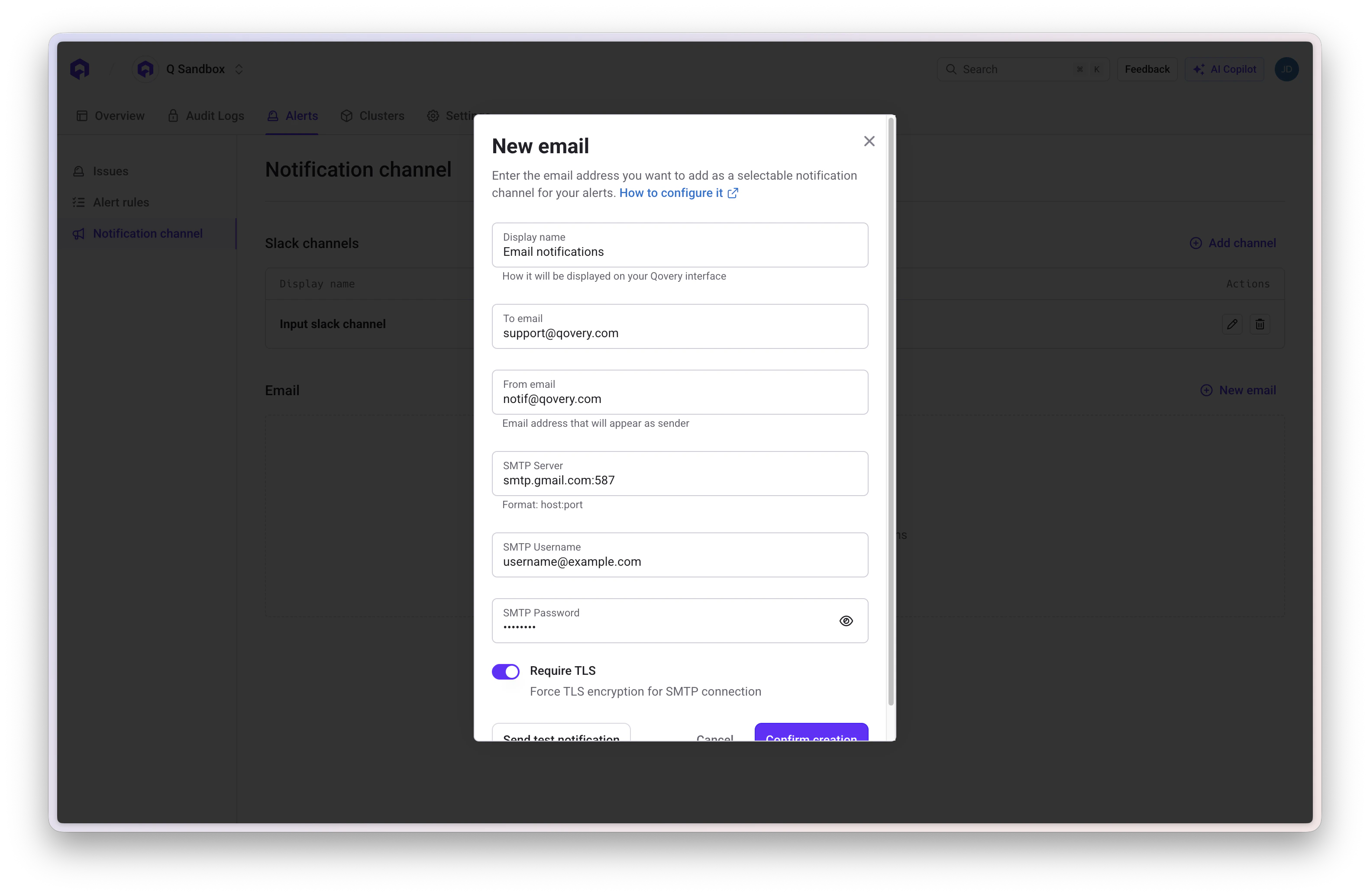
4. In the **New email** modal, configure the following fields:
### Required Fields
* **Display name**: Enter a descriptive name for this notification channel (e.g., "Production Alerts", "DevOps Team Email")
This name will be displayed on your Qovery interface
* **To email**: The recipient email address that will receive alert notifications (e.g., `user@example.com`)
* **From email**: The sender email address that will appear in the "From" field (e.g., `alerts@yourcompany.com`)
This email address will appear as the sender of alert notifications
### SMTP Configuration
Configure your SMTP server settings to send email notifications:
* **SMTP Server**: Your SMTP server address and port (e.g., `smtp.gmail.com:587`)
Format: `host:port`
* **SMTP Username**: The username for authenticating with your SMTP server (e.g., `username@example.com`)
* **SMTP Password**: The password for authenticating with your SMTP server
* **Require TLS**: Enable to force TLS encryption for the SMTP connection (recommended for security)
 For common SMTP providers:
* **Gmail**: `smtp.gmail.com:587` with TLS enabled (requires app-specific password)
* **Office 365**: `smtp.office365.com:587` with TLS enabled
* **SendGrid**: `smtp.sendgrid.net:587` with TLS enabled
* **Amazon SES**: `email-smtp.region.amazonaws.com:587` with TLS enabled
5. Click **Send test notification** to verify your SMTP configuration is working correctly
The test email may take a few minutes to arrive depending on your email provider. Check your inbox and spam folder.
6. Click **Confirm creation** to save the email notification channel
## Test the Integration
Create a test alert with a low threshold to verify notifications are sent to your designated email address. See the [Alert Conditions guide](/docs/configuration/integrations/observability/qovery-observe#alerts) for details on creating alerts.
## Troubleshooting
If you're not receiving emails, check the following:
* Verify your SMTP credentials are correct
* Ensure your SMTP server allows connections from Qovery's IP addresses
* Check if your email provider requires app-specific passwords (e.g., Gmail with 2FA enabled)
* Verify the "From email" address is authorized to send through your SMTP server
* Check your spam/junk folder for test notifications
* Enable TLS if your SMTP provider requires encrypted connections
## Support
Existing customers can reach out via Pylon directly in the [Qovery console](https://console.qovery.com).
For common SMTP providers:
* **Gmail**: `smtp.gmail.com:587` with TLS enabled (requires app-specific password)
* **Office 365**: `smtp.office365.com:587` with TLS enabled
* **SendGrid**: `smtp.sendgrid.net:587` with TLS enabled
* **Amazon SES**: `email-smtp.region.amazonaws.com:587` with TLS enabled
5. Click **Send test notification** to verify your SMTP configuration is working correctly
The test email may take a few minutes to arrive depending on your email provider. Check your inbox and spam folder.
6. Click **Confirm creation** to save the email notification channel
## Test the Integration
Create a test alert with a low threshold to verify notifications are sent to your designated email address. See the [Alert Conditions guide](/docs/configuration/integrations/observability/qovery-observe#alerts) for details on creating alerts.
## Troubleshooting
If you're not receiving emails, check the following:
* Verify your SMTP credentials are correct
* Ensure your SMTP server allows connections from Qovery's IP addresses
* Check if your email provider requires app-specific passwords (e.g., Gmail with 2FA enabled)
* Verify the "From email" address is authorized to send through your SMTP server
* Check your spam/junk folder for test notifications
* Enable TLS if your SMTP provider requires encrypted connections
## Support
Existing customers can reach out via Pylon directly in the [Qovery console](https://console.qovery.com).