> ## Documentation Index
> Fetch the complete documentation index at: https://www.qovery.com/docs/llms.txt
> Use this file to discover all available pages before exploring further.
# API Gateway with NGINX
> How to connect an API gateway in front of multiple services using NGINX
## Overview
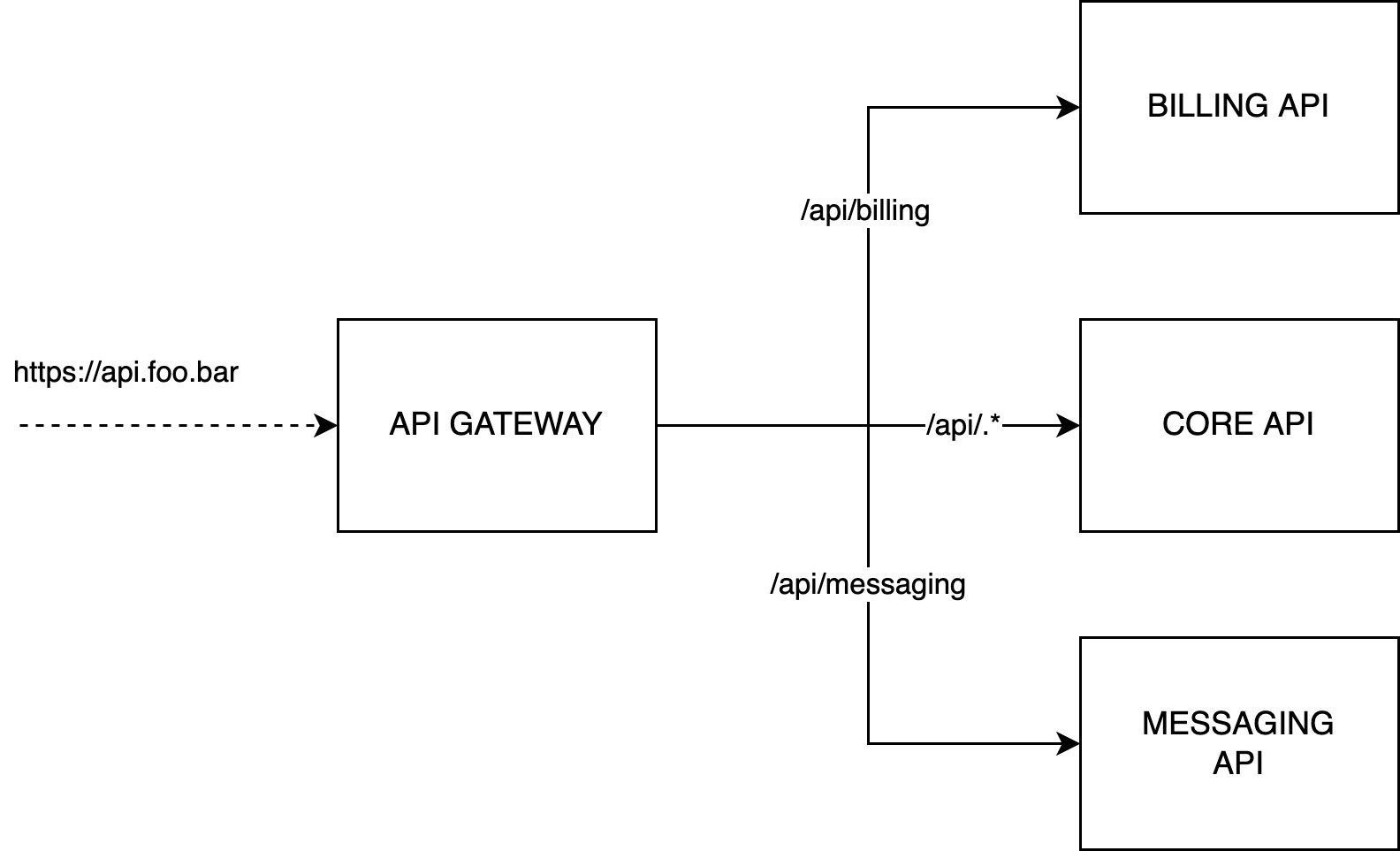
This guide shows you how to connect an API gateway in front of 3 different applications using NGINX, a lightweight web server capable of handling thousands of requests per second.
 ## Prerequisites
* At least one application created in Qovery
* Ideally three applications (billing API, core API, messaging API), though one application is sufficient to follow this tutorial
## Step 1: Clone API Gateway Template
Fork the NGINX gateway repository:
```
https://github.com/Qovery/nginx-gateway
```
The project includes two configuration files that you'll need to modify for your setup.
## Step 2: Edit Configuration Files
### routes.conf.template
The routing configuration directs incoming traffic to the appropriate backend services:
```nginx theme={null}
location ~* ^/api/billing/?(.*)$ {
proxy_pass http://$BILLING_BACKEND$request_uri;
}
location ~* ^/api/messaging/?(.*)$ {
proxy_pass http://$MESSAGING_BACKEND$request_uri;
}
location ~* ^/api/(.*)$ {
proxy_pass http://$CORE_BACKEND$request_uri;
}
location ~* ^/?(.*)$ {
proxy_pass http://$CORE_BACKEND$request_uri;
}
```
**Important Notes:**
* Rules apply sequentially - the first match wins
* Internal network uses HTTP protocol
* External connections use HTTPS
* Complex path patterns are supported
**Example of an Advanced Rule:**
```nginx theme={null}
location ~* ^/api/v1/user/(.*)/app/(.*)/index/(.*)/search/?(.*)$ {
proxy_pass http://$CORE_BACKEND/api/v1/user/$1/app/$2/index/$3/search/$4$is_args$args;
}
```
## Step 3: Create API Gateway App in Qovery
Create a new application in Qovery with the following settings:
* **Build mode**: Dockerfile
* **Port**: 80
## Step 4: Configure Environment Variables
Create three environment variable aliases with **ENVIRONMENT** scope:
| Built-in Variable | Alias Name |
| ------------------- | ------------------- |
| `XXX_HOST_INTERNAL` | `BILLING_BACKEND` |
| `YYY_HOST_INTERNAL` | `MESSAGING_BACKEND` |
| `ZZZ_HOST_INTERNAL` | `CORE_BACKEND` |
### Finding the Correct Environment Variables
To find the right environment variable for each service:
1. Access the target application in the Qovery Console
2. Extract the application ID from the URL:
```
https://console.qovery.com/platform/organization/xxx/projects/yyy/environments/zzz/applications/082e36c4-7fbb-42b2-9046-37ccce21616a
```
3. Take the first segment of the ID: `082e36c4`
4. Prepend 'Z': `Z082e36c4`
5. Search for environment variables containing this prefix
The environment variable with this prefix and suffix `_HOST_INTERNAL` is the one you need to use.
## Step 5: Set Up Custom Domain
Add a custom domain to expose the gateway with your chosen domain name.
Navigate to your API gateway application settings and configure your custom domain.
## Step 6: Deploy
1. Commit your changes to the `routes.conf.template` file
2. Push to your repository
3. Deploy the application from the Qovery Console
Your API gateway is now ready to route traffic to your backend services!
## Next Steps
View the template repository with example configurations
Learn more about configuring applications on Qovery
Detailed guide on managing environment variables
Configure custom domains for your applications
## Prerequisites
* At least one application created in Qovery
* Ideally three applications (billing API, core API, messaging API), though one application is sufficient to follow this tutorial
## Step 1: Clone API Gateway Template
Fork the NGINX gateway repository:
```
https://github.com/Qovery/nginx-gateway
```
The project includes two configuration files that you'll need to modify for your setup.
## Step 2: Edit Configuration Files
### routes.conf.template
The routing configuration directs incoming traffic to the appropriate backend services:
```nginx theme={null}
location ~* ^/api/billing/?(.*)$ {
proxy_pass http://$BILLING_BACKEND$request_uri;
}
location ~* ^/api/messaging/?(.*)$ {
proxy_pass http://$MESSAGING_BACKEND$request_uri;
}
location ~* ^/api/(.*)$ {
proxy_pass http://$CORE_BACKEND$request_uri;
}
location ~* ^/?(.*)$ {
proxy_pass http://$CORE_BACKEND$request_uri;
}
```
**Important Notes:**
* Rules apply sequentially - the first match wins
* Internal network uses HTTP protocol
* External connections use HTTPS
* Complex path patterns are supported
**Example of an Advanced Rule:**
```nginx theme={null}
location ~* ^/api/v1/user/(.*)/app/(.*)/index/(.*)/search/?(.*)$ {
proxy_pass http://$CORE_BACKEND/api/v1/user/$1/app/$2/index/$3/search/$4$is_args$args;
}
```
## Step 3: Create API Gateway App in Qovery
Create a new application in Qovery with the following settings:
* **Build mode**: Dockerfile
* **Port**: 80
## Step 4: Configure Environment Variables
Create three environment variable aliases with **ENVIRONMENT** scope:
| Built-in Variable | Alias Name |
| ------------------- | ------------------- |
| `XXX_HOST_INTERNAL` | `BILLING_BACKEND` |
| `YYY_HOST_INTERNAL` | `MESSAGING_BACKEND` |
| `ZZZ_HOST_INTERNAL` | `CORE_BACKEND` |
### Finding the Correct Environment Variables
To find the right environment variable for each service:
1. Access the target application in the Qovery Console
2. Extract the application ID from the URL:
```
https://console.qovery.com/platform/organization/xxx/projects/yyy/environments/zzz/applications/082e36c4-7fbb-42b2-9046-37ccce21616a
```
3. Take the first segment of the ID: `082e36c4`
4. Prepend 'Z': `Z082e36c4`
5. Search for environment variables containing this prefix
The environment variable with this prefix and suffix `_HOST_INTERNAL` is the one you need to use.
## Step 5: Set Up Custom Domain
Add a custom domain to expose the gateway with your chosen domain name.
Navigate to your API gateway application settings and configure your custom domain.
## Step 6: Deploy
1. Commit your changes to the `routes.conf.template` file
2. Push to your repository
3. Deploy the application from the Qovery Console
Your API gateway is now ready to route traffic to your backend services!
## Next Steps
View the template repository with example configurations
Learn more about configuring applications on Qovery
Detailed guide on managing environment variables
Configure custom domains for your applications