> ## Documentation Index
> Fetch the complete documentation index at: https://www.qovery.com/docs/llms.txt
> Use this file to discover all available pages before exploring further.
# Running and Deployment Statuses
> Monitor your services and deployments
Qovery allows you to track the status of your environments and services through the Qovery Console.
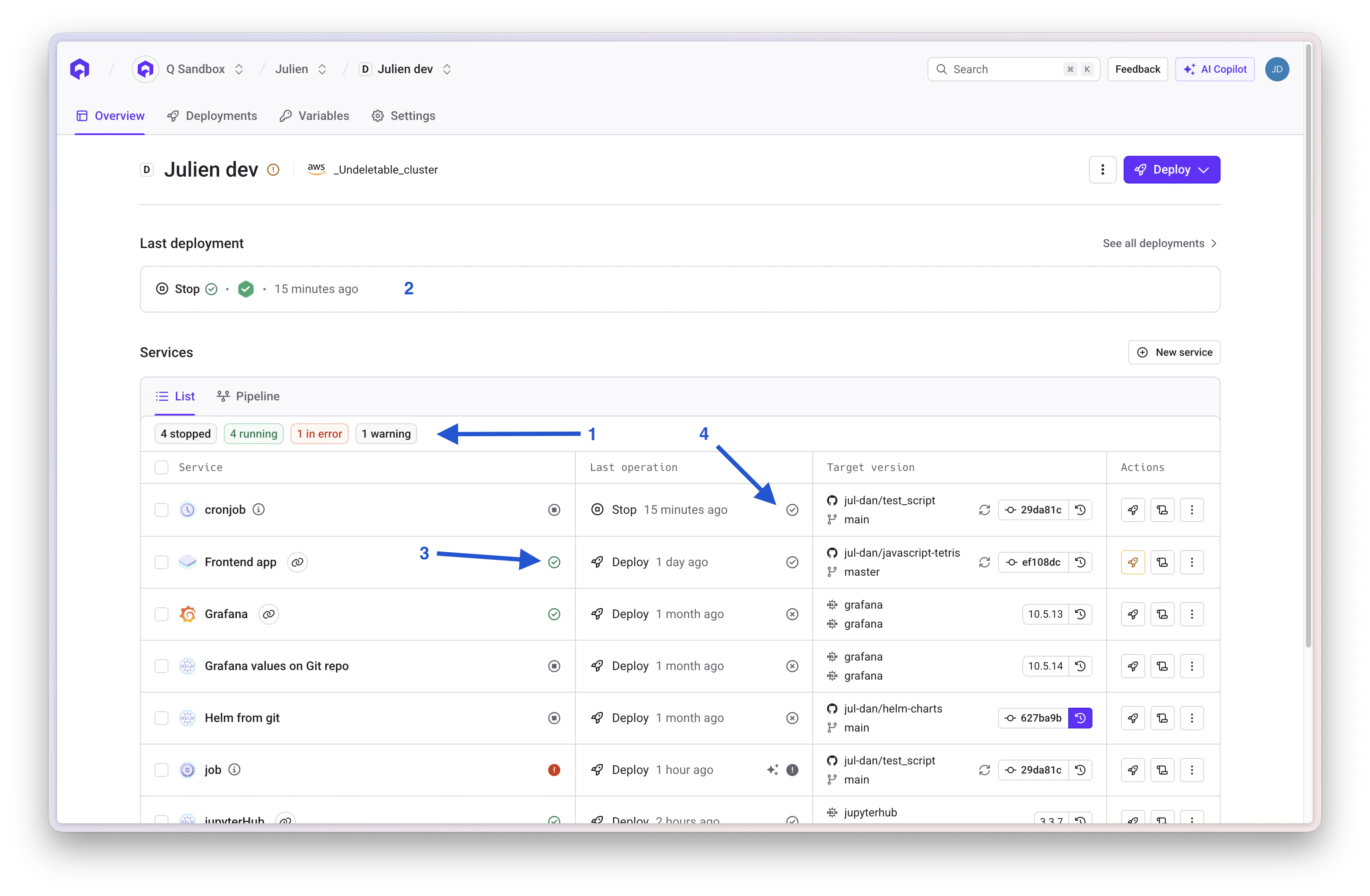 The image above shows the different status indicators available in the Qovery Console:
1. **Environment running status** — A summary of the running status of all services in the environment
2. **Environment last deployment status** — The result of the last deployment triggered on the environment
3. **Service running status** — The running status of each individual service
4. **Service last deployment status** — The result of the last deployment for each individual service
## Running Statuses
The running status indicates if your application is running correctly or not.
### Environment Running Statuses
The environment status is computed from all the services running in the environment:
* **STOPPED**: All services are stopped
* **STARTING**: At least one service is starting
* **STOPPING**: At least one service is stopping
* **RUNNING**: All services are running correctly
* **ERROR**: All services are in error status
* **WARNING**: At least one service is in error status (but not all)
### Service Running Statuses
The service status indicates if the application instances are running correctly:
* **STOPPED**: All instances are stopped
* **STARTING**: At least one instance is starting
* **STOPPING**: At least one instance is stopping
* **RUNNING**: All instances are running correctly
* **ERROR**: All instances are in error status
* **WARNING**: For applications running several instances, at least one instance is in error status (but not all)
* **COMPLETED**: For lifecycle jobs and cron jobs, the job has been executed successfully
### Pod Status
You can view the status of individual Kubernetes pods by clicking on a service in the Service overview page. This shows:
* The number of running instances
* The status of each individual pod
* Error details for pods that are failing
Clicking on a problematic pod will show you the specific reason why it's failing.
## Deployment Statuses
The deployment status indicates the progress of the deployment operation (build and release).
### Deployment Statuses Flow
The deployment follows these statuses:
**Temporary statuses:**
* **QUEUED**: The deployment request is in the queue
* **BUILDING**: The code is being built into a container image (for Git deployments)
* **DEPLOYING**: The container is being deployed to Kubernetes
* **CANCELING**: The build is being cancelled
* **CANCELED**: The deployment has been cancelled
**Final statuses:**
* **BUILD\_ERROR**: The build failed
* **DEPLOYMENT ERROR**: The deployment to Kubernetes failed
* **DEPLOYED**: The deployment was successful
* **SKIPPED**: The service was excluded from the deployment because it is marked as [skipped](/docs/configuration/deployment/pipeline#skipped-services) in the deployment pipeline
### Important Note
Just because an error arose during deployment does not mean your application is not running. The deployment status and the running status are two different things.
For example, if a deployment fails but you already have a previous version running, your application will continue running with the old version. The deployment status will show "DEPLOYMENT ERROR" while the running status may show "RUNNING".
This is why it's important to monitor both the deployment status and the running status to have a complete picture of your application's state.
## Next Steps
Access deployment logs
Control your deployments
Review past deployments
Configure deployment stages
The image above shows the different status indicators available in the Qovery Console:
1. **Environment running status** — A summary of the running status of all services in the environment
2. **Environment last deployment status** — The result of the last deployment triggered on the environment
3. **Service running status** — The running status of each individual service
4. **Service last deployment status** — The result of the last deployment for each individual service
## Running Statuses
The running status indicates if your application is running correctly or not.
### Environment Running Statuses
The environment status is computed from all the services running in the environment:
* **STOPPED**: All services are stopped
* **STARTING**: At least one service is starting
* **STOPPING**: At least one service is stopping
* **RUNNING**: All services are running correctly
* **ERROR**: All services are in error status
* **WARNING**: At least one service is in error status (but not all)
### Service Running Statuses
The service status indicates if the application instances are running correctly:
* **STOPPED**: All instances are stopped
* **STARTING**: At least one instance is starting
* **STOPPING**: At least one instance is stopping
* **RUNNING**: All instances are running correctly
* **ERROR**: All instances are in error status
* **WARNING**: For applications running several instances, at least one instance is in error status (but not all)
* **COMPLETED**: For lifecycle jobs and cron jobs, the job has been executed successfully
### Pod Status
You can view the status of individual Kubernetes pods by clicking on a service in the Service overview page. This shows:
* The number of running instances
* The status of each individual pod
* Error details for pods that are failing
Clicking on a problematic pod will show you the specific reason why it's failing.
## Deployment Statuses
The deployment status indicates the progress of the deployment operation (build and release).
### Deployment Statuses Flow
The deployment follows these statuses:
**Temporary statuses:**
* **QUEUED**: The deployment request is in the queue
* **BUILDING**: The code is being built into a container image (for Git deployments)
* **DEPLOYING**: The container is being deployed to Kubernetes
* **CANCELING**: The build is being cancelled
* **CANCELED**: The deployment has been cancelled
**Final statuses:**
* **BUILD\_ERROR**: The build failed
* **DEPLOYMENT ERROR**: The deployment to Kubernetes failed
* **DEPLOYED**: The deployment was successful
* **SKIPPED**: The service was excluded from the deployment because it is marked as [skipped](/docs/configuration/deployment/pipeline#skipped-services) in the deployment pipeline
### Important Note
Just because an error arose during deployment does not mean your application is not running. The deployment status and the running status are two different things.
For example, if a deployment fails but you already have a previous version running, your application will continue running with the old version. The deployment status will show "DEPLOYMENT ERROR" while the running status may show "RUNNING".
This is why it's important to monitor both the deployment status and the running status to have a complete picture of your application's state.
## Next Steps
Access deployment logs
Control your deployments
Review past deployments
Configure deployment stages